Two Teams Settings to Stay Green and Hide Read Receipts.
Two Microsoft Teams settings most people never touch. The first keeps your status set for as long as you choose, so you stop wiggling your mouse to stay green. The second turns off read receipts, so you reply when you're ready, not the second someone sees you opened their message.
What you need: Microsoft Teams (new Teams on desktop). Takes about a minute.
Click Your Profile Picture, Then Your Status
Click your profile picture in the top right, then click your current status.
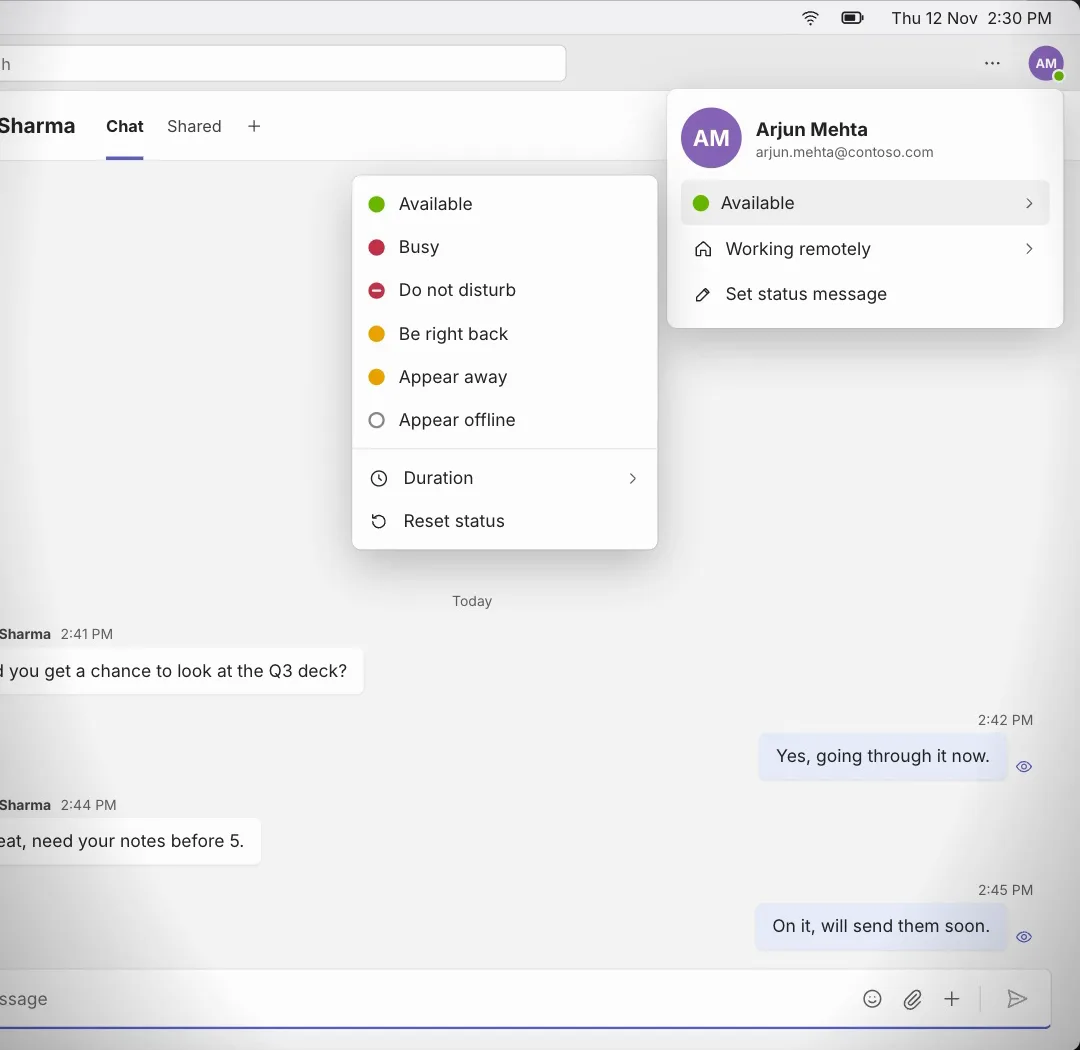
Open Duration
At the bottom of the status list, click Duration.
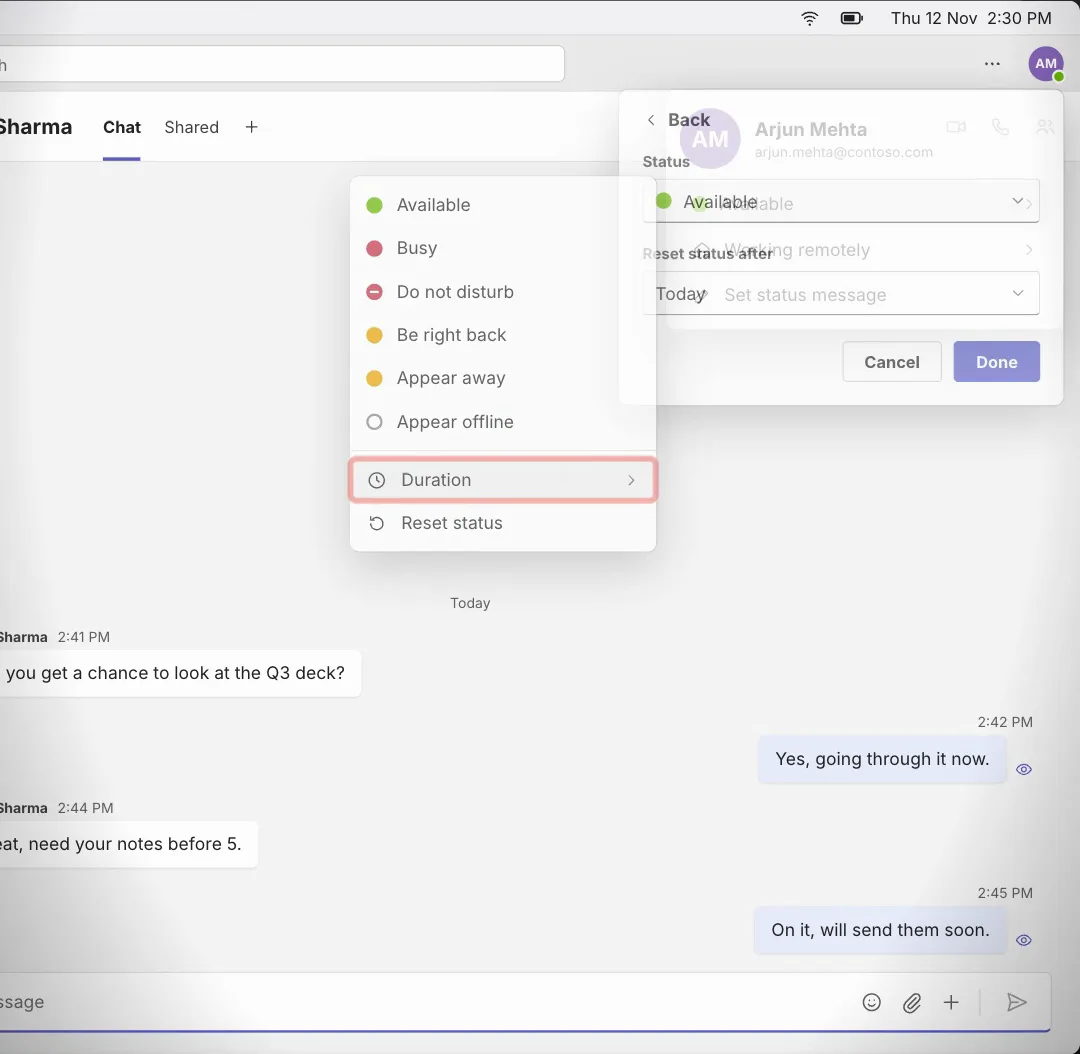
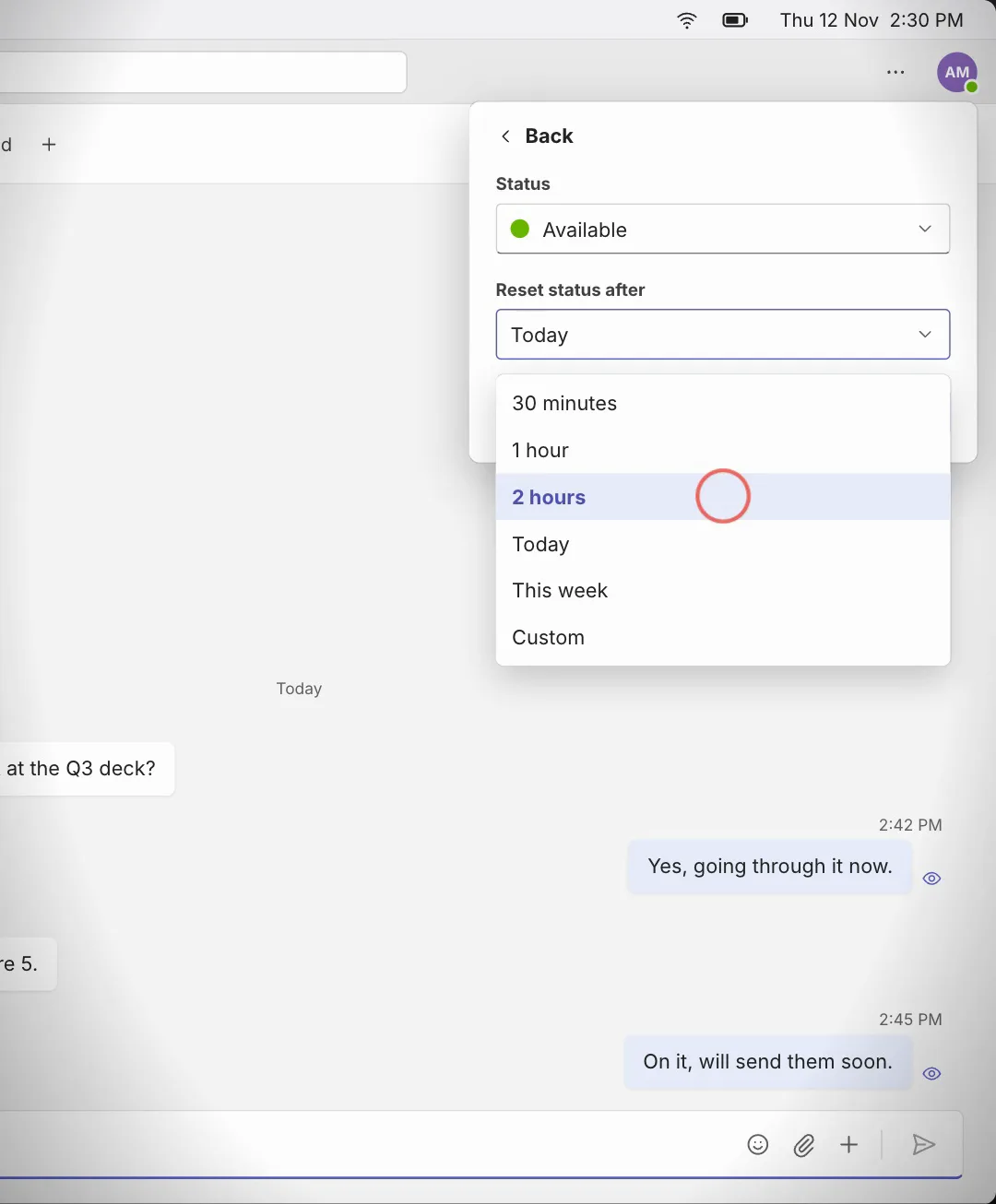
Pick A Status And How Long To Keep It
Choose the status you want, then pick how long to keep it from the Reset status after list. I set mine to Available for 2 hours. You stay green for those 2 hours.
Open Settings
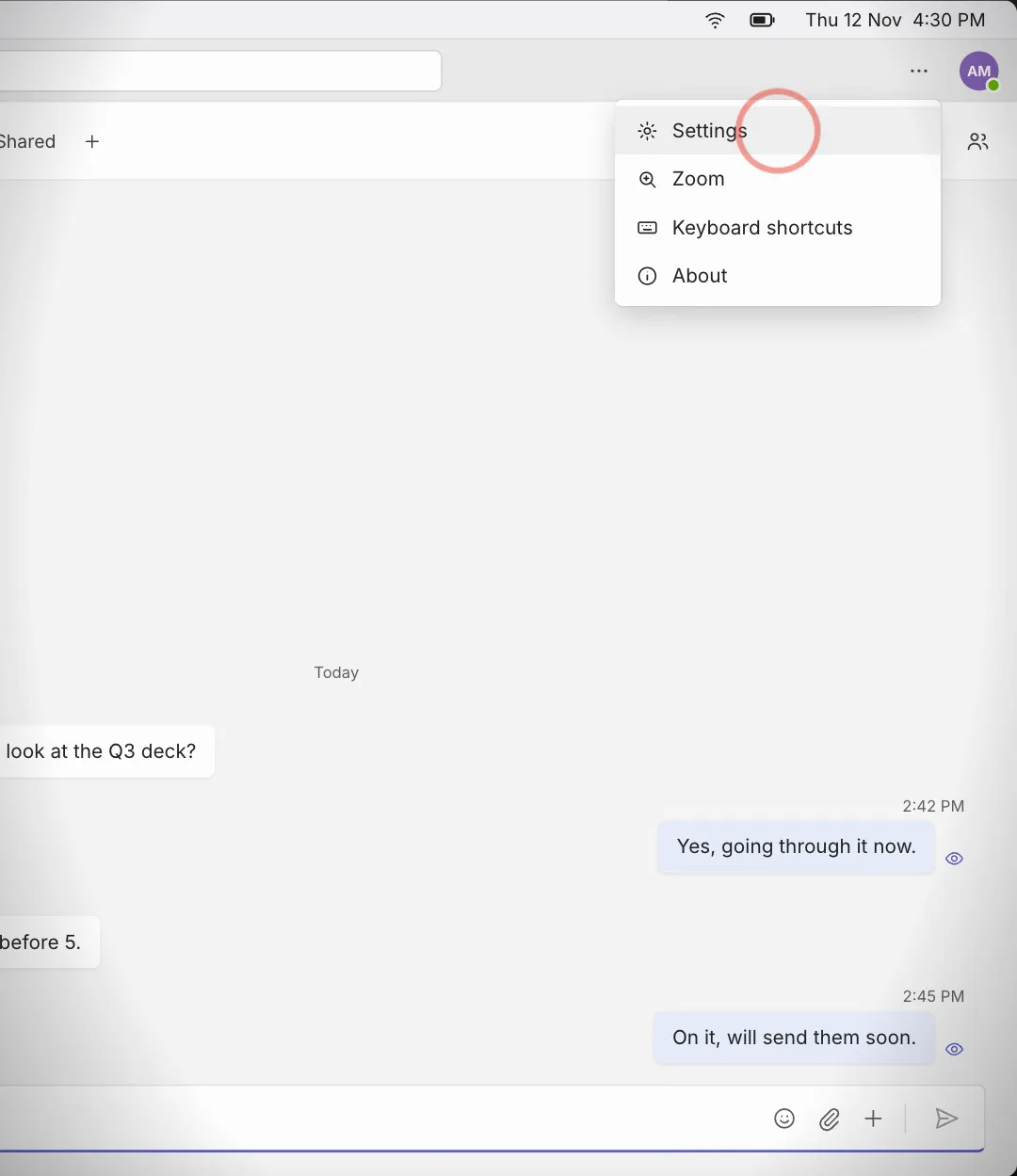
Now for the second one. Click the … next to your profile picture and go to Settings.
Go To Chats And Channels
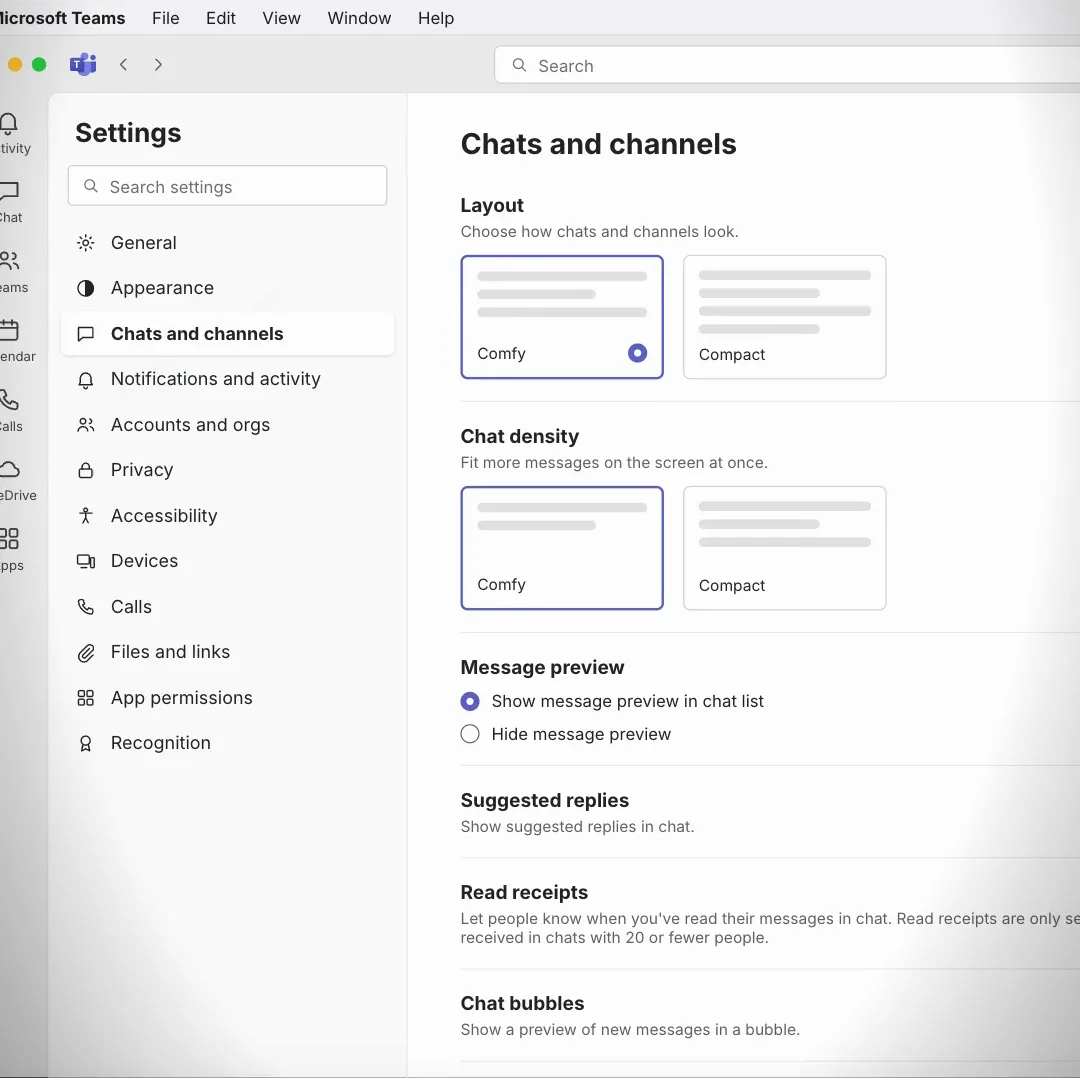
In Settings, click Chats and channels.
Switch Off Read Receipts
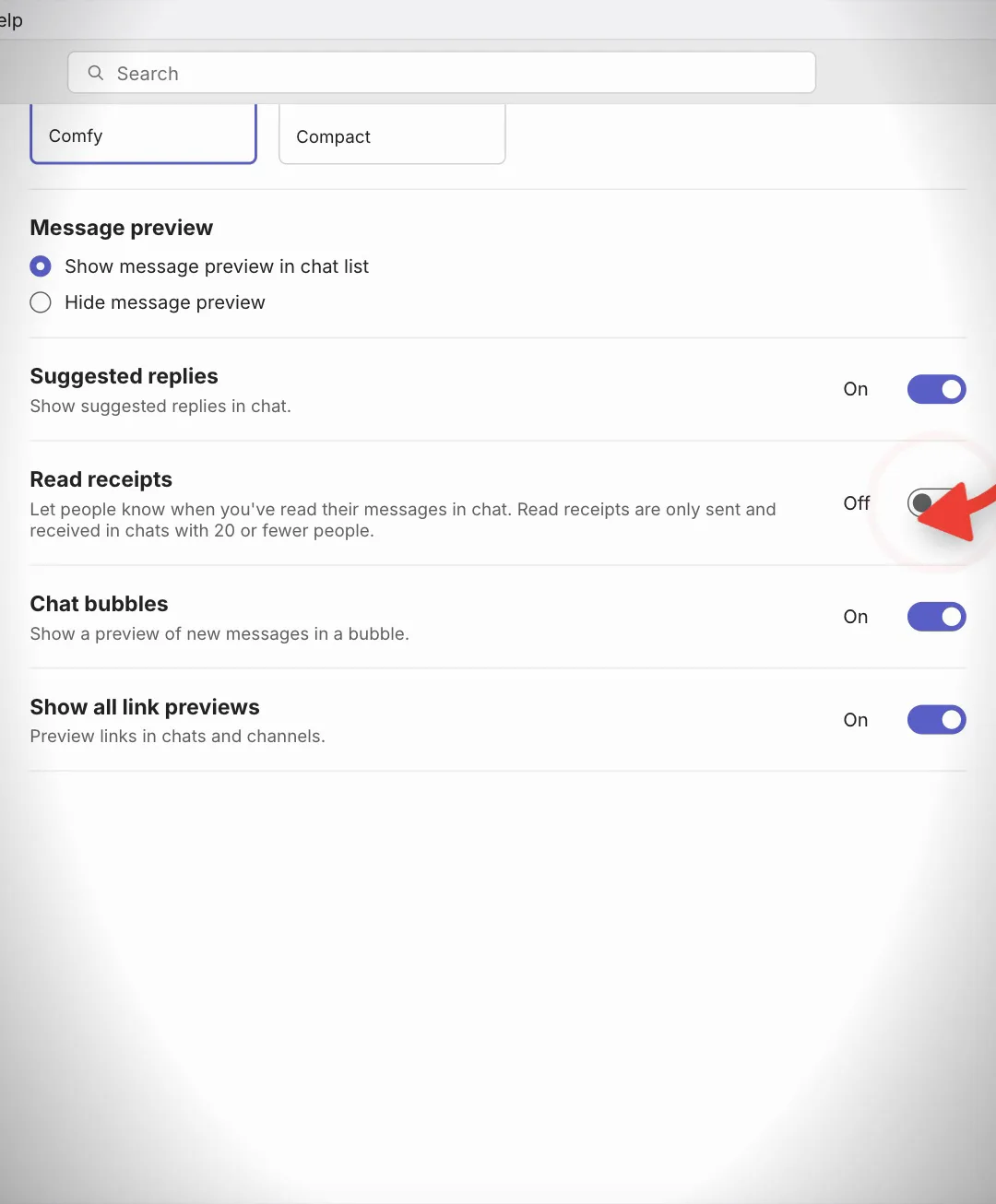
Scroll down to Read receipts and switch it off. The little eye next to your messages is gone, and nobody can see when you've read theirs.
Worth knowing
- Read receipts work both ways. Turn yours off and you won't see when others read your messages either.
- Your IT admin can lock read receipts on for everyone. If the toggle is greyed out, that's why.
- The status duration resets on its own when the time runs out, so pick a length that matches your day.
FAQ
Will people still see the eye when I read their message?
Not once read receipts are off. Nobody can see when you've read their message.
Can I still see when other people read my messages?
No. Read receipts work both ways, so turning yours off hides theirs too.
What happens when the duration ends?
Teams goes back to setting your status from your activity, like normal.
The read receipts toggle is greyed out. Why?
Your company controls it. Your Teams admin has set read receipts to always on.