Turn On Focus Cell in Excel to Never Lose Your Place.
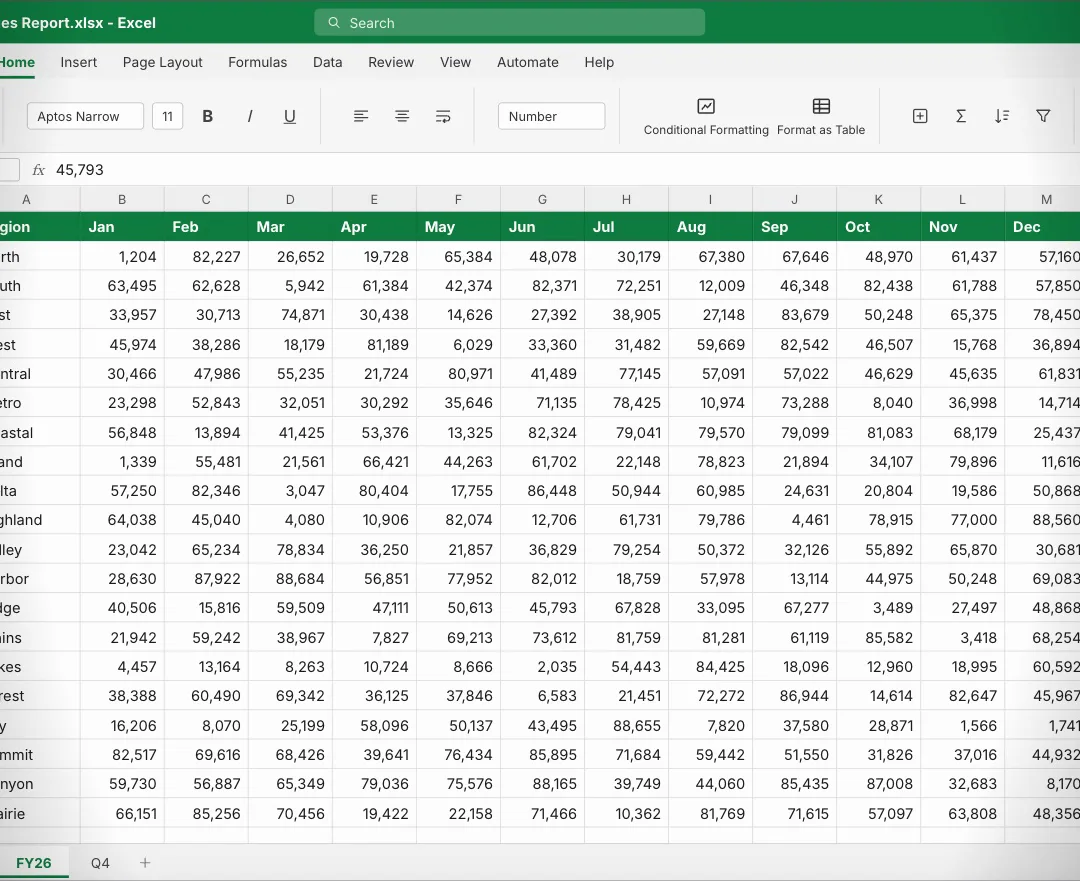
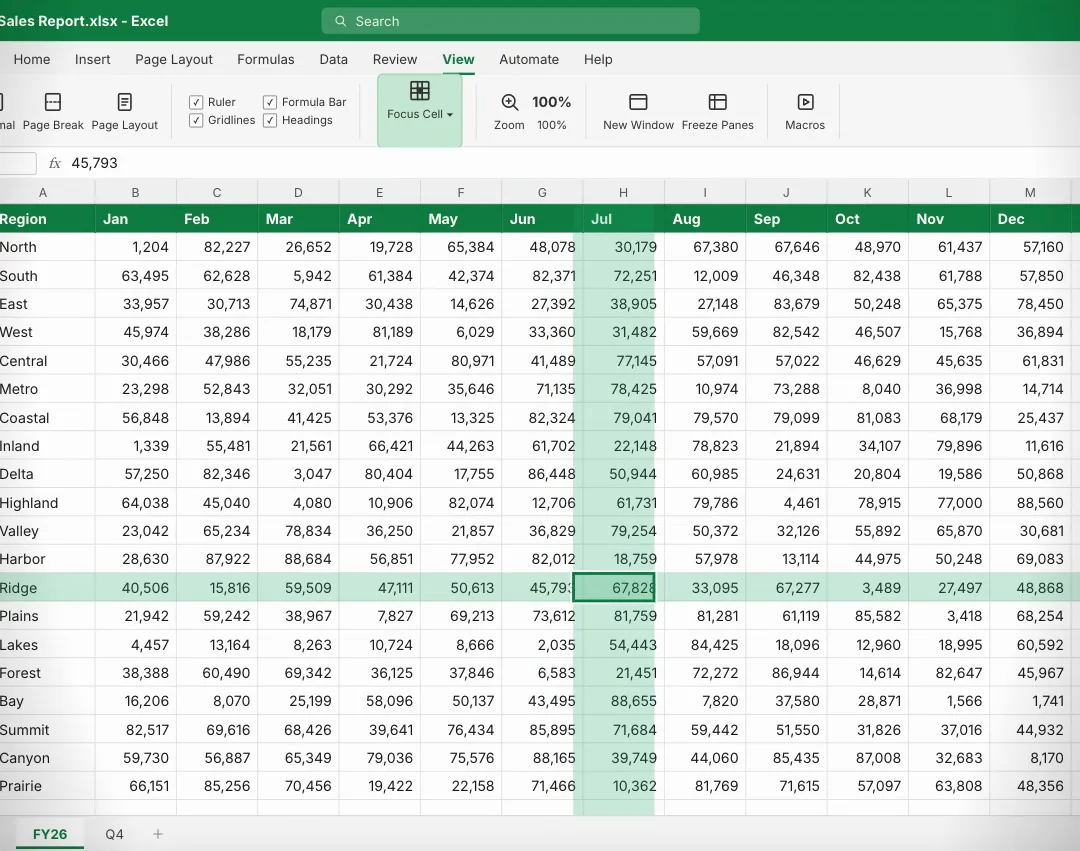
Thousands of numbers, you click a cell, and you can barely tell where you are. Is this row 14? Column G? Focus Cell highlights the exact row and column you're in, and the highlight follows you as you move. Four keystrokes turn it on.
What you need: Excel for Microsoft 365 (Focus Cell is on the View tab).
The Problem: Where Am I?
In a big sheet, one selected cell is easy to lose. You can't tell which row or column you're reading.
Press Alt, W, E, F
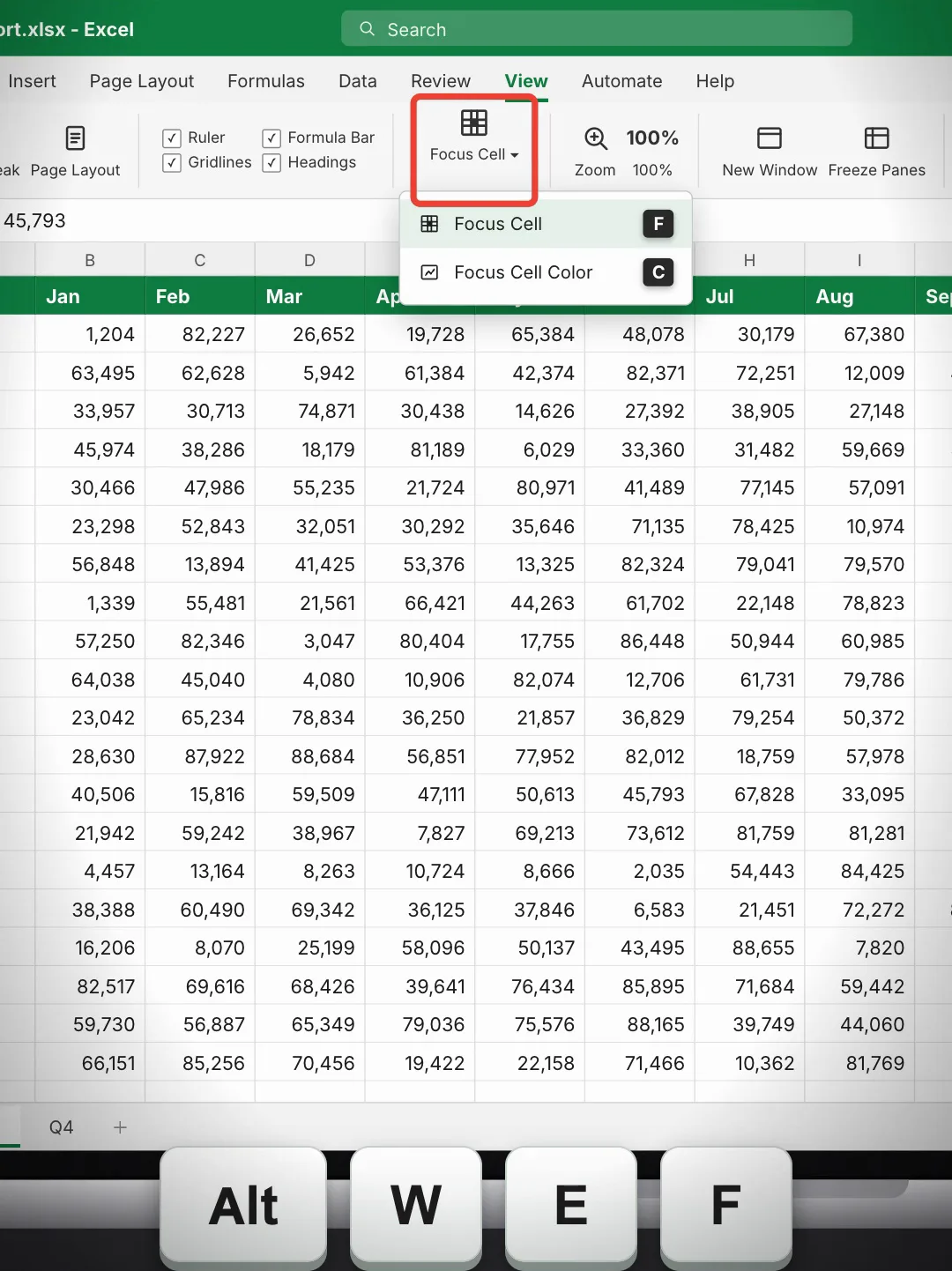
Press Alt, then W, E, F, one after the other. W opens the View tab, E opens Focus Cell, and F switches it on.
Or Use The Mouse
Prefer clicking? Go to View → Focus Cell.
Your Row And Column Light Up
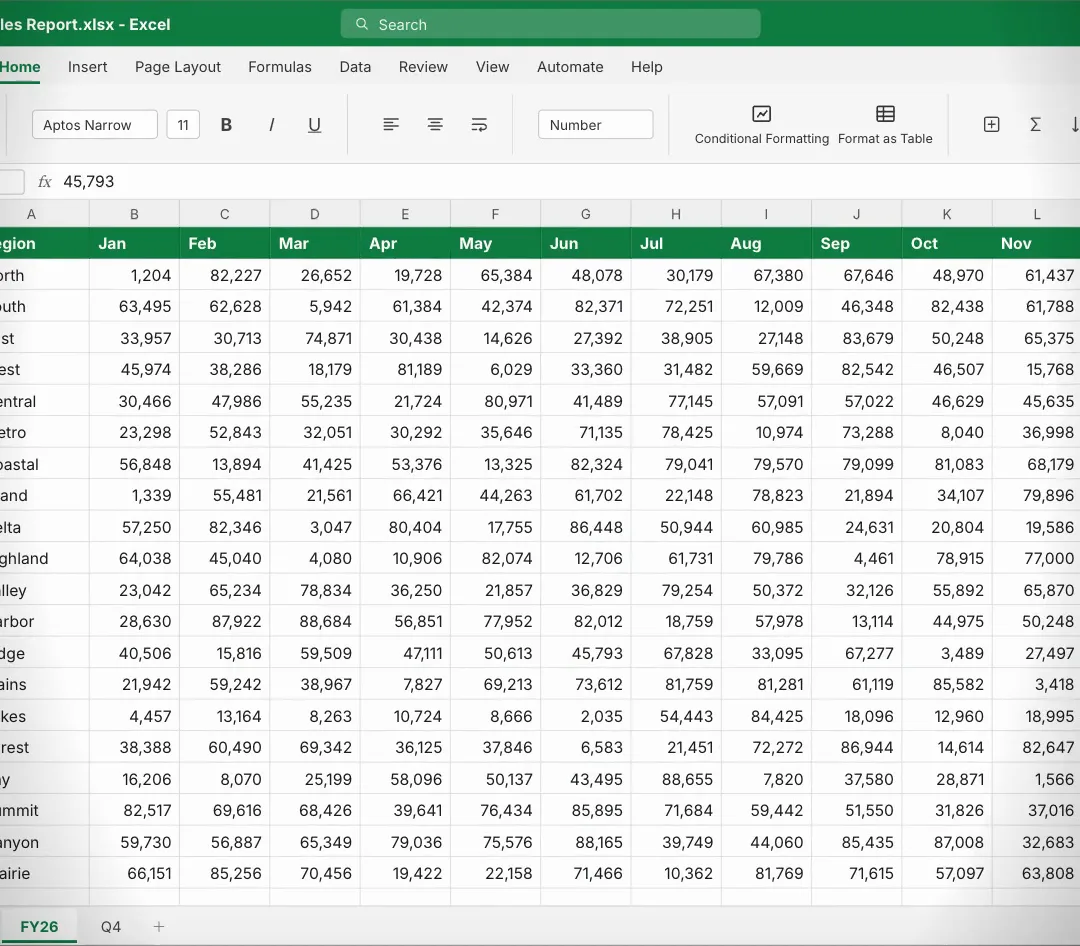
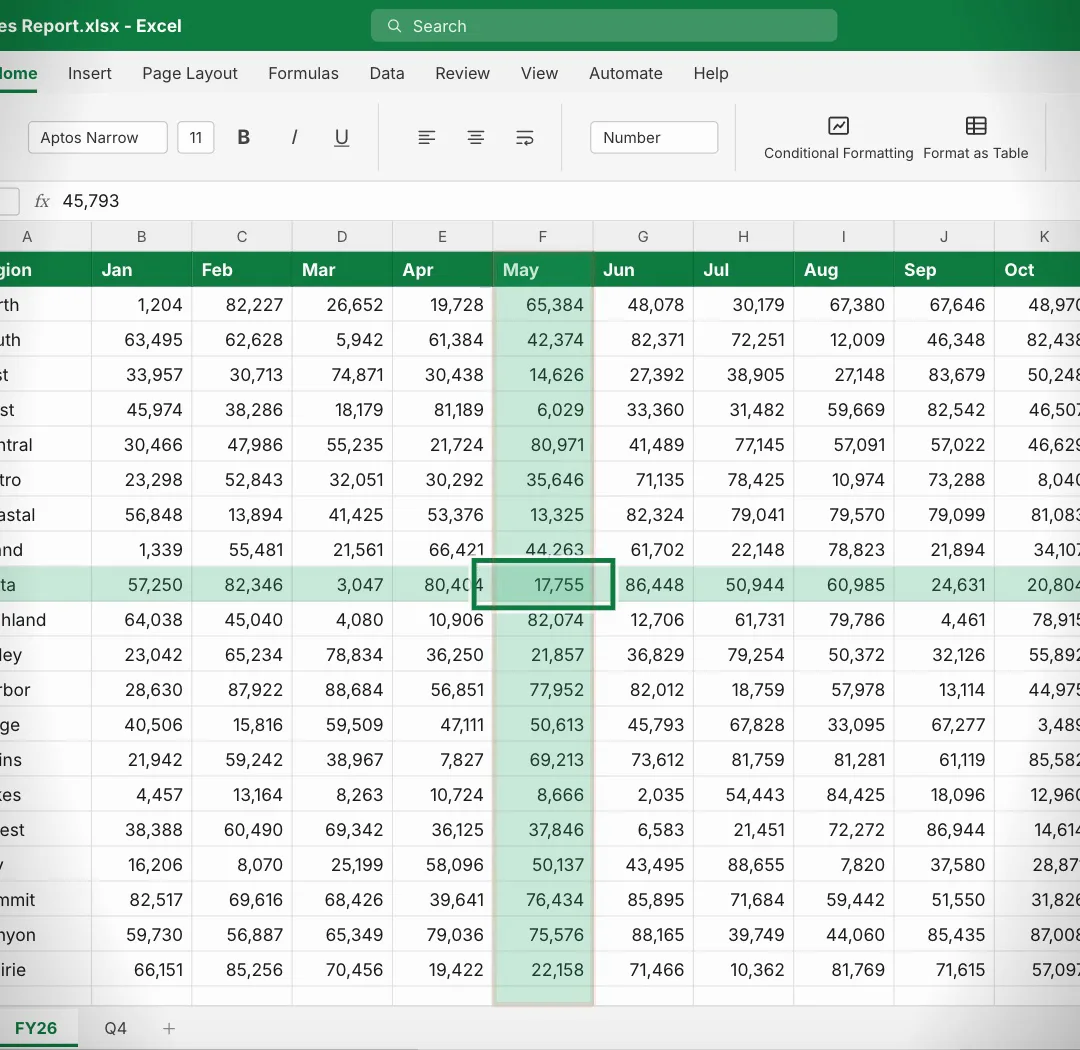
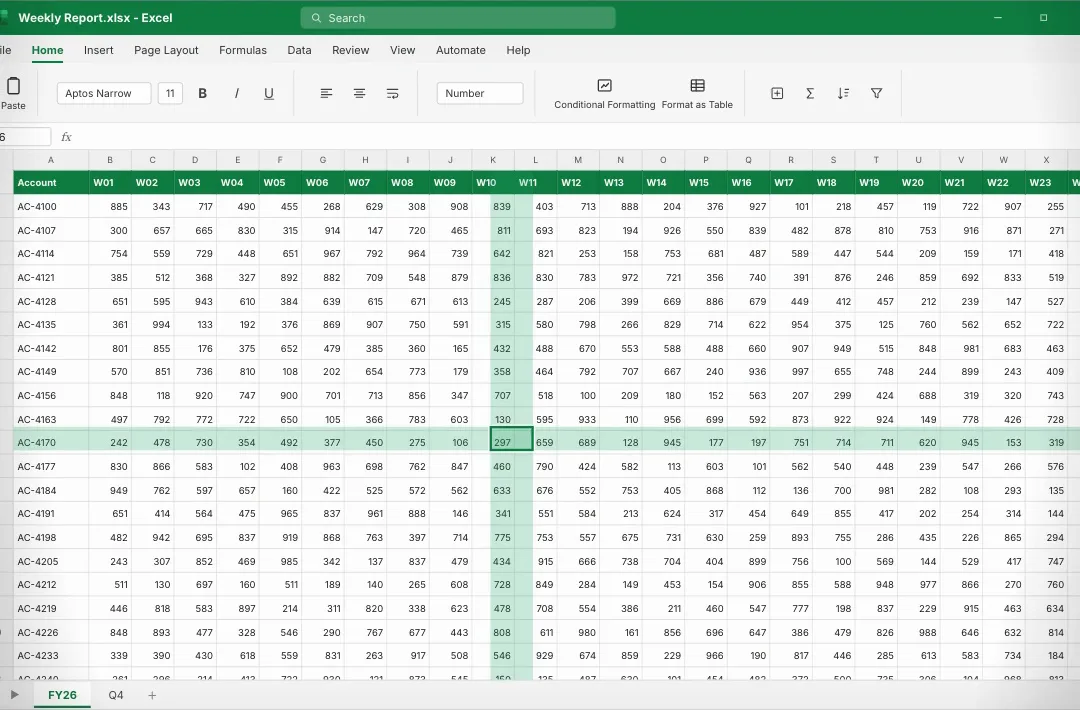
The moment you switch it on, your whole row and column light up.
The Highlight Follows You
Move with the arrow keys and the highlight moves with you. Every cell, every jump, live.
Where it helps most
Reading across a 50-column report, checking numbers on a call, or reviewing someone else's model.
Worth knowing
- The same keys (Alt W E F) turn it off again.
- The Focus Cell menu also lets you change the highlight colour.
- It's only a visual aid. It doesn't change, colour or format your cells.
- On a Mac, use View → Focus Cell, since the Alt key shortcuts are a Windows thing.
FAQ
How do I turn Focus Cell off?
Press Alt W E F again, or go to View → Focus Cell and switch it off.
Does it change my sheet?
No. It's only a highlight on screen. Nothing is saved into the file.
I don't see Focus Cell on the View tab.
It needs a current Microsoft 365 version of Excel. Update Excel and check again.
Can I change the highlight colour?
Yes. Open View → Focus Cell and pick a colour from the menu.