Use Center Across Selection Instead of Merge and Center.
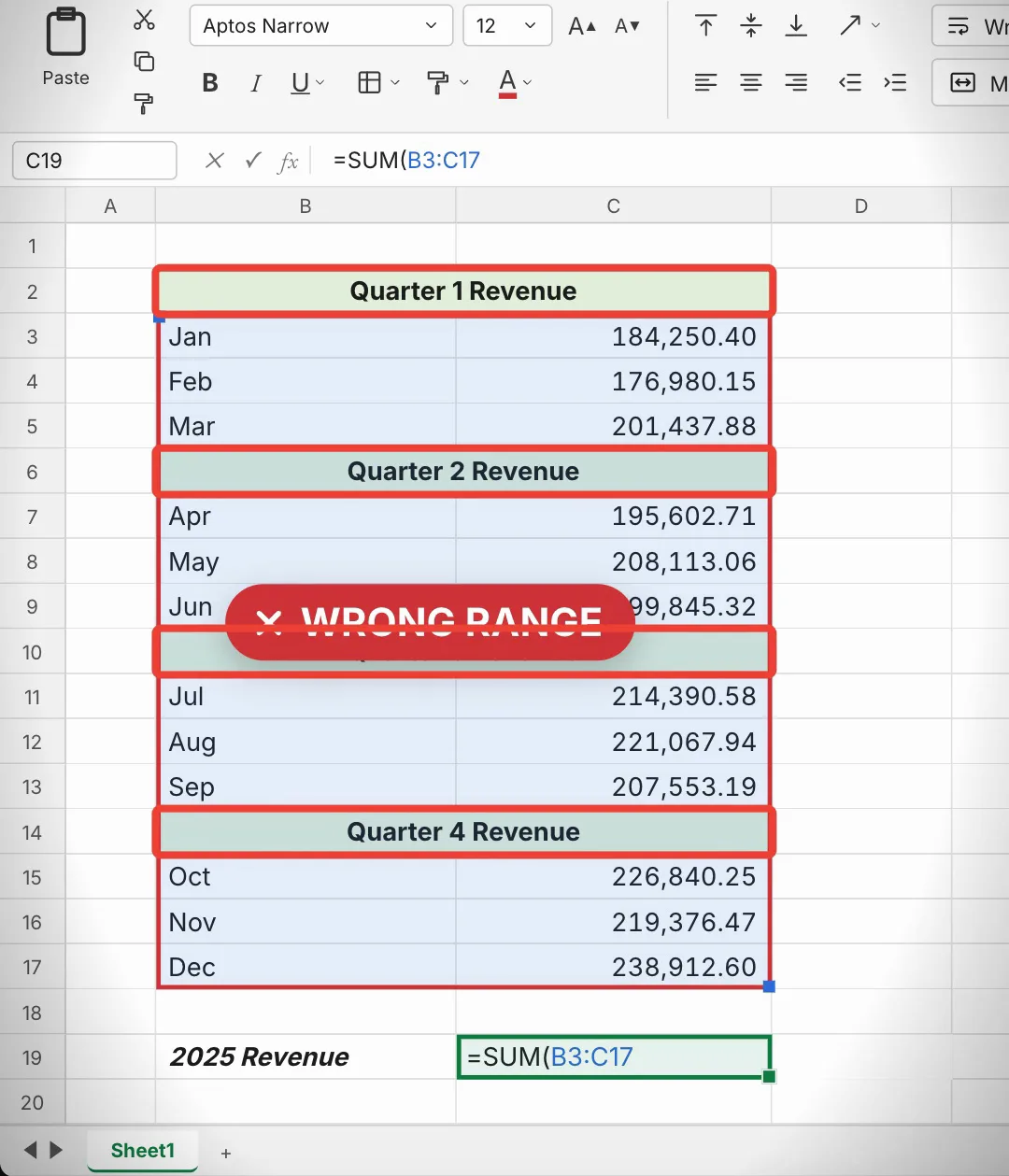
You merge your quarter headers so the sheet looks clean. Then you go to write a sum, try to select just one column, and Excel won't let you. The selection keeps expanding across the merged cells. Center Across Selection gives you exactly the same look with nothing actually merged, and it's now one click away.
What you need: Excel with the Merge & Center dropdown on the Home tab (shown in Excel for Mac, Microsoft 365).
The Problem: Merged Cells Break Your Ranges
With merged headers, dragging over one column keeps auto-expanding across the merged cells. Wrong range, every single time.
Unmerge The Headers
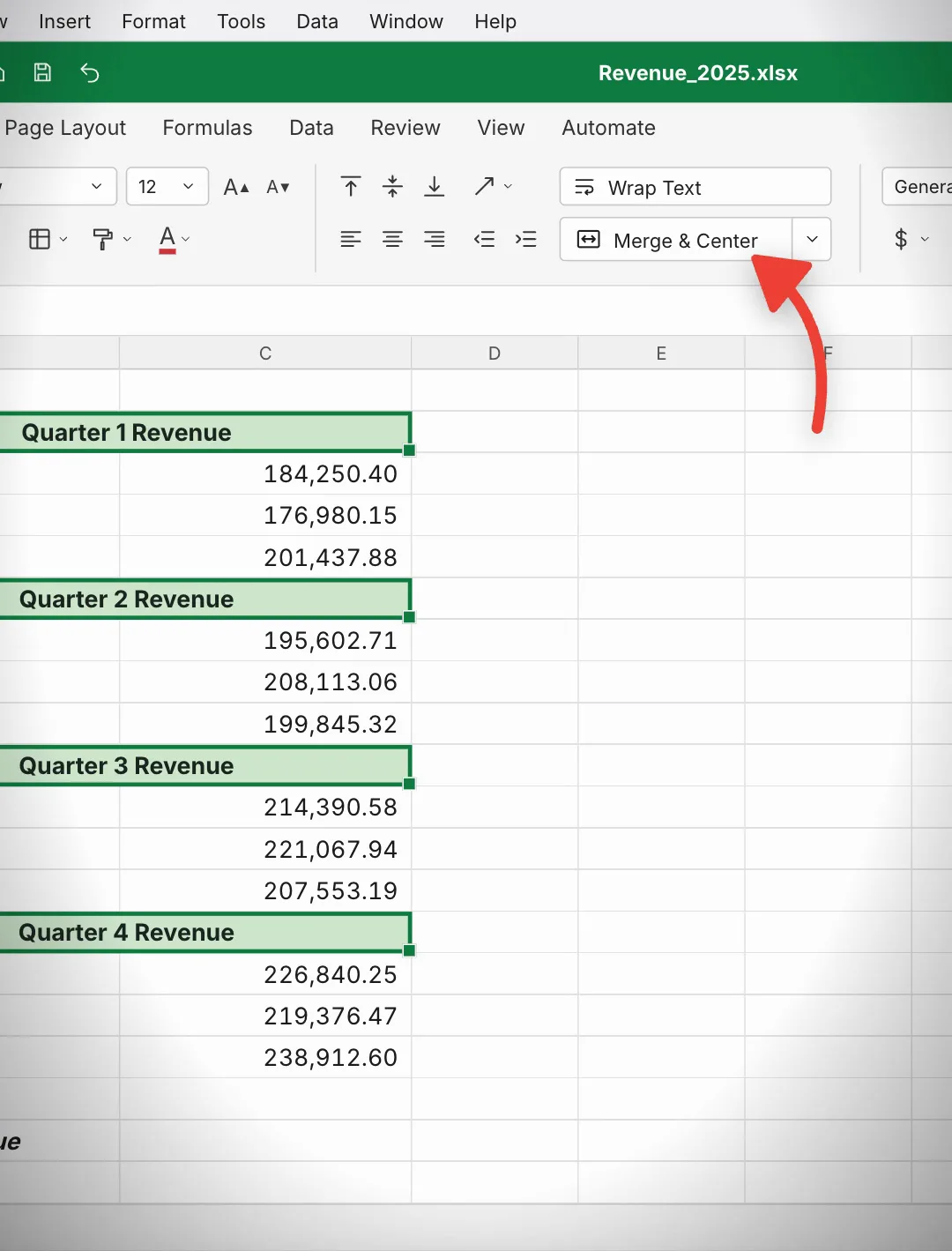
Select your merged headers, go to the Home tab, open the Merge & Center dropdown and click Unmerge Cells.
Pick Center Across Selection
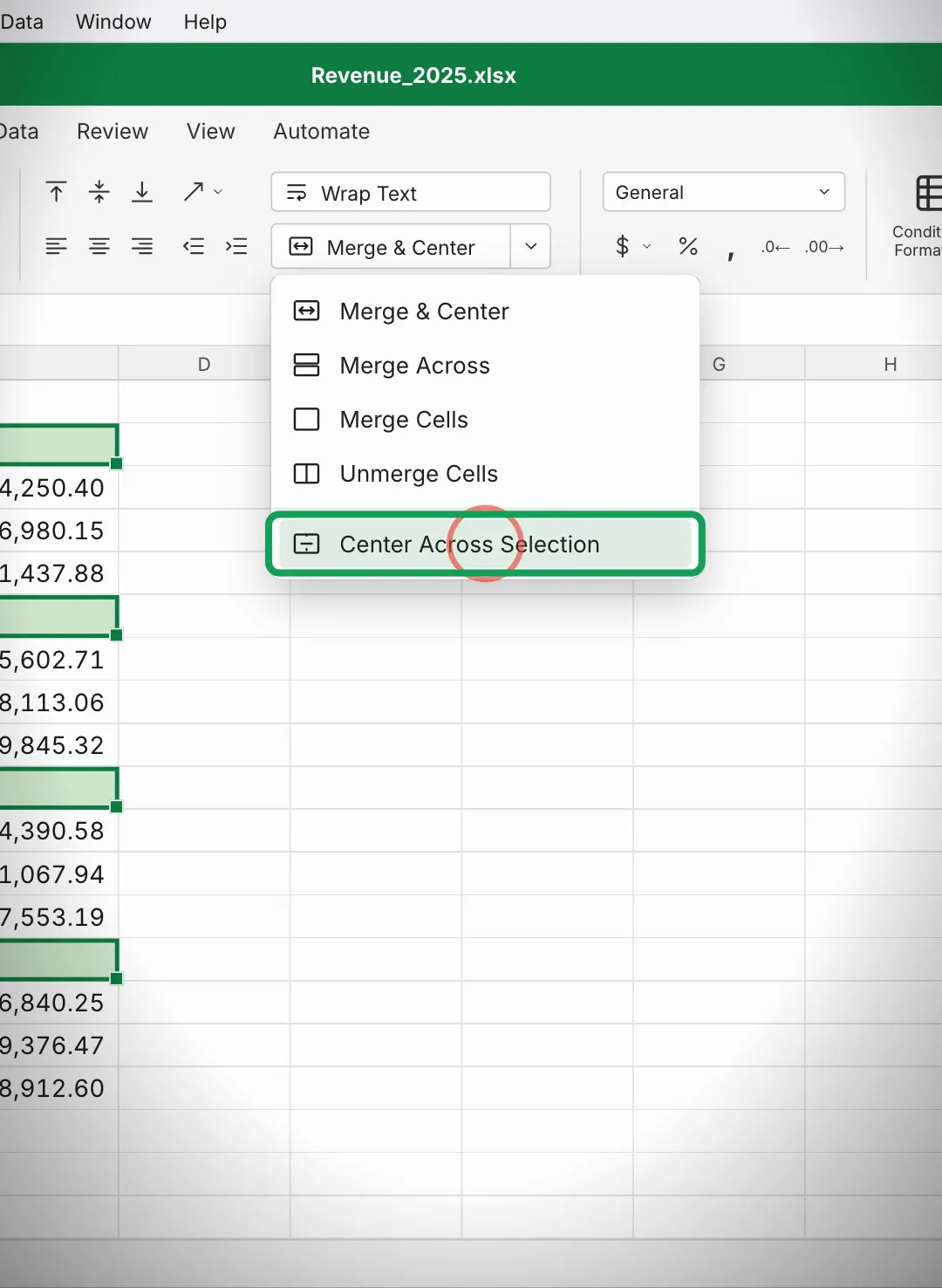
Select the header cells again across both columns. Open the same dropdown and click Center Across Selection, right at the bottom.
Same Look, Nothing Merged
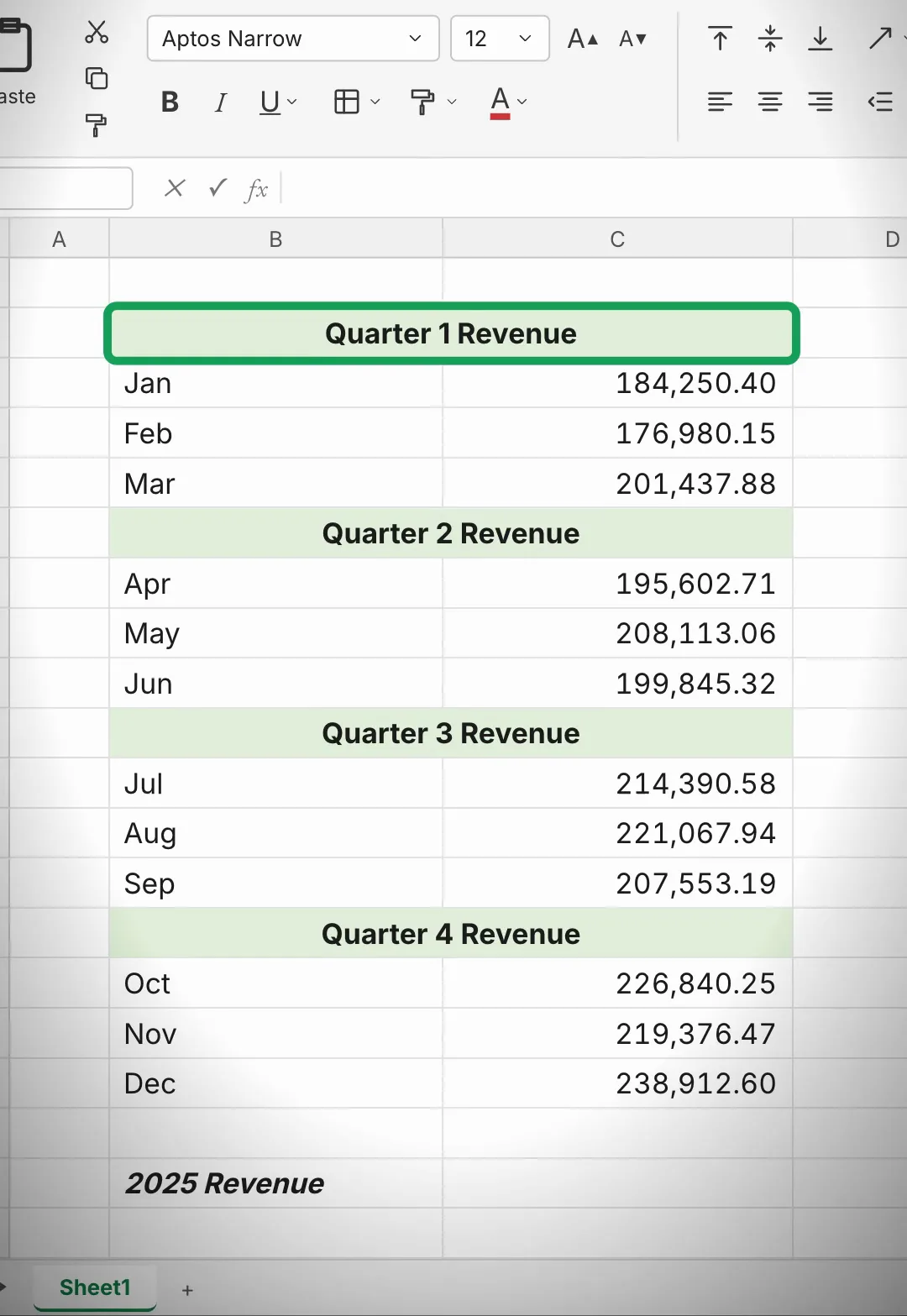
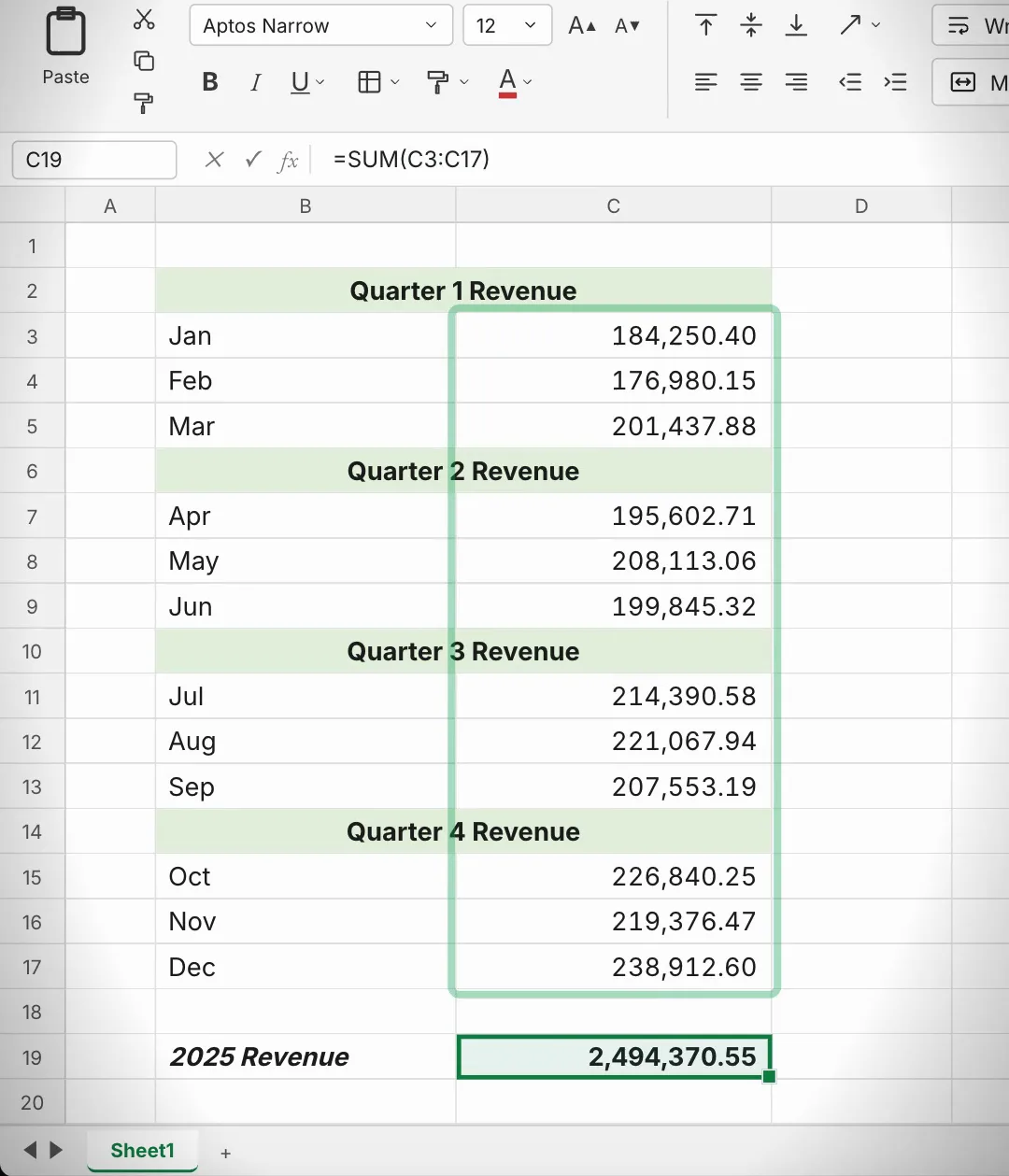
The headers look exactly like Merge and Center. Same clean headers, same alignment, but every cell is still its own cell.
Select Columns Cleanly
Go back down, write your sum and drag over the revenue column. It picks exactly the cells you want. No broken ranges.
The old way to find it
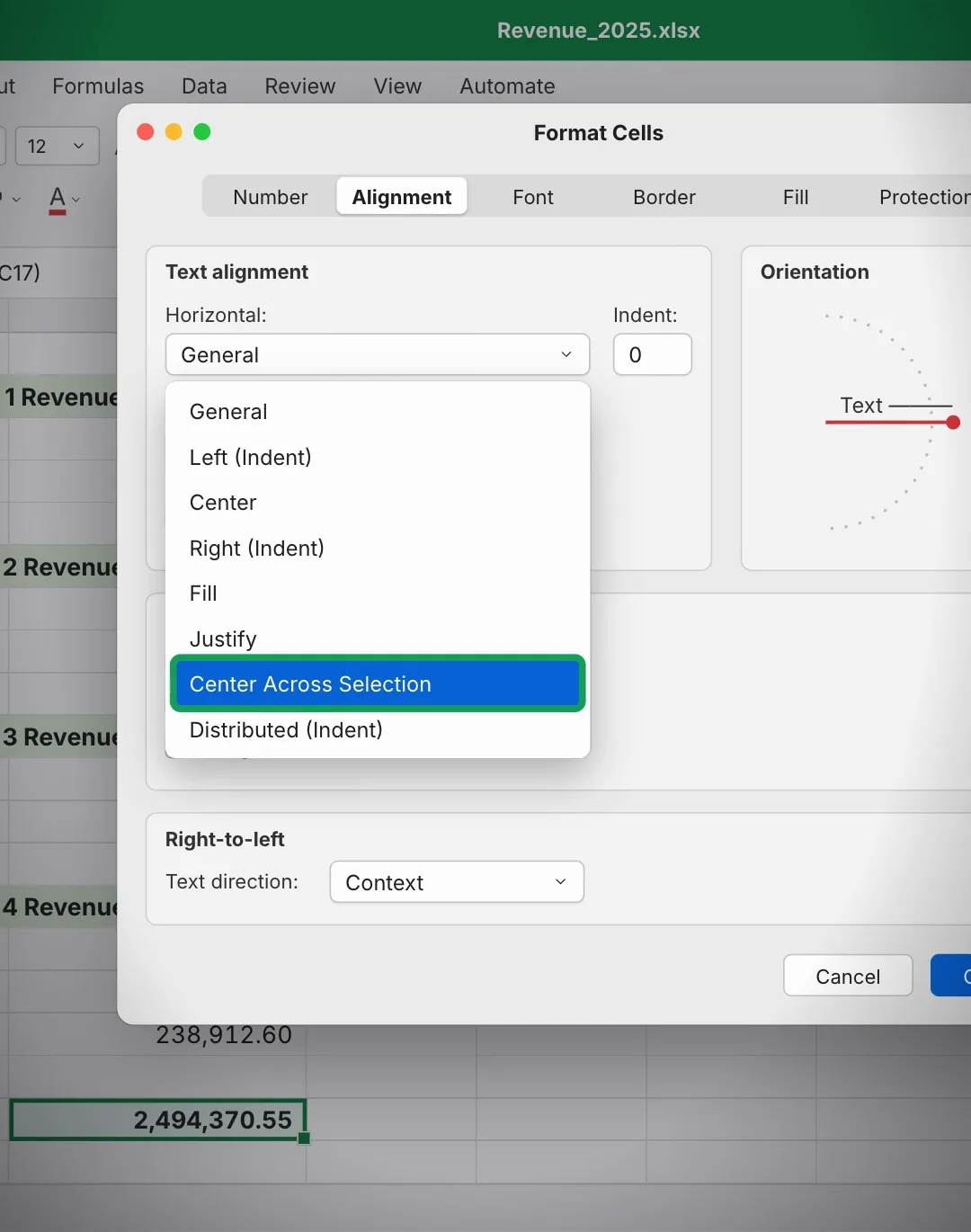
It used to be buried in Format Cells (Ctrl+1 / Cmd+1) → Alignment → Horizontal → Center Across Selection. That route still works in every version of Excel.
Worth knowing
- It only works across columns (horizontally). There's no vertical version.
- Sorting, filtering, copying and pasting all keep working, unlike with merged cells.
- If you don't see it in the Merge & Center dropdown, use the Format Cells route, which works in every version.
FAQ
What's the difference from Merge and Center?
It looks the same, but the cells stay separate, so selecting, sorting and copying columns work normally.
Where is Center Across Selection?
Home → Merge & Center dropdown → Center Across Selection. In older versions, Format Cells → Alignment → Horizontal.
Can I use it to centre down rows?
No. It only centres text across columns in the same row.
Do I have to unmerge first?
Yes. Unmerge the cells, select them again, then apply Center Across Selection.