Make New Outlook Look Like Classic Outlook.
The number one reason people won't switch to new Outlook is simple: it looks too different. They open it once, panic, and go straight back to classic. One setting fixes that. Turn it on and new Outlook looks like the Outlook you've used for years, while you keep all the new features.
What you need: New Outlook for Windows. Takes about 30 seconds.
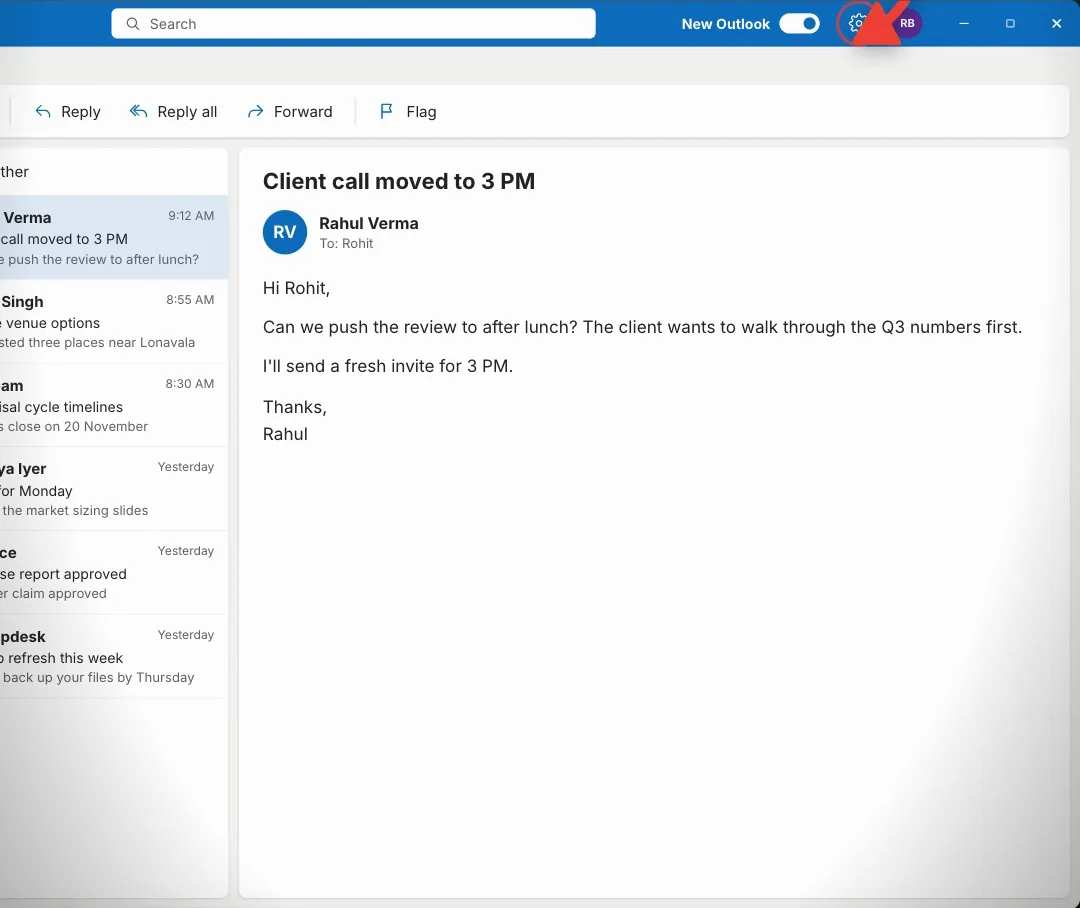
Open Settings
In new Outlook, click the Settings gear in the top right.
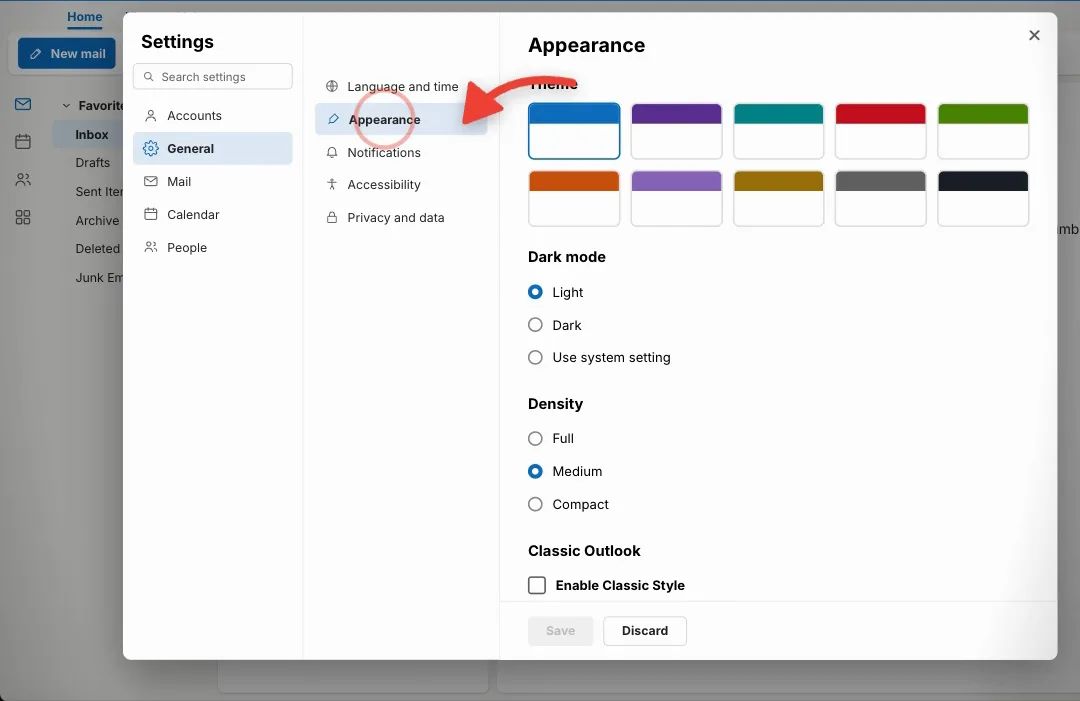
Go To General, Then Appearance
In Settings, click General, then Appearance.
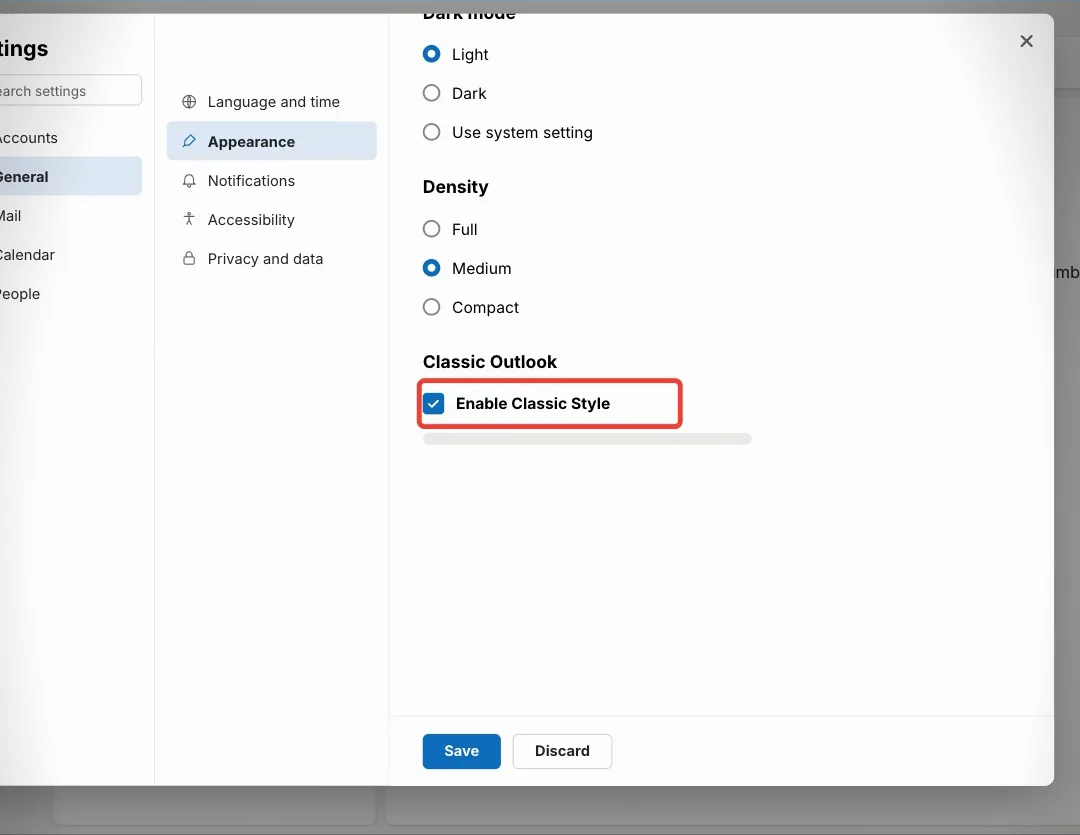
Scroll Down To Classic Outlook
Scroll past the themes and dark mode to the Classic Outlook section.
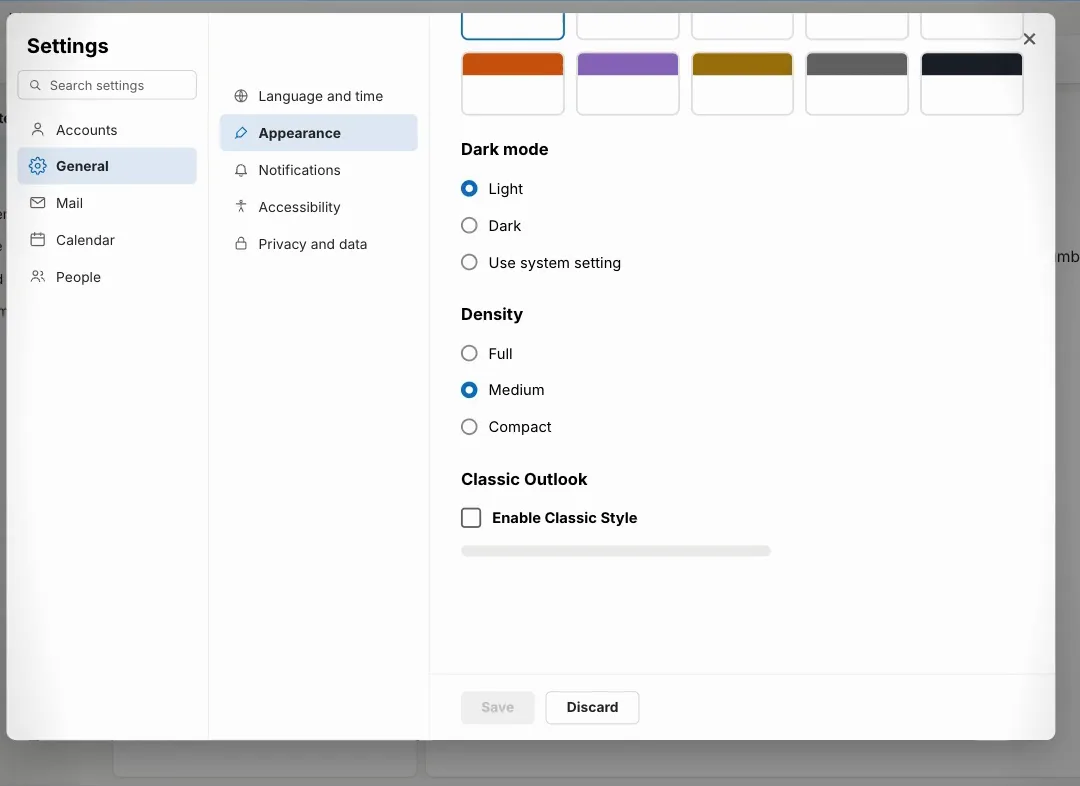
Tick Enable Classic Style
Tick Enable Classic Style.
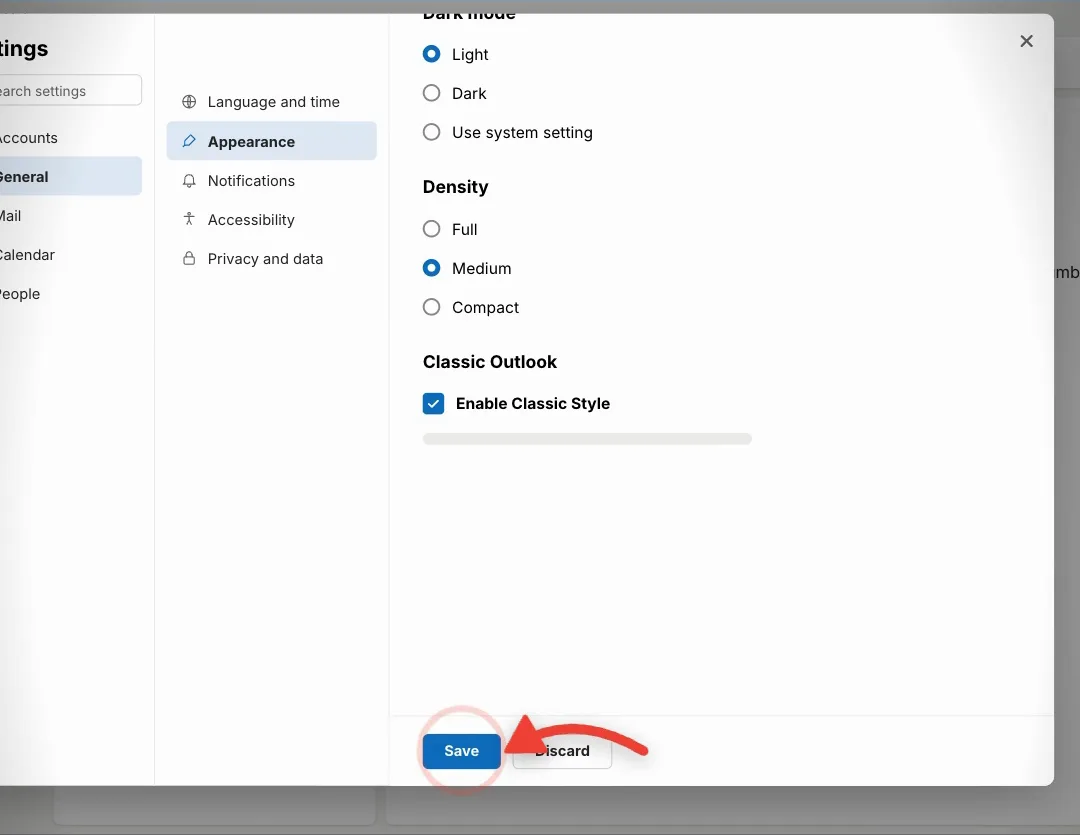
Hit Save
Click Save. Outlook switches the layout straight away.
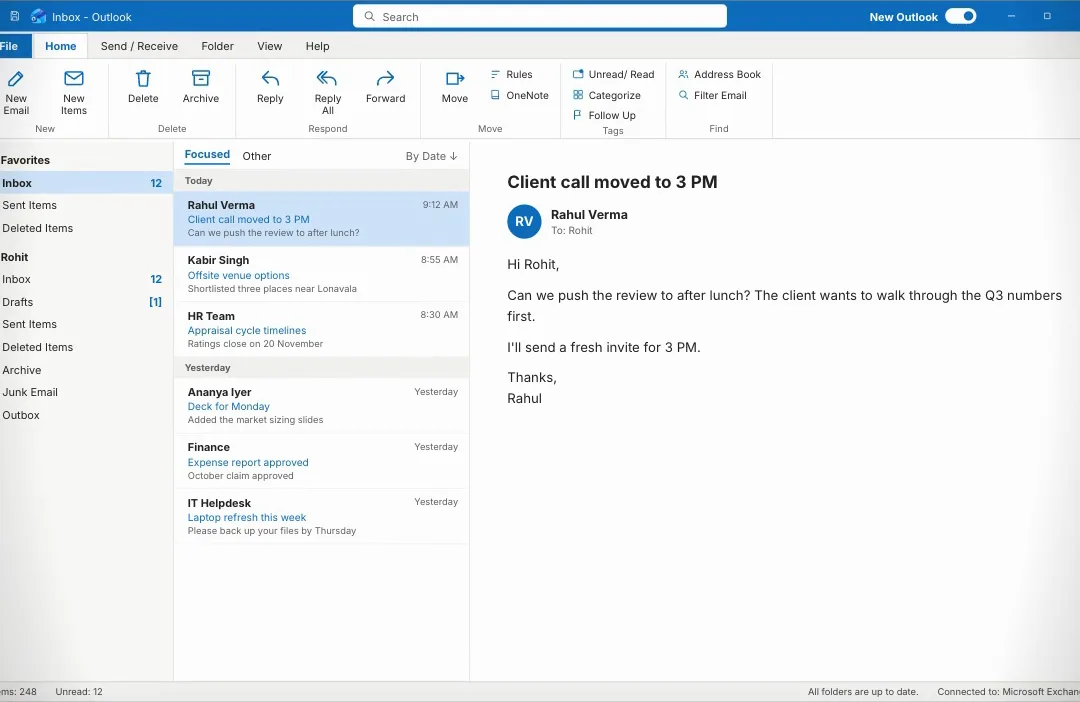
You're In New Outlook, With The Classic Look
Same layout, same feel, but you're still inside the new Outlook app, so you get every new feature on top.
Worth knowing
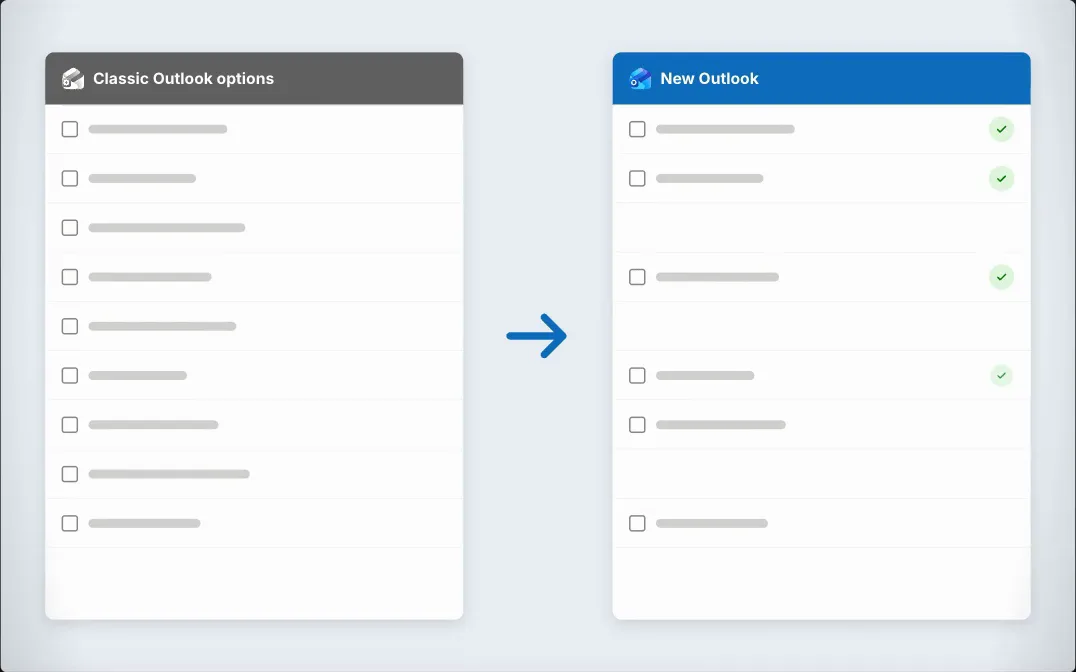
- Not every classic setting comes across. Some of the old options just aren't in the new app yet.
- It's only a look. Your mail, folders and rules are the same either way.
- Untick Enable Classic Style and Save to go back to the standard new Outlook look.
FAQ
Does this switch me back to classic Outlook?
No. You stay in new Outlook. It only changes the layout so it looks like classic.
Will I lose any new features?
No. You keep all the new Outlook features. Only the look changes.
Why is a setting I used in classic Outlook missing?
Not every classic setting has made it into new Outlook yet. Enable Classic Style changes the look, it doesn't bring those options back.
I don't see the Classic Outlook section.
Make sure you're on new Outlook and it's up to date. The option is under Settings → General → Appearance, near the bottom.