Turn Any Outlook Email Into a Calendar Slot.
That email that needs 30 minutes of work shouldn't sit in your inbox hoping you remember it. Drag it onto your calendar and Outlook books the time for you. The subject becomes the title and the whole email sits in the notes, so when the slot comes, everything you need is right there.
What you need: Outlook for Windows (shown here in classic Outlook). No setup.
Find The Email
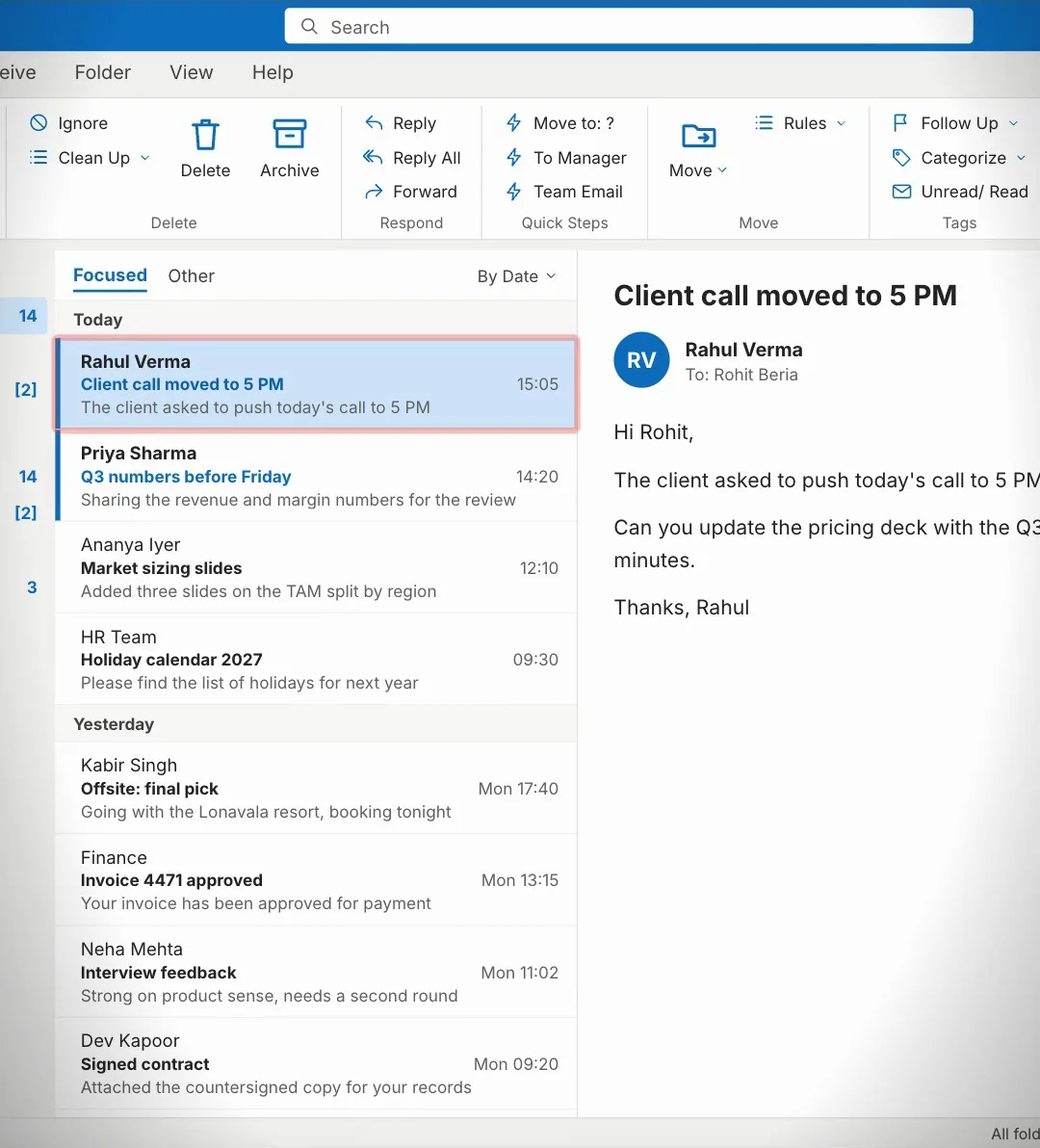
In Outlook, find the email you need to work on.
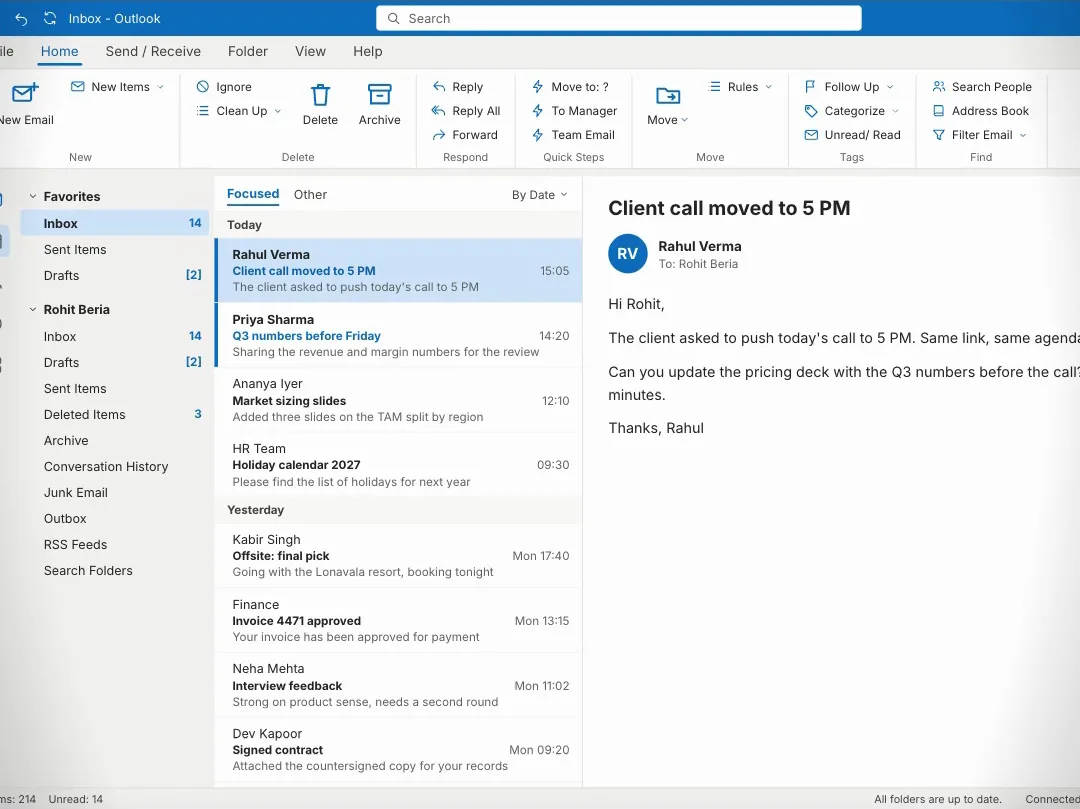
Drag It Onto The Calendar Icon
Click and drag the email straight onto the Calendar icon on the left. Outlook opens a new appointment.
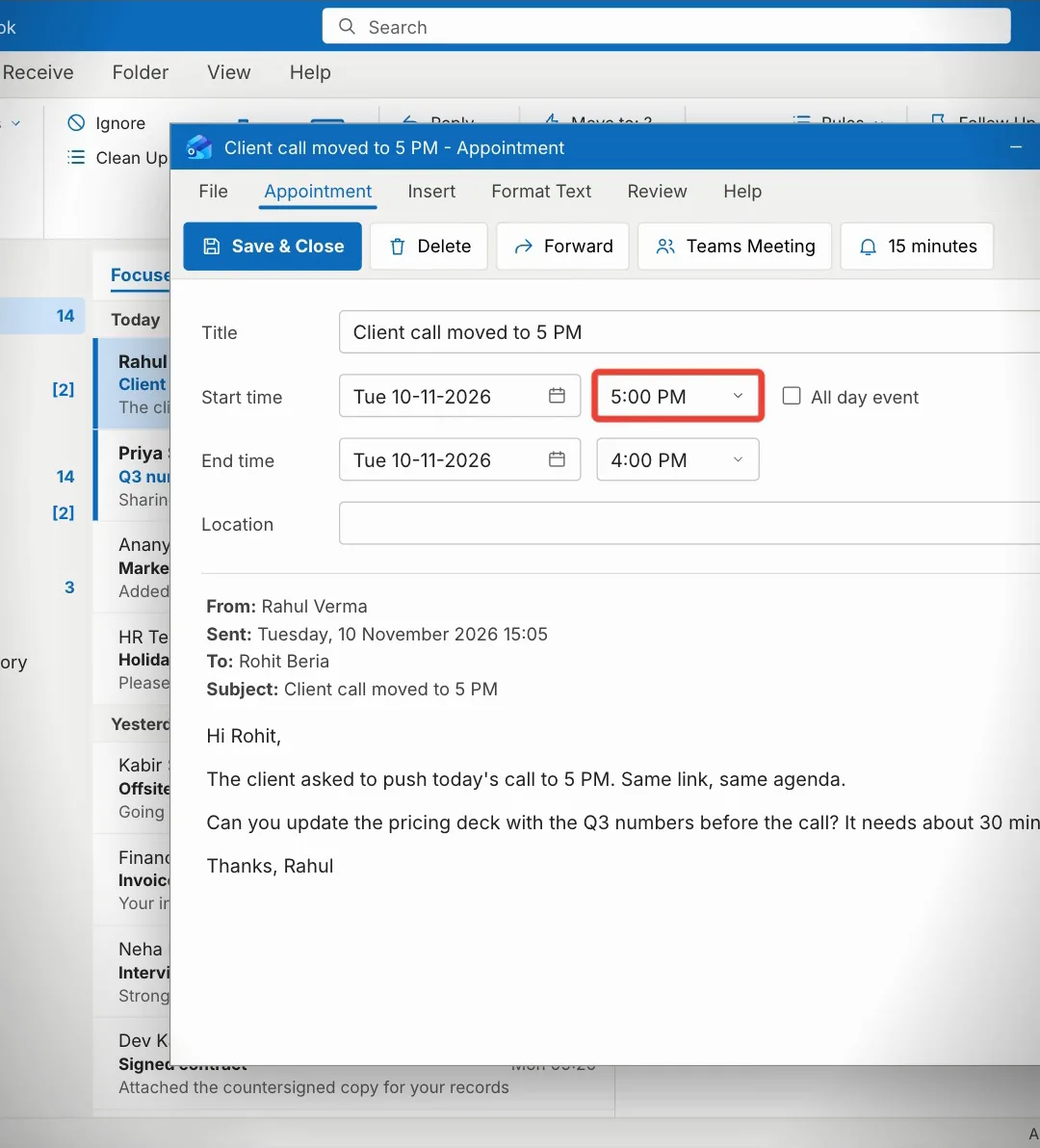
Pick The Day And Time
Set the day, your start time and end time.
Save & Close
Click Save & Close.
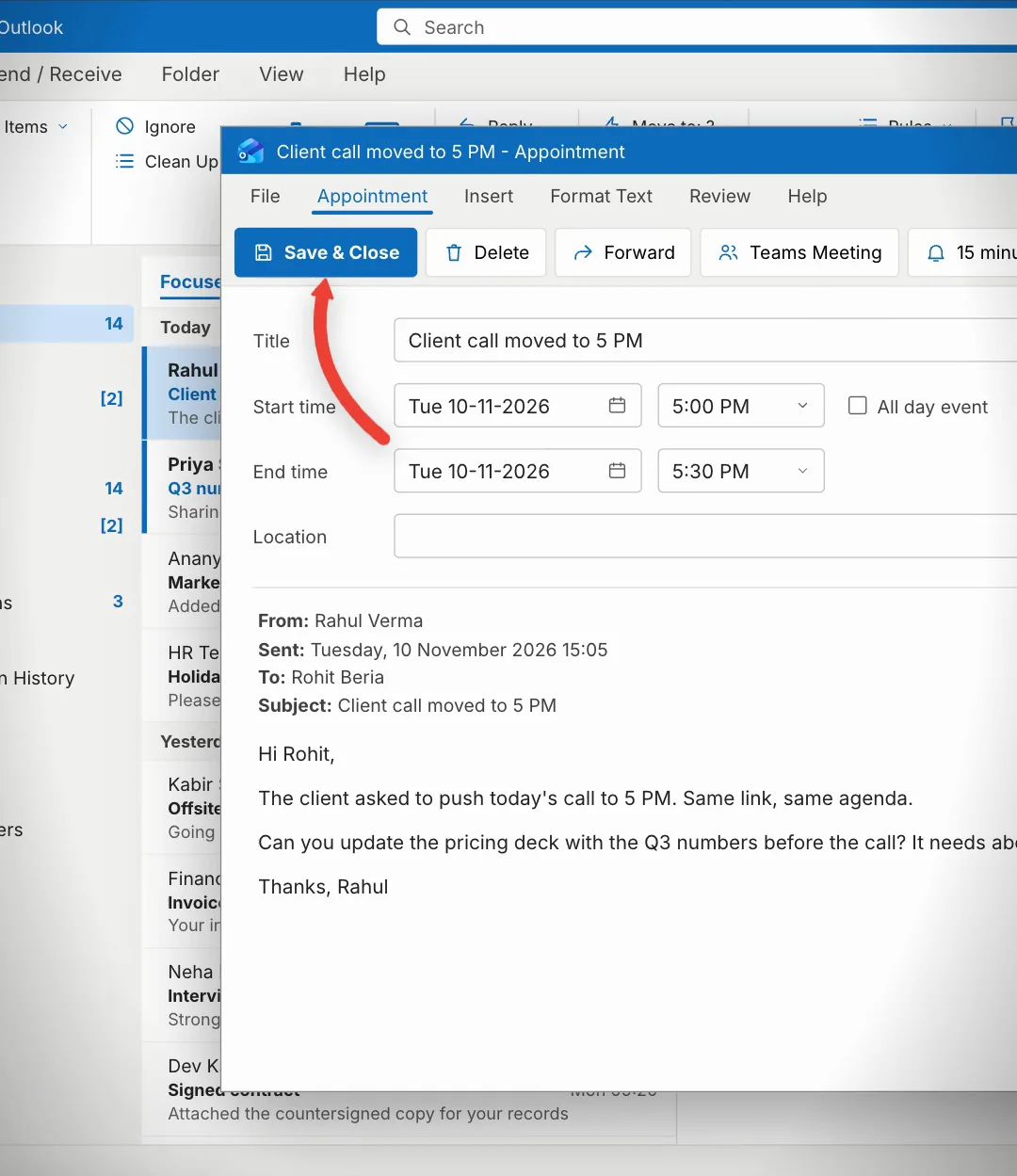
Everything Is Already In The Appointment
The email subject becomes the title and the full email text is in the notes. No digging through your inbox when the time comes.
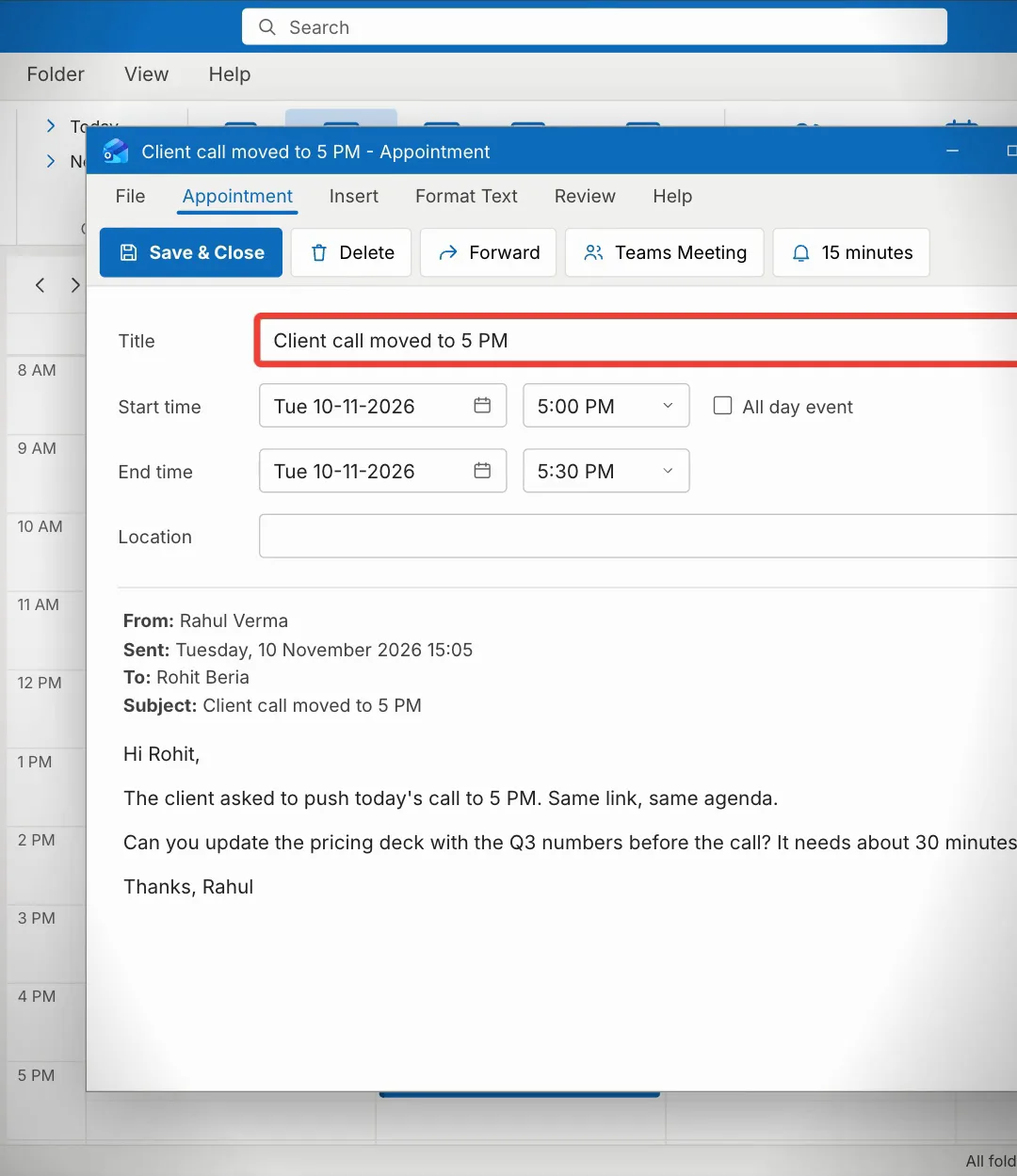
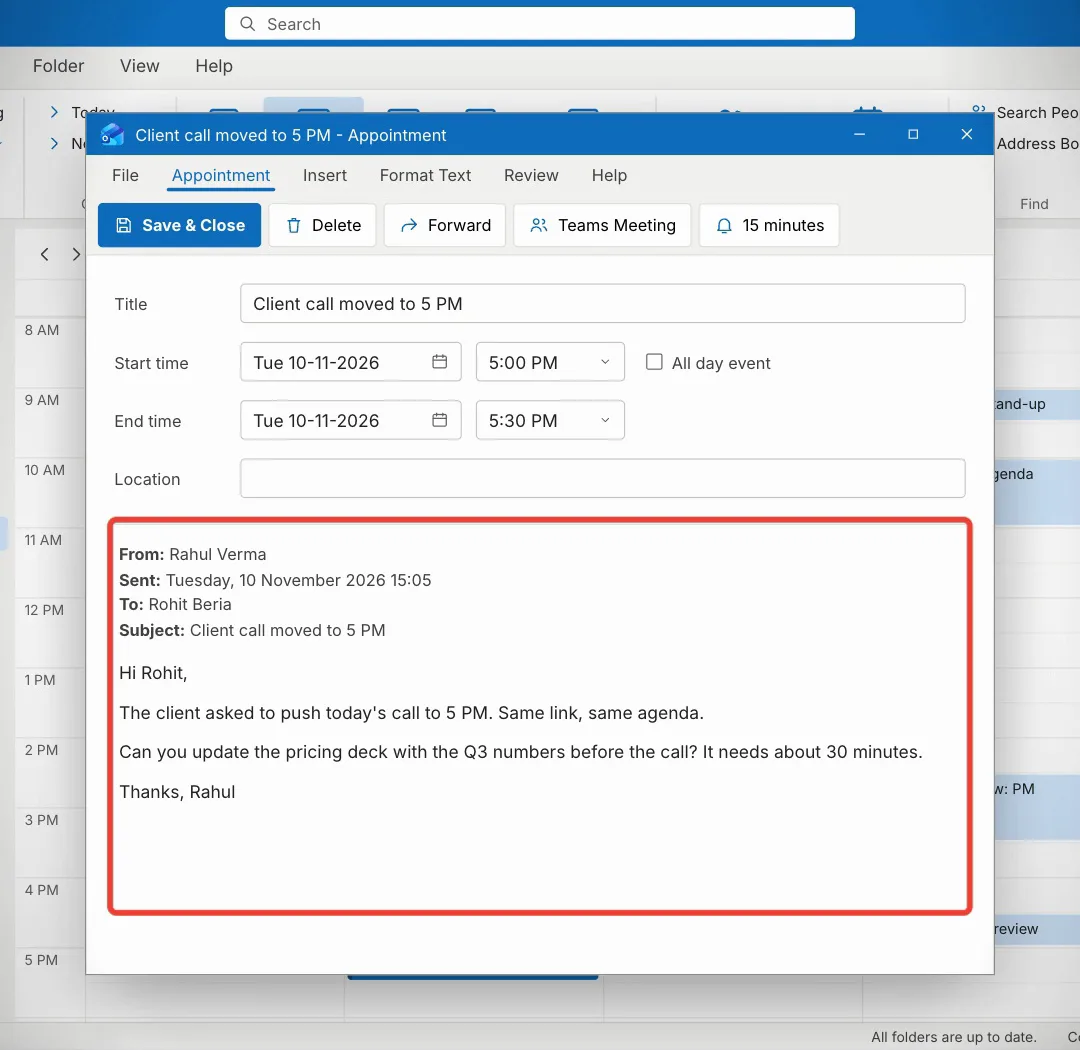
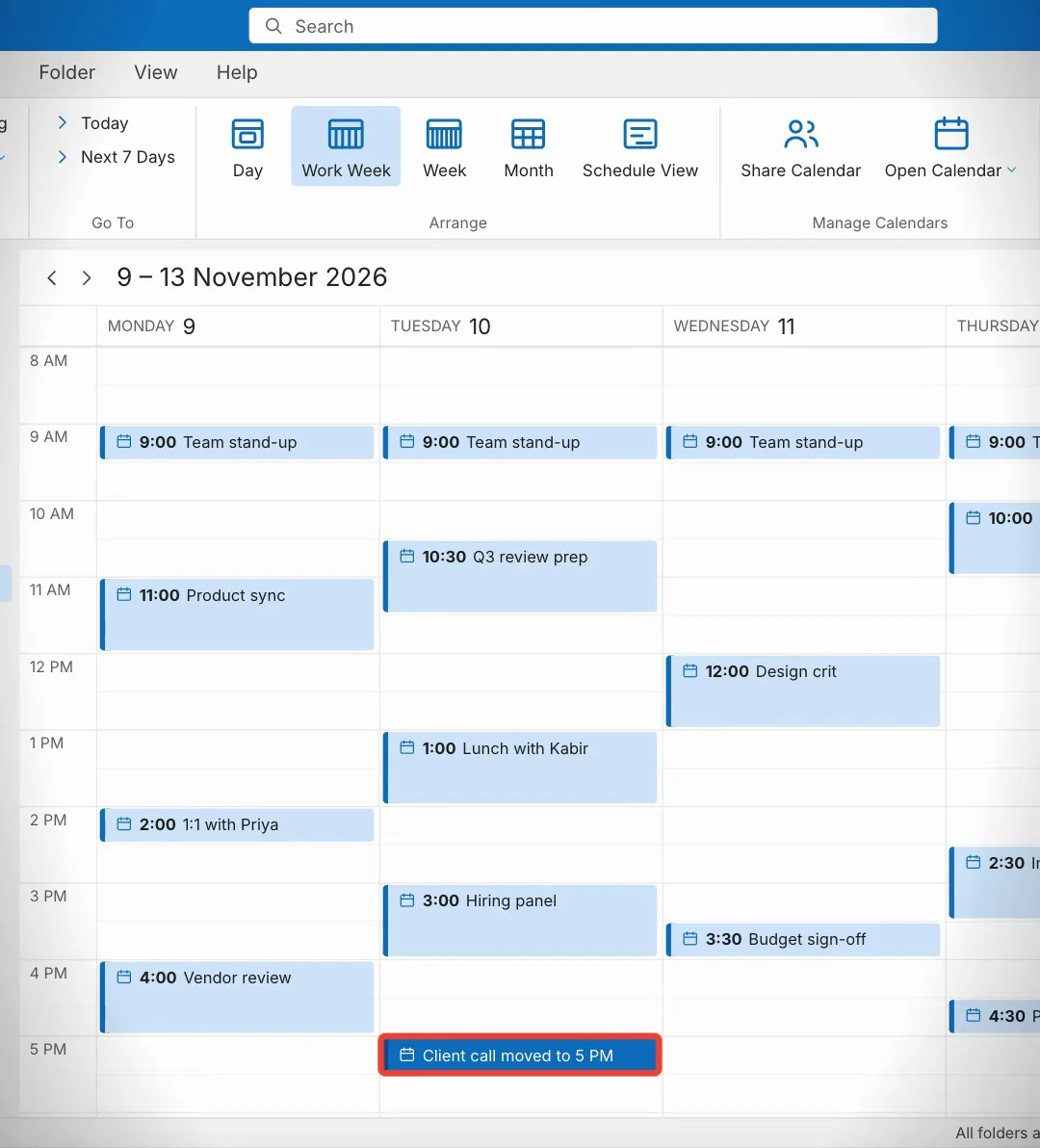
It's On Your Calendar
The slot shows up on your calendar like any other meeting, with reminders.
Worth knowing
- The email stays in your inbox. This makes a copy of it inside the appointment.
- It books time only for you. Nobody is invited unless you add them.
- Drop it on the Tasks icon instead and you get a task with the email inside.
FAQ
Does dragging the email move it out of my inbox?
No. The email stays where it is. The appointment gets a copy of the subject and text.
Will it send an invite to the sender?
No. It's an appointment, not a meeting, so it only goes on your calendar.
Can I do this with more than one email?
Drag one email at a time so each gets its own slot with its own notes.