Show SharePoint Pictures Inside Excel Cells.
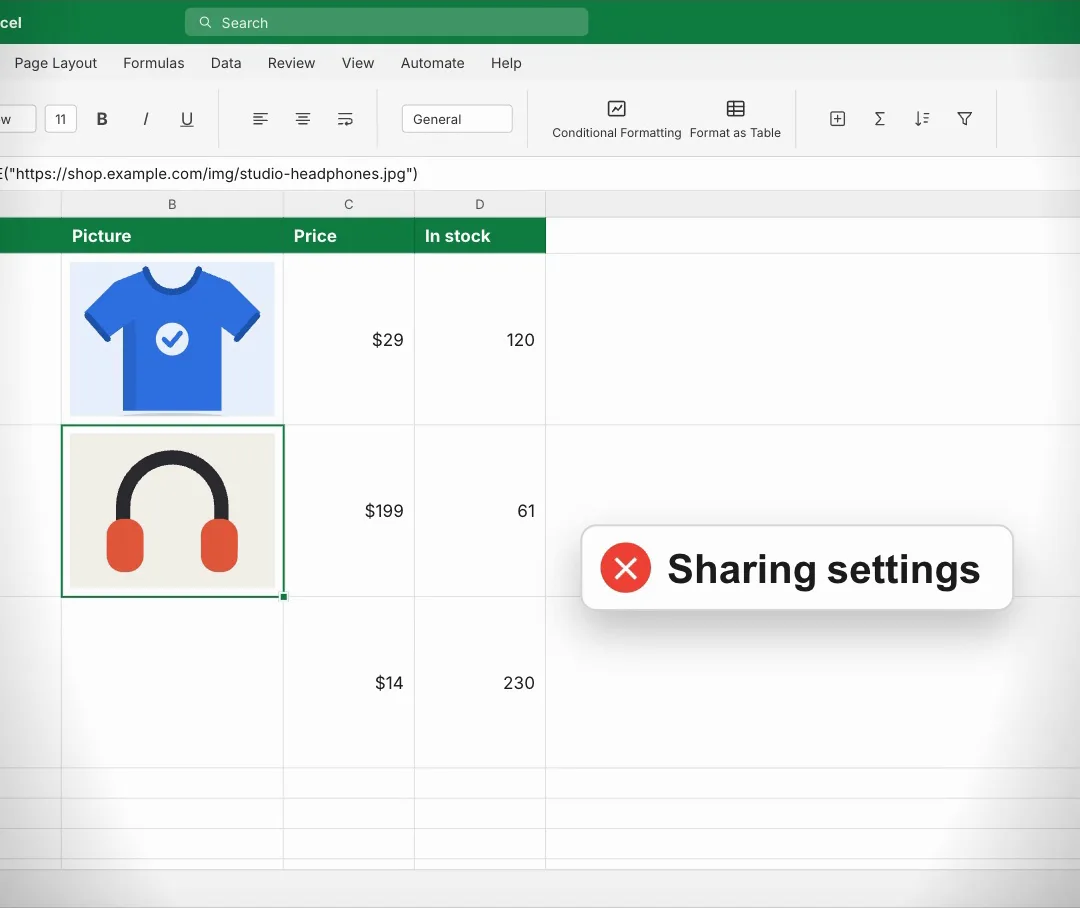
Excel can show pictures from your SharePoint or OneDrive right inside a cell. No inserting, no dragging images around. The picture sits in the cell like any other value, so it sorts and filters with the row.
What you need: Excel for Microsoft 365 (the IMAGE function) and a picture in SharePoint or OneDrive.
Open The Image In SharePoint Or OneDrive
Find the picture in SharePoint or OneDrive and open it.
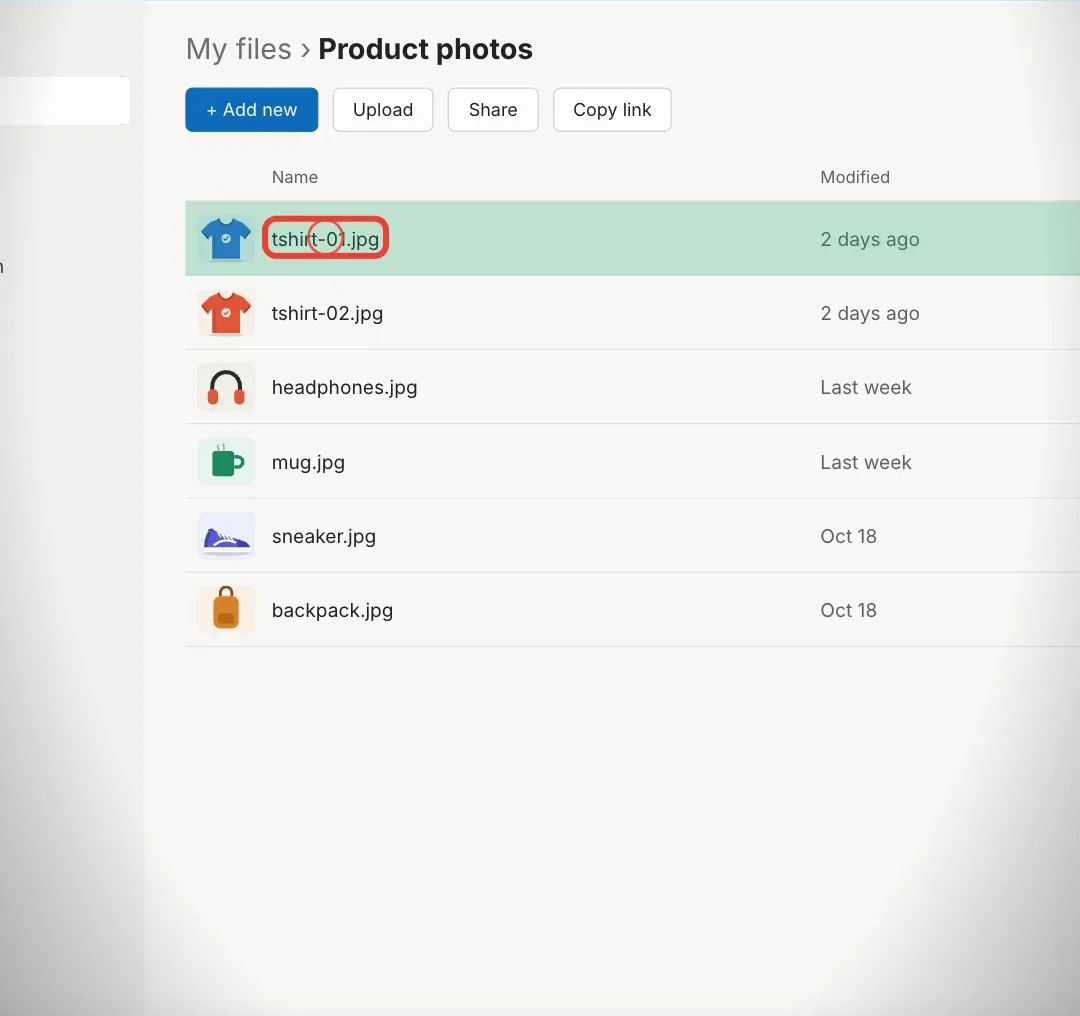
Share It: Anyone With The Link, Can View
Click Share, set it to Anyone with the link and Can view, then click Copy link.

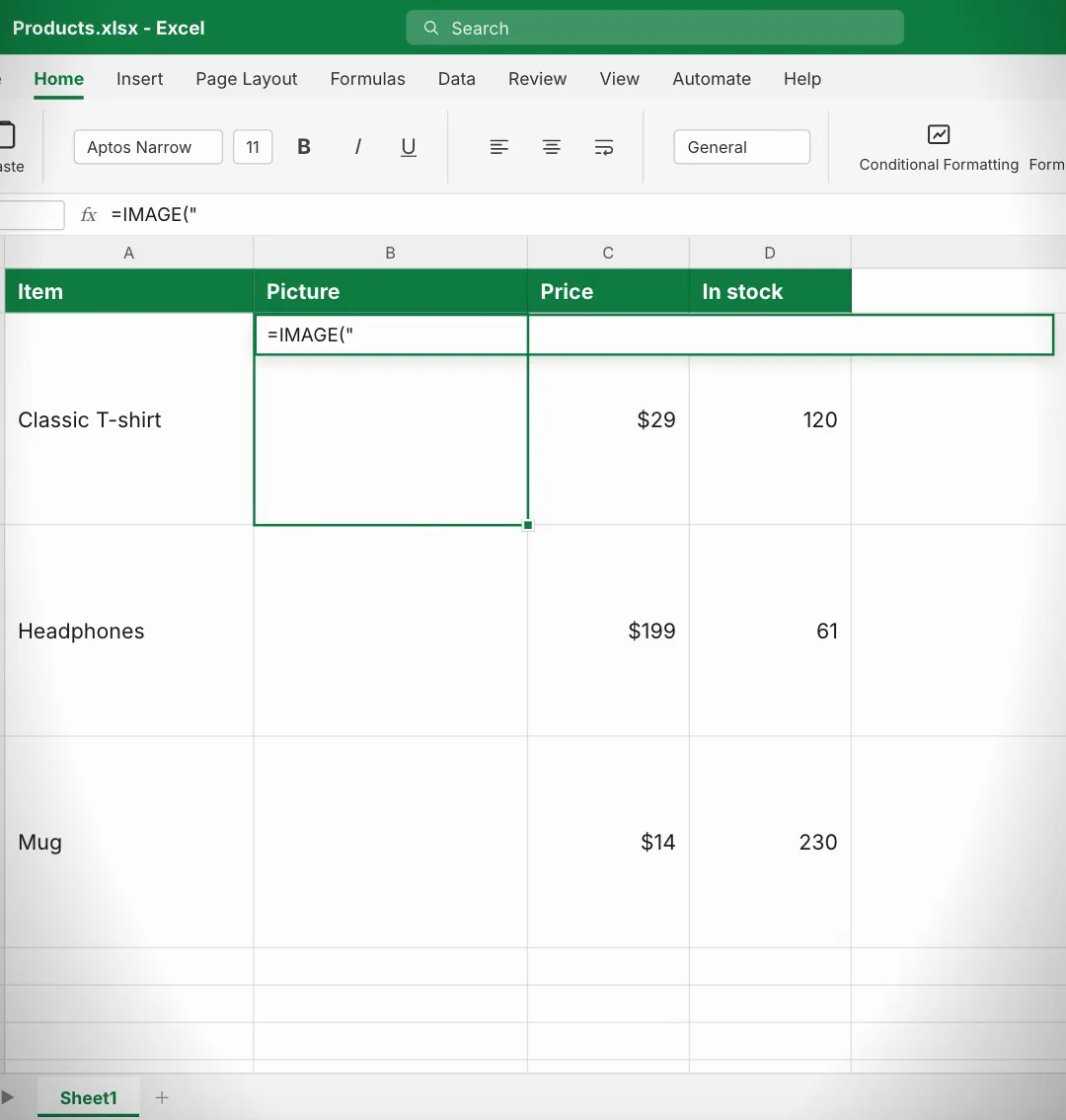
Type =IMAGE(" And Paste The Link
In Excel, type =IMAGE(, open a quote, and paste the link.
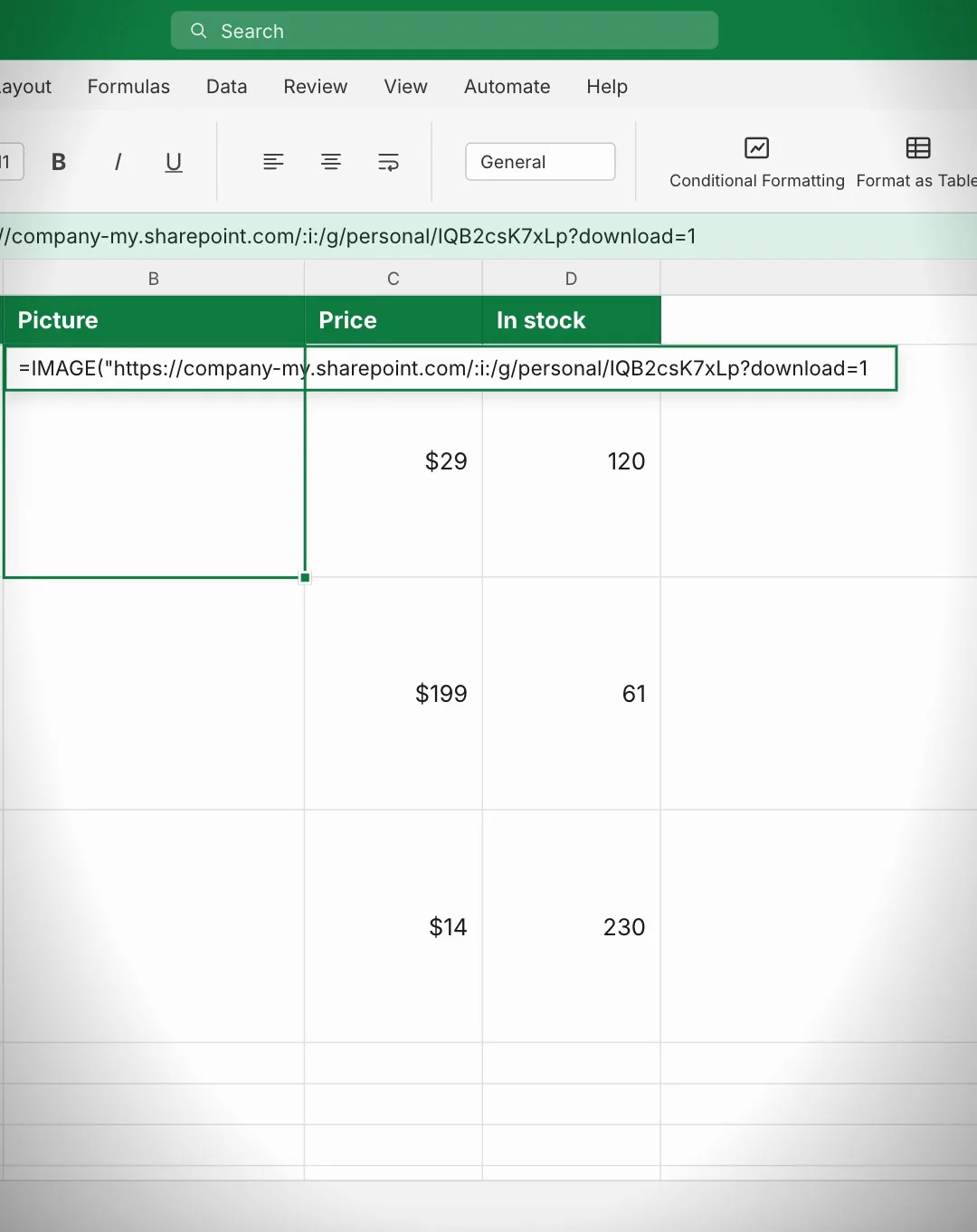
Swap ?e= For ?download=1
At the end of the link, replace the ?e=… part with ?download=1.
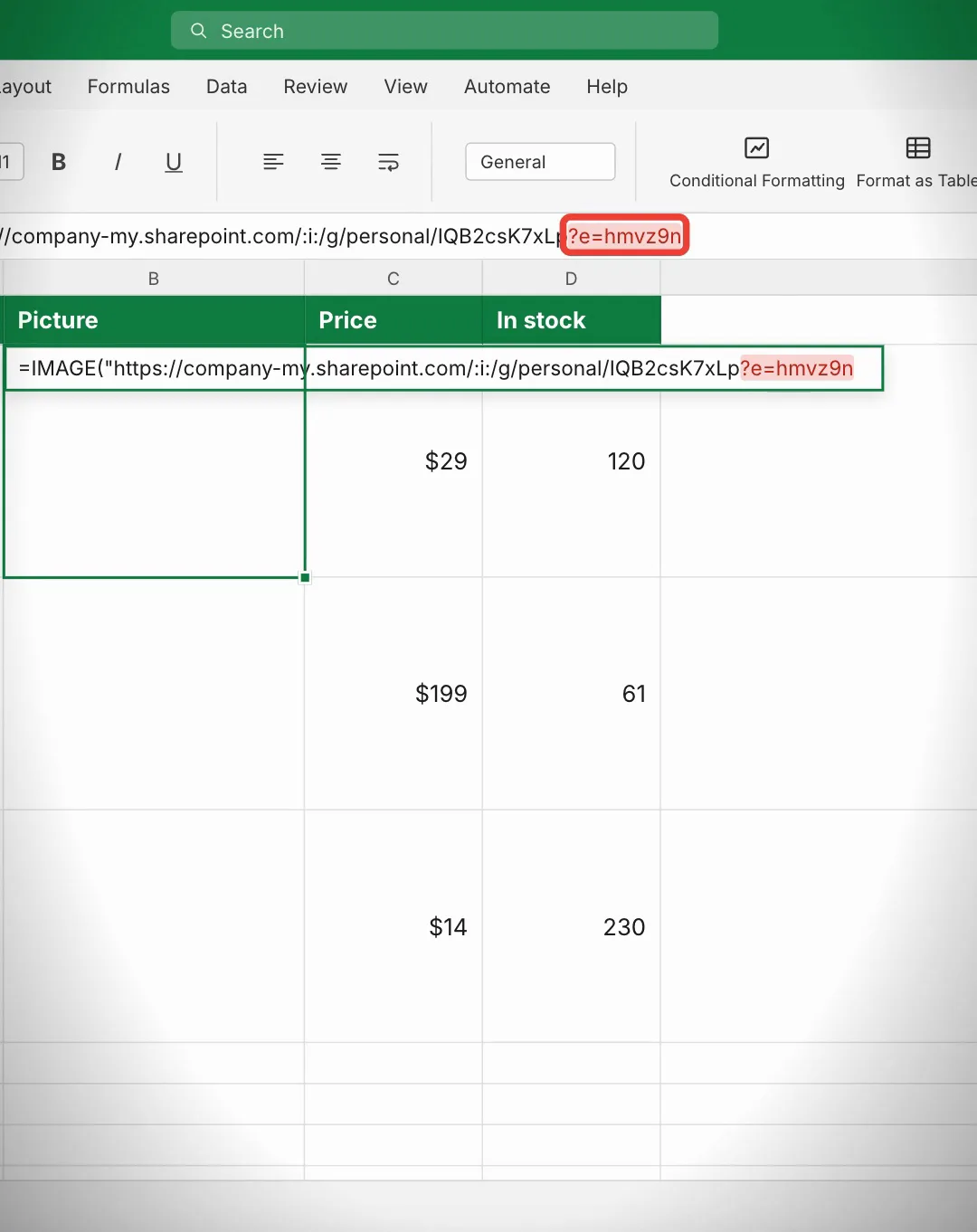
Paste your own link and keep everything up to the ?, then add download=1.
Close The Quote And Bracket, Press Enter
Close the quote and the bracket and press Enter. The picture sits inside the cell like any other value.
Already public on the web? Even easier
Right-click the image, choose Copy image address, and paste it inside IMAGE. No sharing settings, no editing the link.
Worth knowing
- Anyone with the link can see the picture, so only do this with images that are fine to share. Some companies switch off "Anyone" links. If you can't pick it, ask IT.
- Use it for product lists with photos, team sheets with headshots, or asset trackers with a picture of every laptop.
- Resize the row and column to make the picture bigger. It scales with the cell.
FAQ
Why do I see #VALUE! or #CONNECT!?
Usually the link still ends in ?e=… or isn't set to Anyone. Change the end to ?download=1 and check the sharing setting.
Do I need "Anyone with the link"?
Yes. IMAGE can only load pictures it can open without signing in.
Will the picture move when I sort?
Yes. It lives in the cell, so it sorts and filters with the row.
Which versions of Excel have IMAGE?
Excel for Microsoft 365 on Windows, Mac and the web.