Schedule a Message in Microsoft Teams.
Write the message when it suits you and have it arrive when it suits them. Schedule send lets you send messages at the right time, without anyone knowing you were working at midnight.
What you need: Microsoft Teams and a chat to send the message in.
Type Your Message
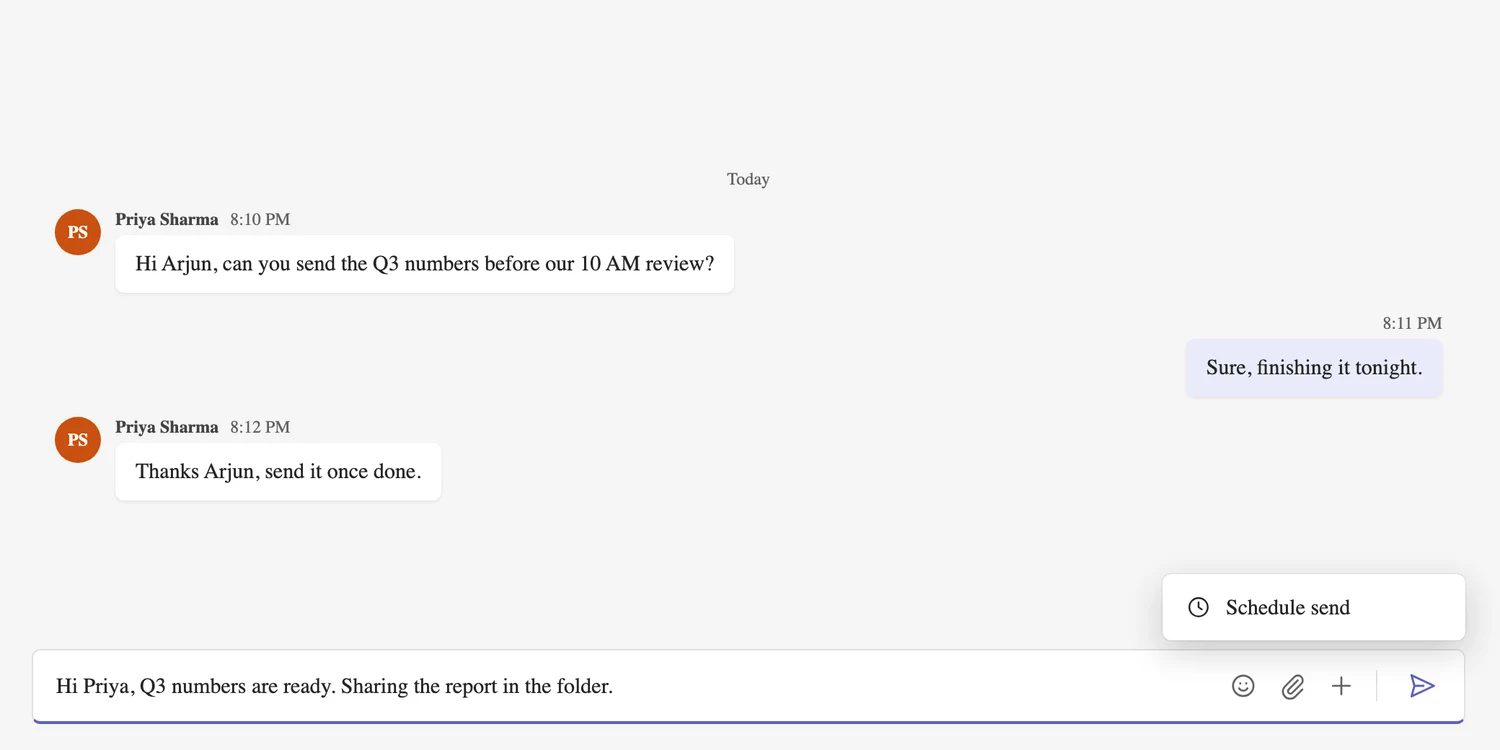
Open the chat (for example, with your boss) and type your message as normal. Don't hit Enter.
Right-Click The Send Button
Right-click the Send button and select Schedule send.
Pick A Date And Time
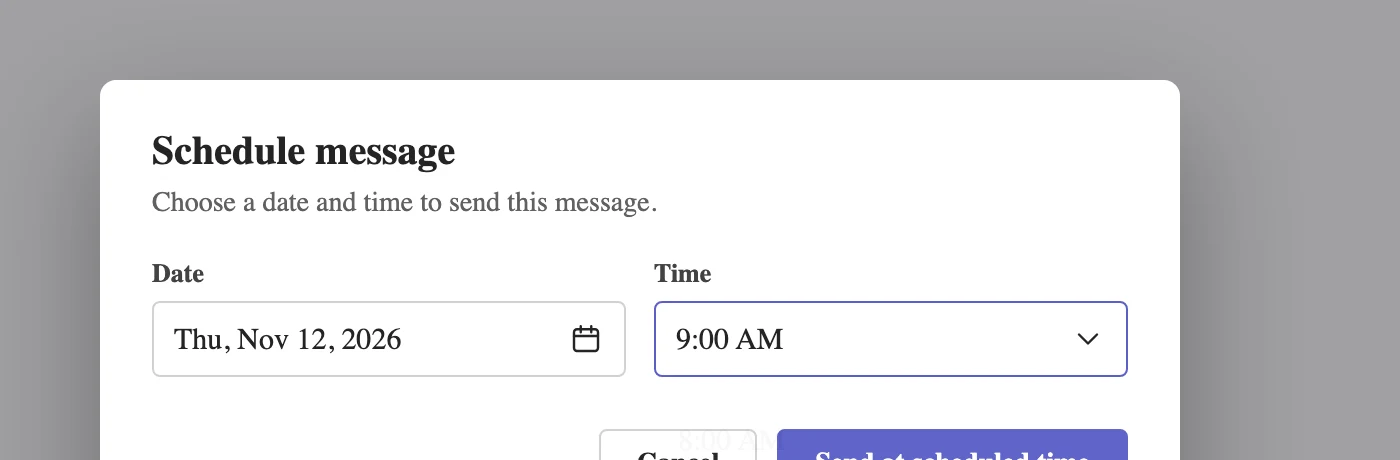
Pick a date and time (for example, tomorrow 9 AM) and click Send at scheduled time.
Edit, Send Now, Or Delete
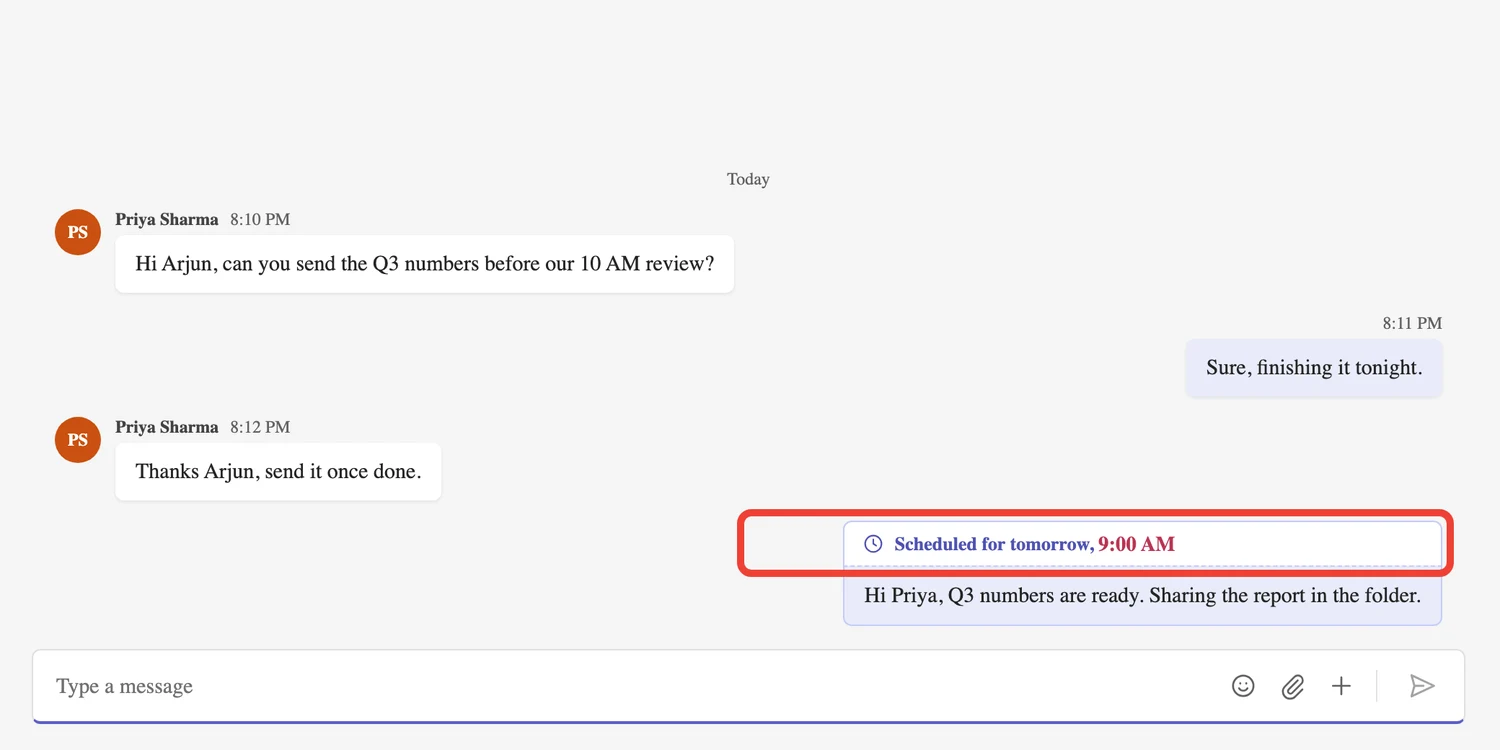
The message sits in the chat with a banner showing exactly when it will go out. Click the banner to edit it, send it now, or delete it.
What Happens Next
At the time you picked, the message goes out. It lands at the top of their chat list when they open Teams, not buried under overnight messages.
Worth knowing
- You can schedule up to 7 days ahead.
- It works in group chats too. For example, a Monday 9 AM team update while you're on leave.
FAQ
How far ahead can I schedule a message?
Up to 7 days ahead.
Does it work in group chats?
Yes. For example, you can schedule a Monday 9 AM team update while you're on leave.
Can I change a message after scheduling it?
Yes. Click the banner on the scheduled message to edit it, send it now, or delete it.
Where does the message sit until it sends?
In the chat, with a banner showing exactly when it will go out.