Stop People Forwarding Your Outlook Emails.
You send something sensitive to one person (numbers, feedback, a salary discussion) and it ends up in five other inboxes. Do Not Forward keeps the email with the people you sent it to. They can read it, but they can't forward it, print it, or copy anything out of it.
What you need: Outlook, with Microsoft Purview message encryption switched on by your company.
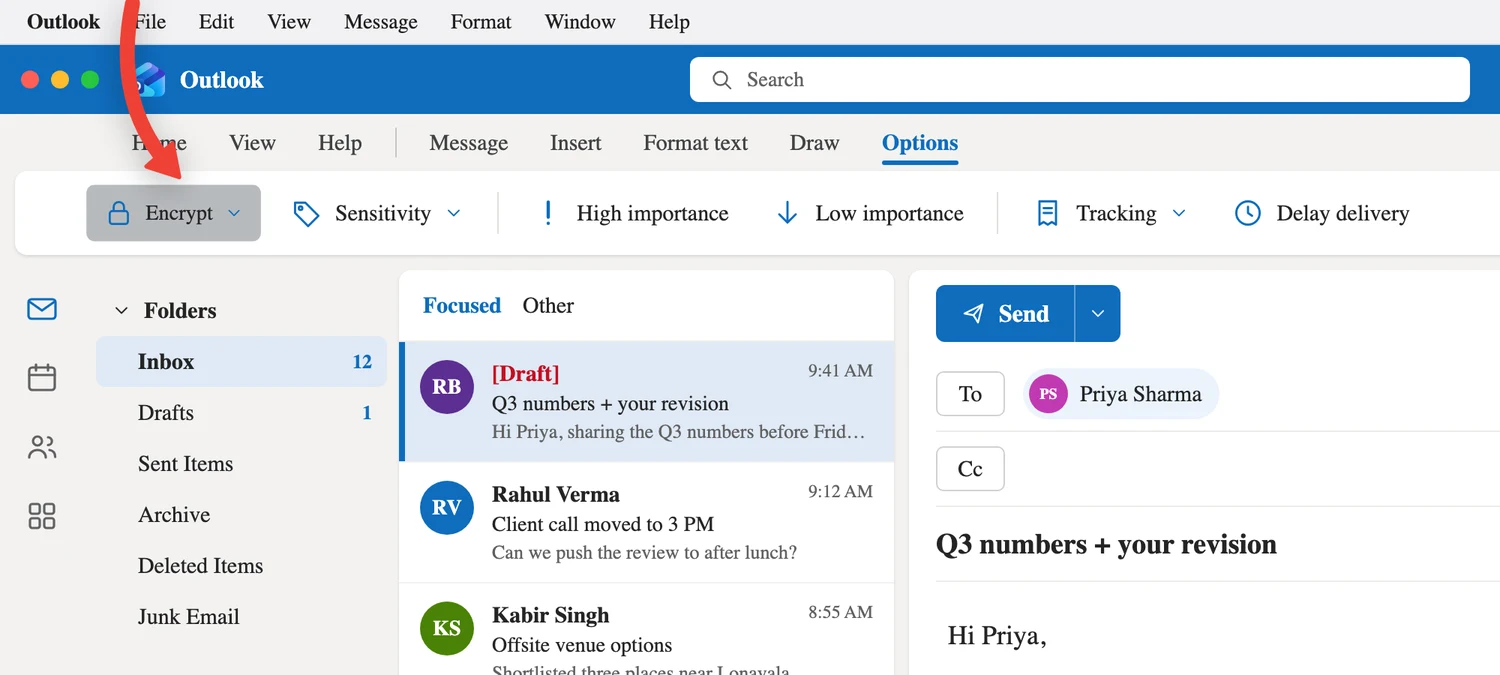
Open The Options Tab
While writing the email, go to the Options tab.
Click Encrypt
In the Options tab, click Encrypt.
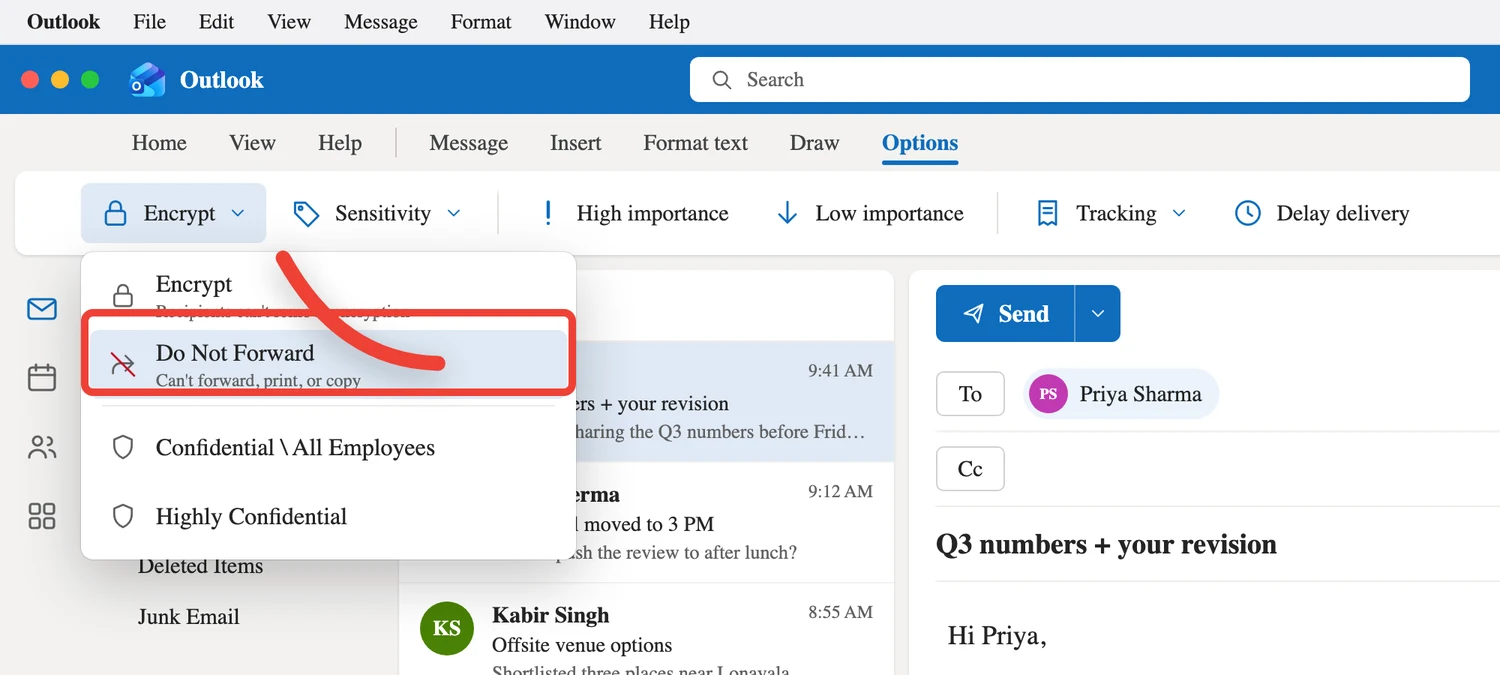
Choose Do Not Forward
From the Encrypt options, choose Do Not Forward.
Send
Send the email as normal. Recipients can read it, but they can't forward it, print it, or copy anything out of it.
Worth knowing
- It can't stop a screenshot, so still think before you hit send.
- If you don't see Encrypt, your company hasn't switched it on. It needs Microsoft Purview message encryption, so ask your IT team.
FAQ
Can the recipient still read the email?
Yes. They can read it. They can't forward it, print it, or copy anything out of it.
Does it stop screenshots?
No. Do Not Forward can't stop a screenshot, so still think before you hit send.
Why don't I see the Encrypt button?
Your company hasn't switched it on. It needs Microsoft Purview message encryption, so ask your IT team.