Present with PowerPoint Live in Teams.
Most people share their whole screen or one window when they present in Teams. PowerPoint Live is the better way. Attendees see only the slide, and you keep your notes and upcoming slides in front of you.
What you need: A Teams meeting, and a presentation saved in OneDrive or SharePoint or in your recent files.
Click Share
In the meeting, click Share.
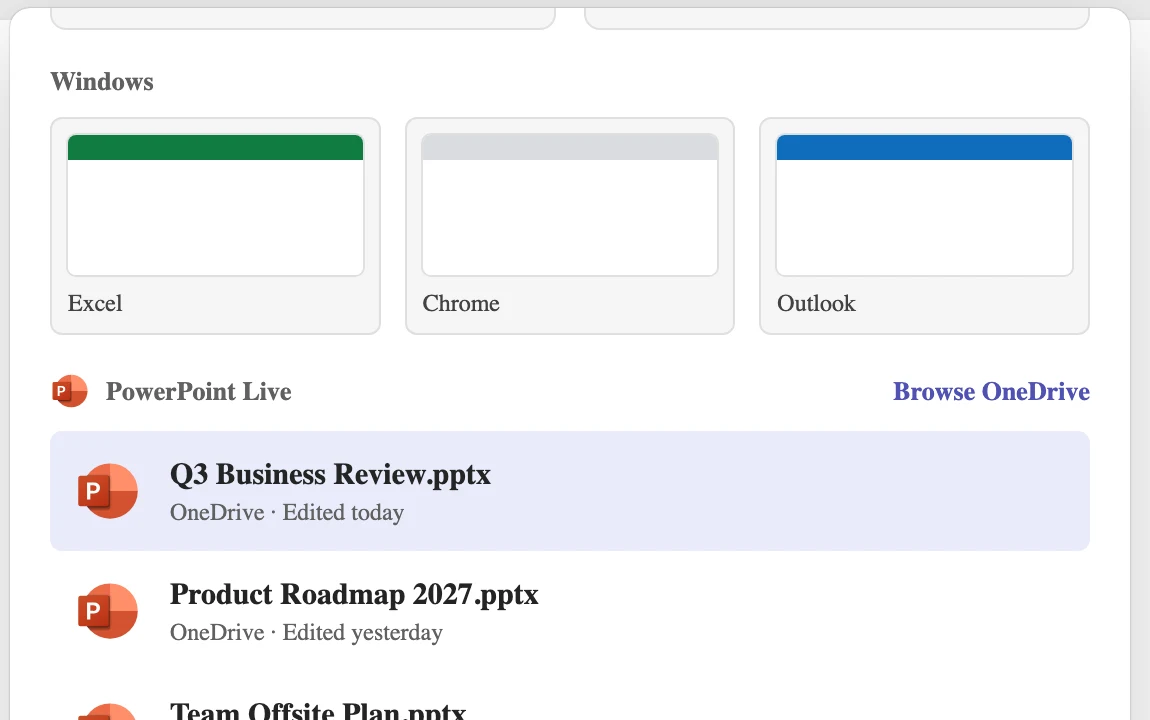
Select Your Presentation Under PowerPoint Live
Scroll down, and under PowerPoint Live select your presentation.
What You Get
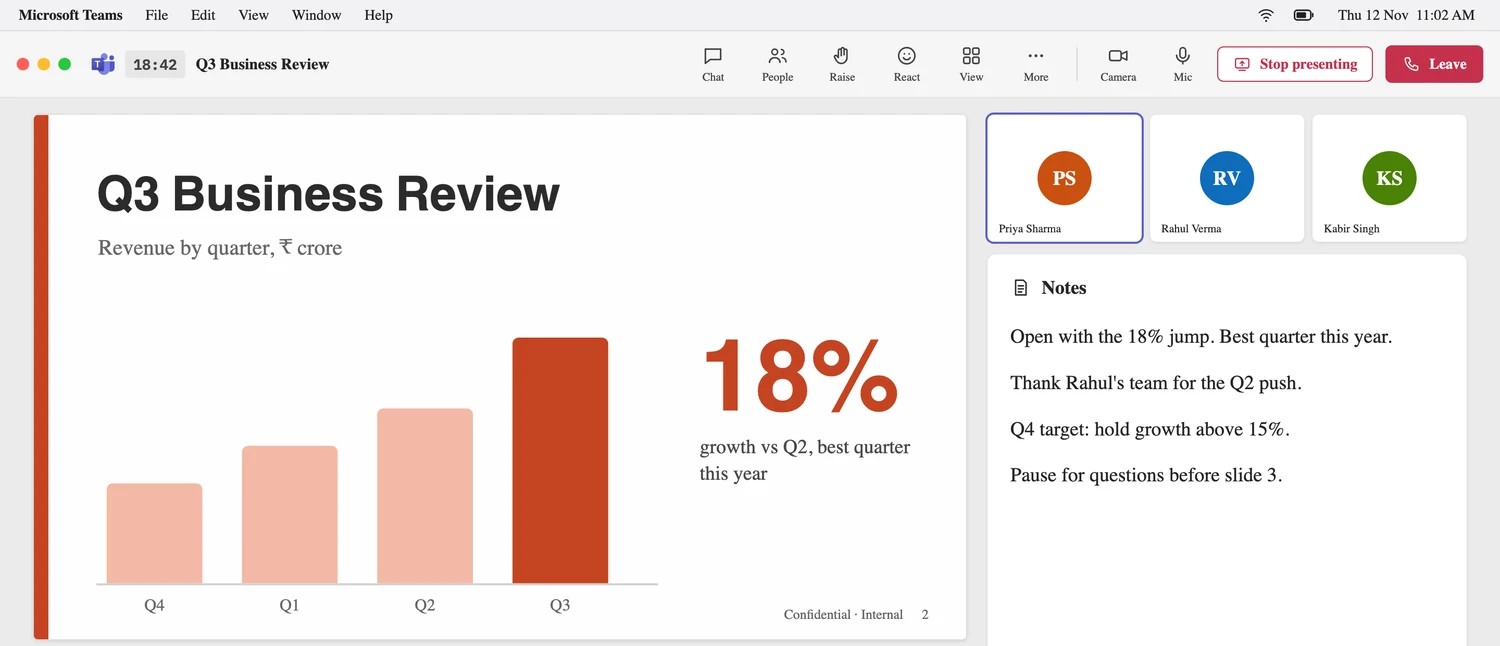
Only The Slide
Attendees see only the slide, not your desktop or other tabs.
Private Notes
Your notes sit on the right and only you can see them.
Next Slides
Your next slides line up at the bottom.
Laser Pointer
Use the laser pointer to point at anything on the slide.
Worth knowing
- The file needs to be in OneDrive or SharePoint, or in your recent files, to show under PowerPoint Live.
FAQ
Can attendees see my notes?
No. Your notes sit on the right and only you can see them.
How is this different from sharing my screen?
Attendees see only the slide, not your desktop or other tabs.
Why isn't my presentation listed under PowerPoint Live?
The file needs to be in OneDrive or SharePoint, or in your recent files.