Copilot Work Week Wrapped
Open Microsoft 365 Copilot
You need a Microsoft 365 Copilot licence for this.
Paste the prompt
Copy the prompt below, paste it into Copilot and hit send.
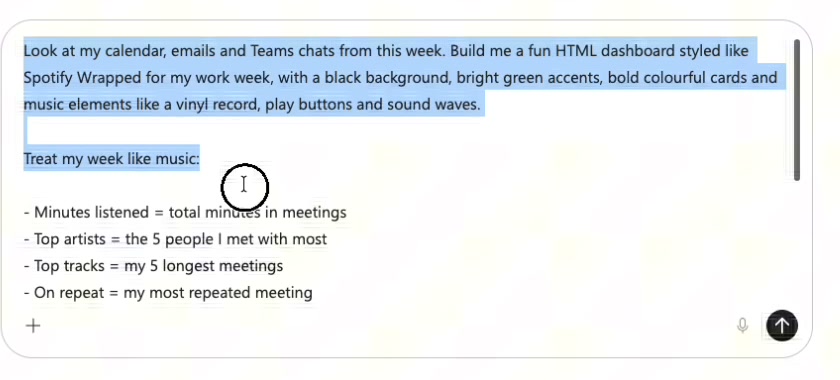
Look at my calendar, emails and Teams chats from this week. Build me a fun HTML dashboard styled like Spotify Wrapped for my work week, with a black background, bright green accents, bold colourful cards and music elements like a vinyl record, play buttons and sound waves.

Treat my week like music:

- Minutes listened = total minutes in meetings
- Top artists = the 5 people I met with most
- Top tracks = my 5 longest meetings
- On repeat = my most repeated meeting
- Top genre = what I spent most time on (budget, clients, planning, etc.)
- Skipped track = the meeting that could have been an email
- Busiest day and total emails sent

End with a "Your work anthem" card: a funny made-up song title and artist that sums up my week. Put all the numbers directly in the dashboard.

Give me the dashboard as a downloadable .html file.
Download your Wrapped
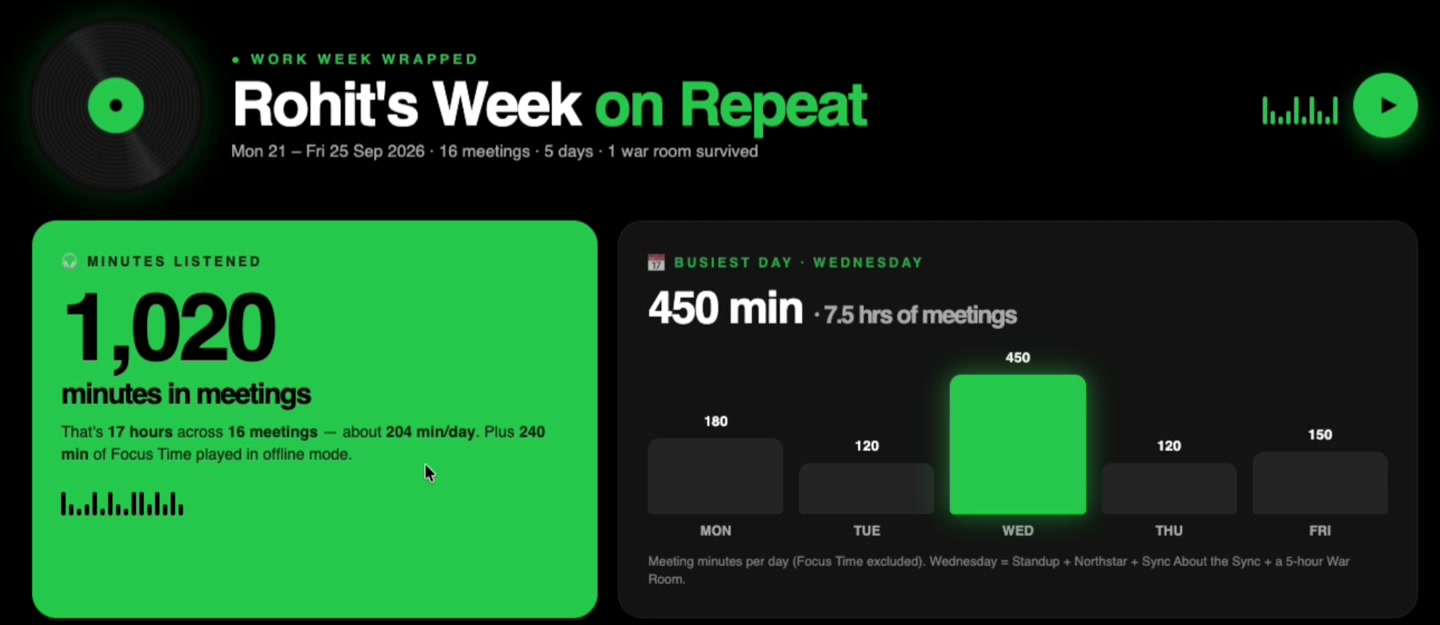
Copilot reads your calendar, emails and Teams chats from this week and gives you a downloadable .html file. Download it and open it in your browser.
How to schedule it
Open Scheduled prompts
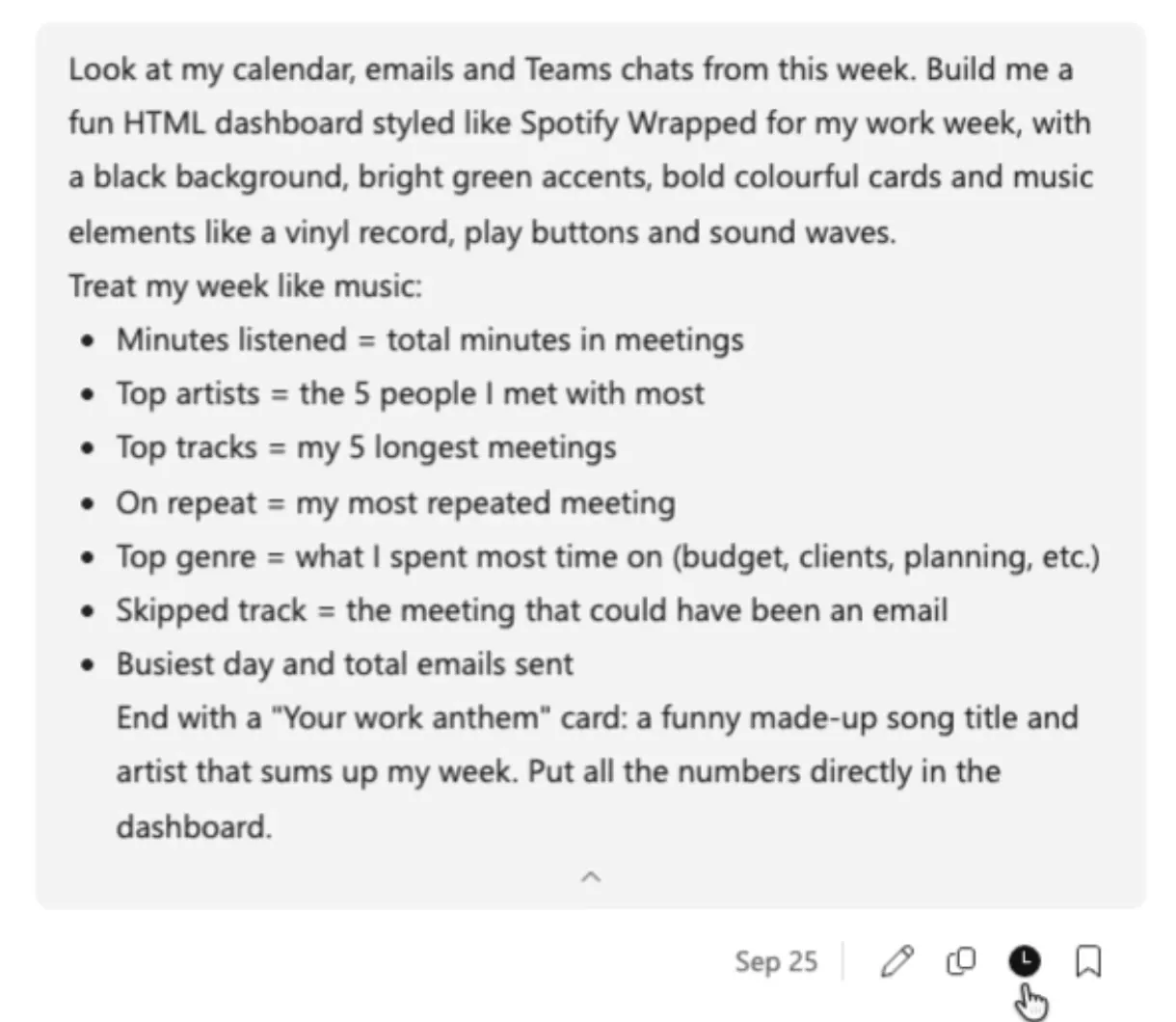
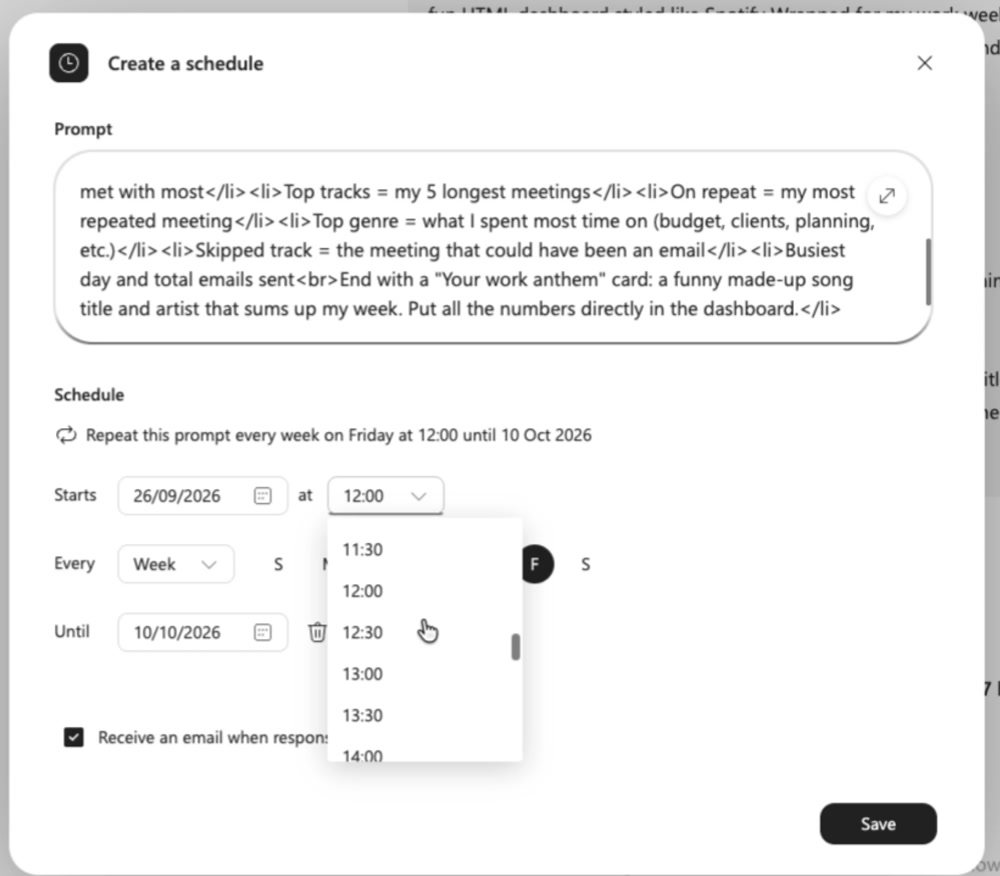
After the prompt has run once, hover over your prompt in the chat and click the schedule icon. You can also go to the three dots menu, select Scheduled prompts and click New.
Set a weekly schedule
Set it to repeat weekly, every Friday at 5:00 PM, and save.
Get it every week
Your Wrapped now builds itself at the end of every week.
What You Get
Minutes Listened
Total time you spent in meetings this week.
Top Artists
The 5 people you met with most.
Top Tracks
Your 5 longest meetings.
On Repeat
The meeting you kept having.
Top Genre
What took up most of your week.
Skipped Track
The meeting that should have been an email.
Busiest Day
Your most packed day, with emails sent.
Your Work Anthem
A made-up song title that sums up your week.