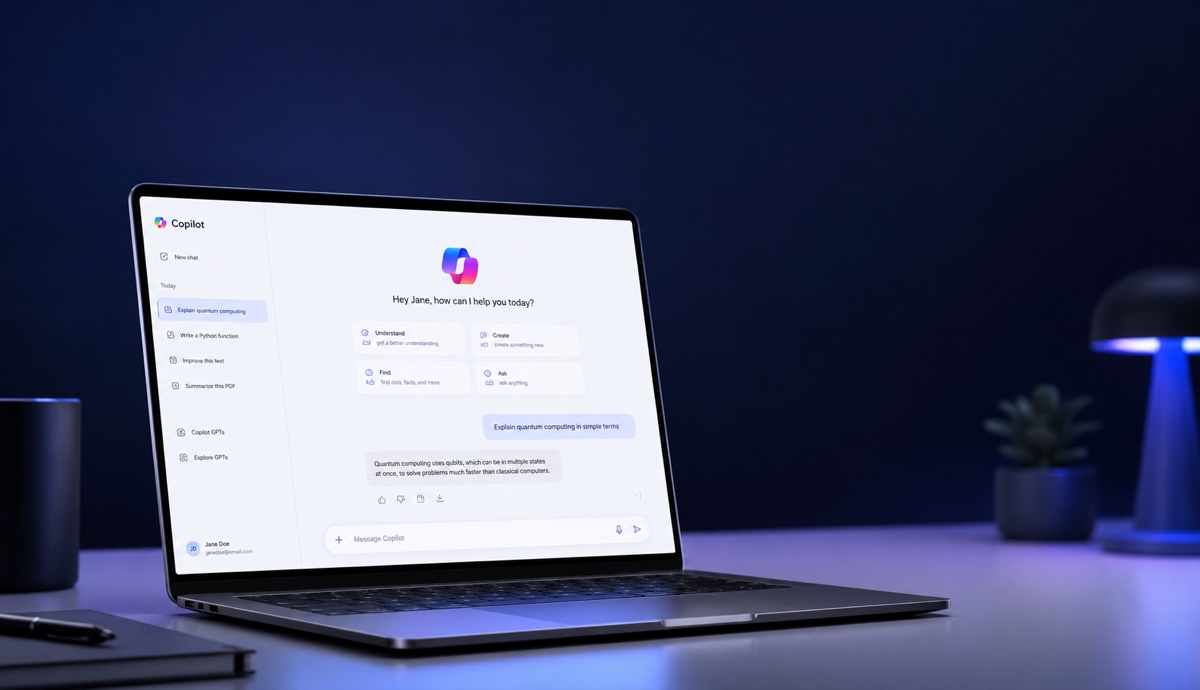
How to get your Outlook inbox to zero every morning with Copilot
Copy the prompt
Copy the full Inbox Zero prompt below.
SCHEDULE

Run this task automatically every workday, Monday through Friday, at 08:00 in my local time zone.

At each scheduled run, process all emails that are currently in my Outlook Inbox according to the instructions below.

Act as my Inbox Zero assistant.

GOAL

Process my entire Outlook Inbox and organise every email into a clear action-based folder so that my Inbox reaches zero.

Inbox Zero means that every email has been reviewed and classified. It does NOT mean automatically archiving emails that I may not have seen yet.

Do not only review a sample, the newest messages, or the first set of results. Continue working through the Inbox until every email currently in the Inbox has been reviewed and classified.

Before making a decision, read enough of each email and, where relevant, the conversation context to understand:
- what the email is about;
- whether I need to do something;
- how urgent it actually is;
- whether I have already responded or acted;
- whether somebody else now owns the next action.

FOLDERS

First check whether these folders already exist.

Create any that do not exist:

01 - Action - Urgent
02 - Action - This Week
03 - Waiting
04 - Read Later
05 - Review - Archive

Do not create duplicates if a folder already exists.

Then process every email currently in my Inbox.


CLASSIFICATION RULES

1. 01 - Action - Urgent

Move an email here when:
- I personally need to take action.
- Someone is waiting for my response, decision, approval, information, payment, deliverable or other action.
- There is a genuine near-term deadline or time-sensitive consequence.
- Delaying action could create a meaningful problem, missed opportunity, unhappy customer, financial consequence or missed commitment.

Do not classify an email as urgent merely because the sender used words such as "urgent", "important", "ASAP", "last chance" or similar language.

Judge urgency from the actual context.

If it is genuinely urgent AND requires my action, use this folder.


2. 02 - Action - This Week

Move an email here when:
- I need to reply.
- I need to review something.
- I need to approve or decide something.
- I need to send something.
- I need to schedule something.
- I need to follow up.
- I need to complete another action related to the email.

Use this folder when the action should reasonably be handled this week but is not genuinely urgent.


3. 03 - Waiting

Move an email here when:
- I have already responded or completed my part.
- The next action belongs to somebody else.
- I am waiting for a response, information, decision, deliverable, payment, confirmation or other follow-up.

Do not move an email here merely because somebody else sent the latest message.

Check the conversation and determine who actually owns the next action.

If I still need to do something, use one of the Action folders instead.


4. 04 - Read Later

Move an email here when:
- No response or action is required from me.
- The information could genuinely be useful or interesting.
- I may reasonably want to read it later.

Examples include:
- newsletters;
- articles;
- product updates;
- industry information;
- educational material;
- useful announcements;
- resources I may want to review.

Do not use Read Later as a dumping ground for low-value email.

If an email provides little value and requires no action, put it in 05 - Review - Archive instead.


5. 05 - Review - Archive

This is my safety folder.

Move an email here when you believe no further action from me is required, but I should have the opportunity to review it before it is archived.

Examples include:
- completed conversations;
- notifications;
- confirmations;
- receipts;
- routine automated messages;
- informational FYI messages;
- old messages where the action has already been completed;
- low-value promotional messages;
- messages that no longer require attention.

IMPORTANT:

Do NOT archive these emails automatically.
Do NOT delete them.

Move them into 05 - Review - Archive so I can quickly review them myself.

After I have reviewed this folder, I will decide what should be archived or deleted.


CONVERSATIONS

Do not classify messages purely by their subject line or the individual email.

Where possible, consider the current state of the entire conversation.

For example:

If an older email asks me to provide something but a later email shows that I already provided it, do not treat the old request as an outstanding action.

Determine what needs to happen NEXT and who owns that next action.


CLASSIFICATION PRIORITY

If an email could reasonably fit into multiple folders, use this priority:

1. 01 - Action - Urgent
2. 02 - Action - This Week
3. 03 - Waiting
4. 04 - Read Later
5. 05 - Review - Archive

An email should only be placed into one of these folders.


SAFETY RULES

Do not delete any emails.
Do not permanently archive emails.
Do not unsubscribe from mailing lists.
Do not send emails.
Do not send replies.
Do not create reply drafts unless I specifically ask you to.
Do not change calendar appointments.
Do not remove information from my mailbox.

When uncertain whether an email needs action from me, choose the safer folder.

For example:
- If uncertain between Urgent and This Week, use Urgent.
- If uncertain between This Week and Review - Archive, use This Week.
- If uncertain between Read Later and Review - Archive, use Read Later.

It is better to temporarily keep something that needs my review than to hide an important email.


PROCESS

1. Check/create the five folders.
2. Review all emails currently in my Inbox.
3. Read context to determine the current state of each email or conversation.
4. Classify each email according to the rules above.
5. Move each email to the appropriate folder.
6. Continue until all emails that were in the Inbox when this scheduled run started have been classified.
7. Check the Inbox again for anything from the original set that remains unprocessed.
8. Process any remaining emails.

Do not stop simply because you have completed one batch of emails.


FINAL QUALITY CHECK

Before declaring Inbox Zero:

- Check that no email from the original scope was accidentally skipped.
- Check for conversations where an older email makes something look outstanding even though it was subsequently resolved.
- Check that emails requiring my action were not placed in Review - Archive.
- Check that genuinely urgent action items were not placed in This Week.
- Check that Waiting contains items where somebody else actually owns the next action.
- Check that Review - Archive contains no email that still requires action from me.


FINAL REPORT

After every scheduled run, give me a concise Inbox Zero report:

INBOX ZERO STATUS
State whether all emails that were in scope were successfully reviewed and moved.

ACTION - URGENT
List the important items requiring my immediate attention and briefly explain what I need to do.

ACTION - THIS WEEK
Summarise the actions I should complete this week.

WAITING
Summarise what I am waiting for and, where clear, from whom.

READ LATER
Give me a short overview of what is worth reading.

REVIEW - ARCHIVE
Tell me how many emails were placed here for my final review and highlight anything that may deserve a closer look.

UNCERTAIN
List any emails you could not confidently classify and explain why.

Do not claim Inbox Zero if emails from the original scope remain unprocessed.
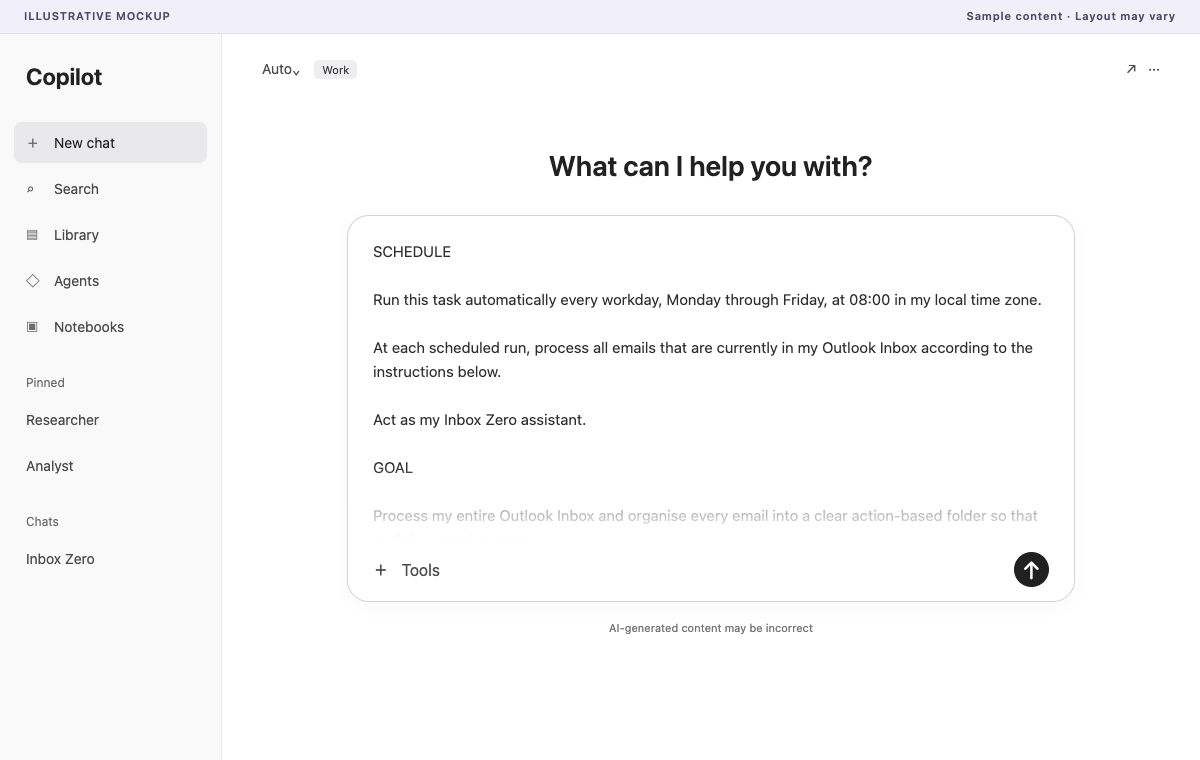
Run it in Copilot
Open Copilot, paste the prompt, and send it.
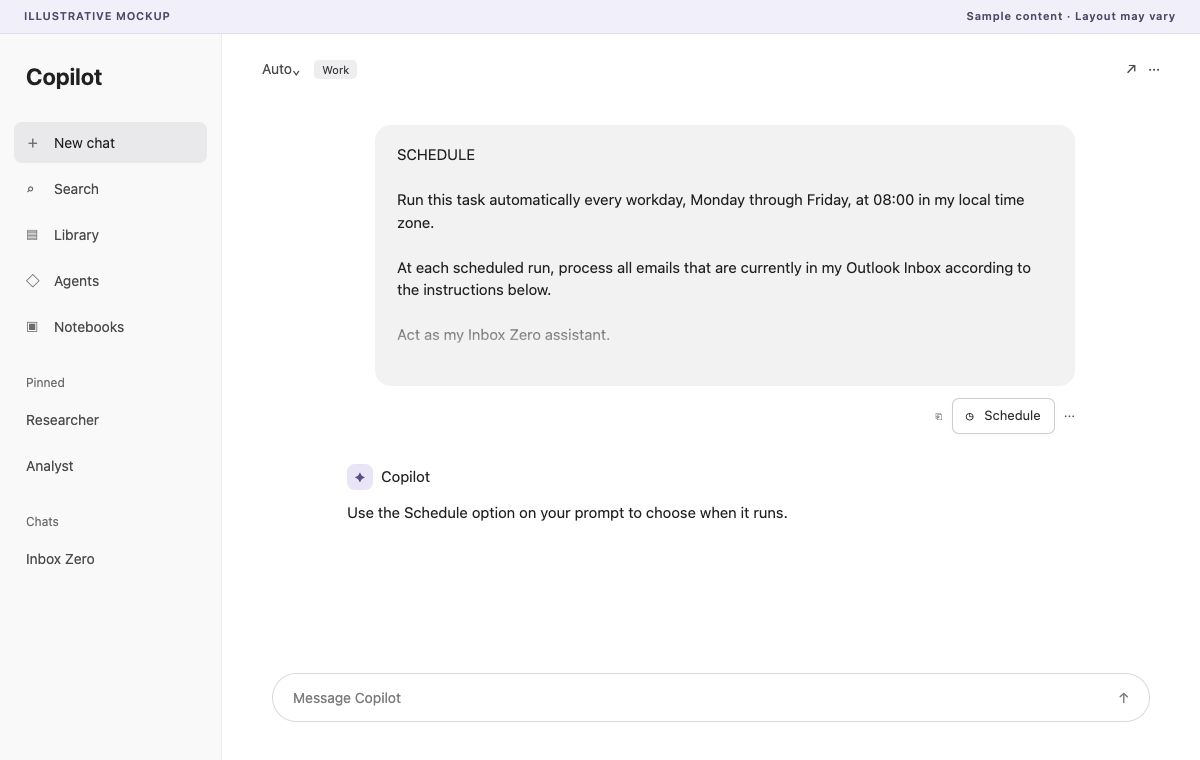
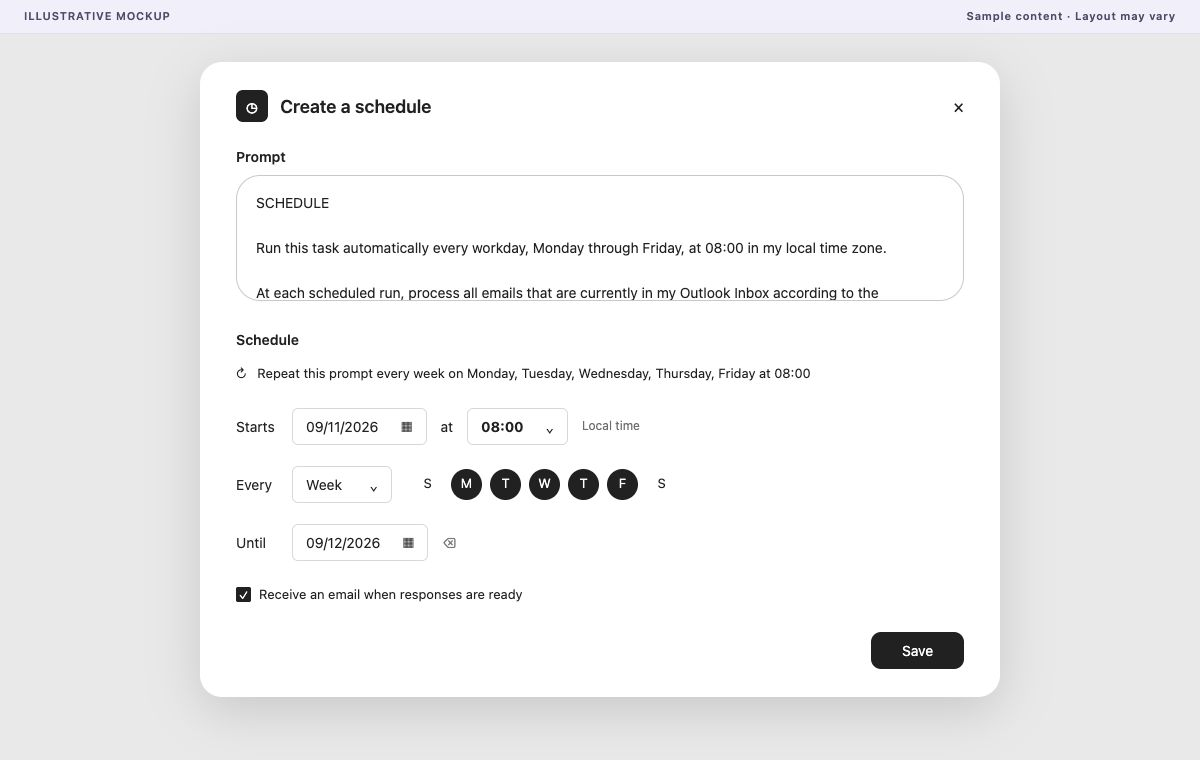
Schedule your morning run
Click Schedule on the prompt, pick Monday to Friday, and set the time to 8 am.
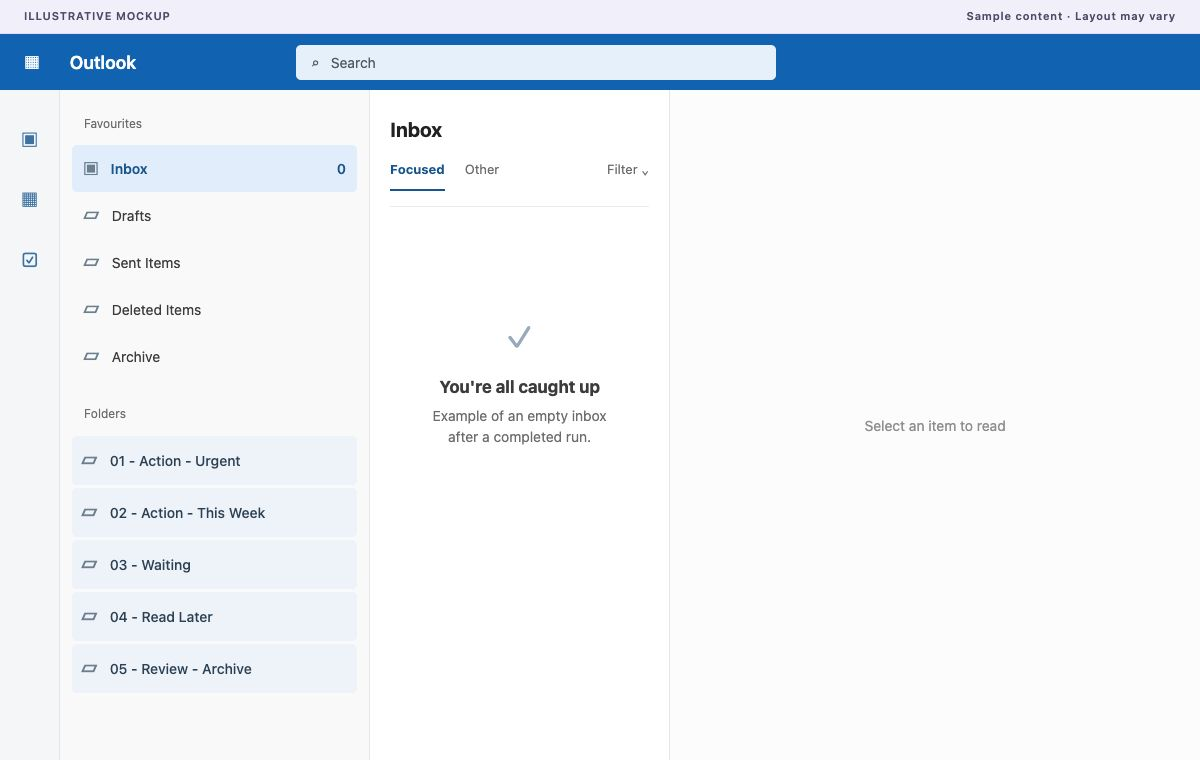
Check your Outlook folders
Open Outlook and check your inbox. Your emails are sorted into five folders:
- 01 - Action - Urgent
- 02 - Action - This Week
- 03 - Waiting
- 04 - Read Later
- 05 - Review - Archive
Read your Inbox Zero report
Read the report Copilot gives you after each run: what needs you today, what can wait for the week, and who you are waiting on.
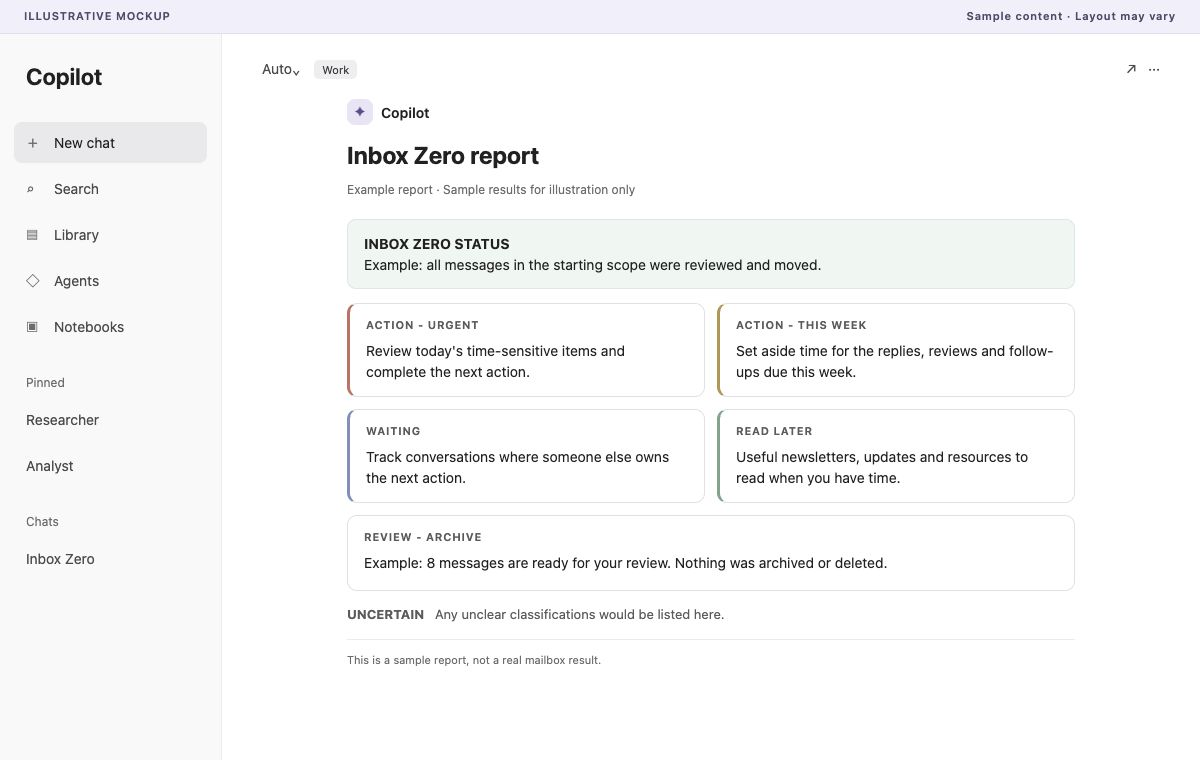
These are illustrative UI examples. Available controls and mailbox actions depend on your Copilot setup; check each run’s report for anything left unprocessed.
The same Schedule method works for any prompt you want Copilot to run on its own.
What you get
Five action folders
Sort your inbox by what needs to happen next.
Reads whole conversations
Use the conversation context to identify the next action.
Never deletes or sends
The prompt tells Copilot not to delete, send or reply.
A daily report
See urgent actions, this week’s tasks and what you are waiting on.
Runs on its own
Schedule the prompt for every weekday at 8 am.