Interactive PowerPoint Slides with Copilot.
Copilot can now build slides your audience can click. Tabs, timelines and live dashboards, made from the deck you already have. It takes 3 clicks.
What you need: PowerPoint with Microsoft 365 Copilot on your work account, and a deck with some content in it.
The Short Version
Open your deck, insert an interactive slide, pick a format and submit.
1. Open
Open your deck in PowerPoint.
2. Insert
Click Insert, then Interactive Slide.
3. Pick
Choose a format: Summary, Dashboard, Timeline, Comparison or Custom.
4. Submit
Copilot writes the prompt for you. Hit Submit.
Open Your Deck
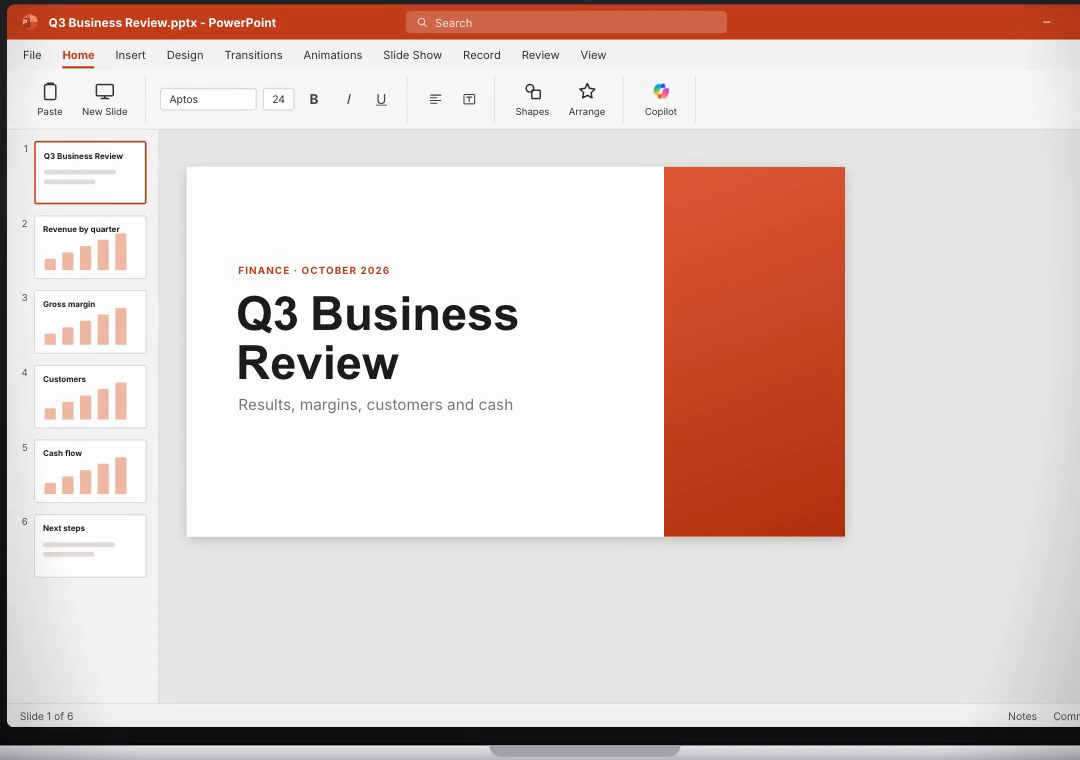
Open the presentation you want to work from in PowerPoint. Copilot builds the interactive slide from the content already in this deck.
Insert an Interactive Slide
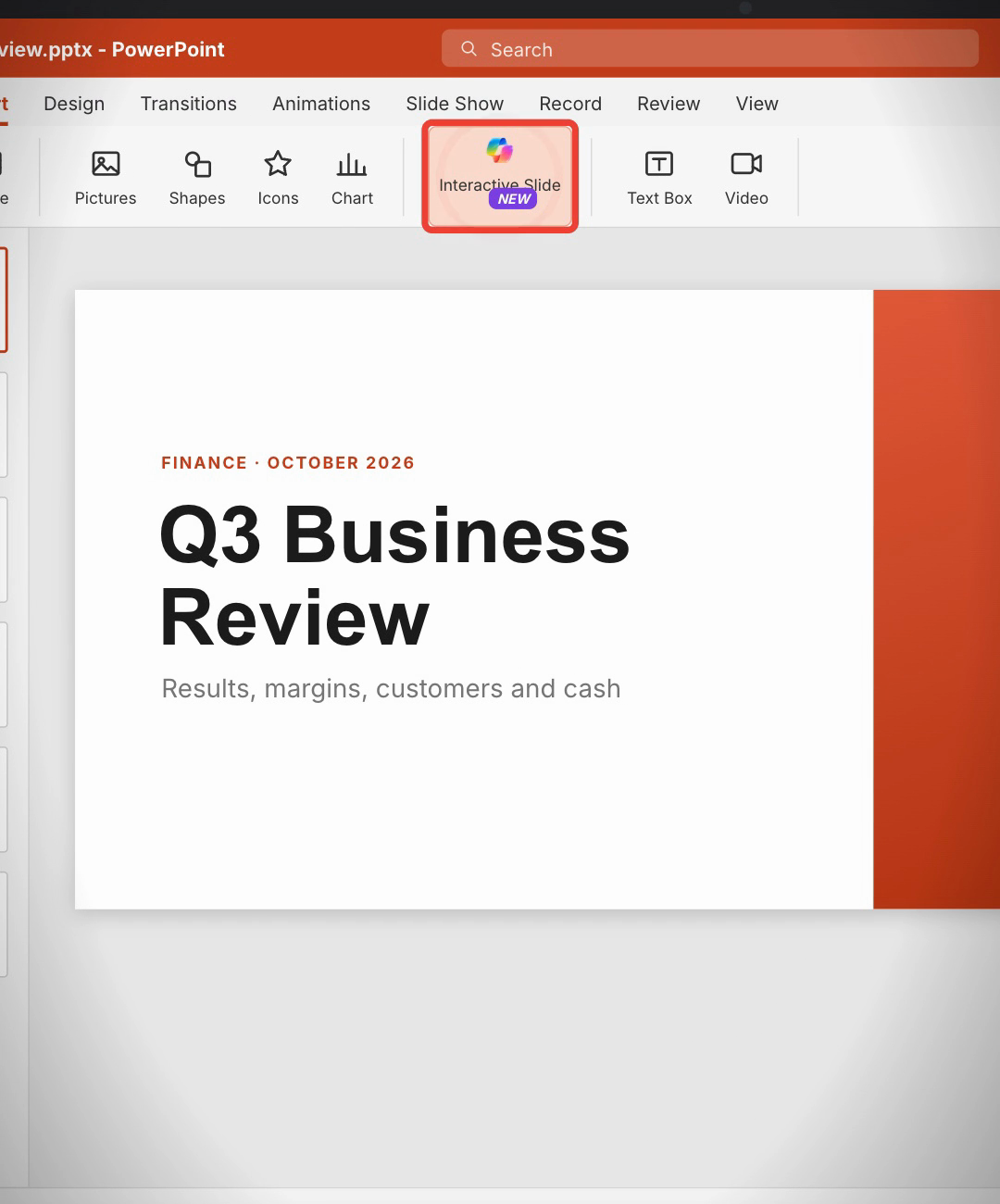
Go to the Insert tab and click Interactive Slide. It is marked as new.
Pick a Format
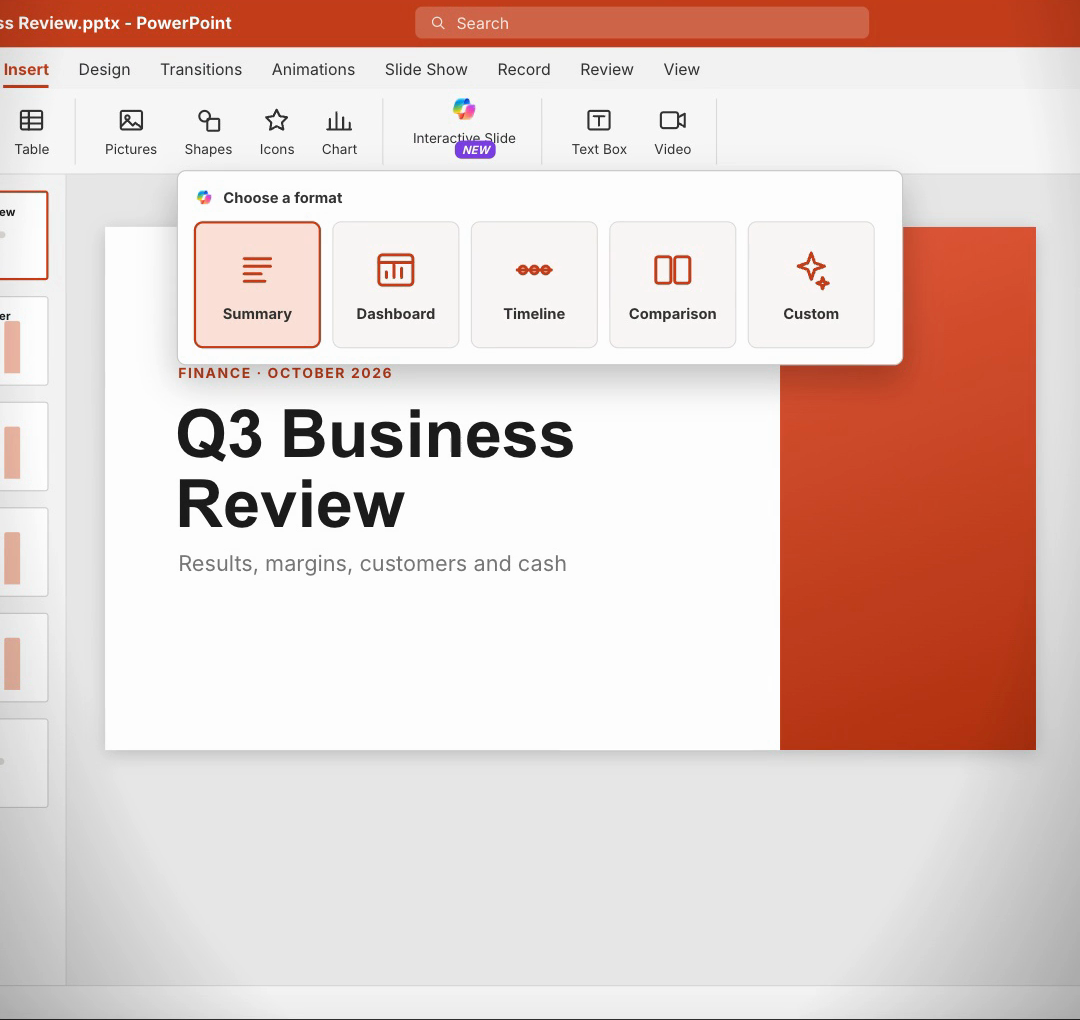
Choose the kind of slide you want. Each one gives your audience something different to click.
- Summary: the key points of your deck on one clickable slide
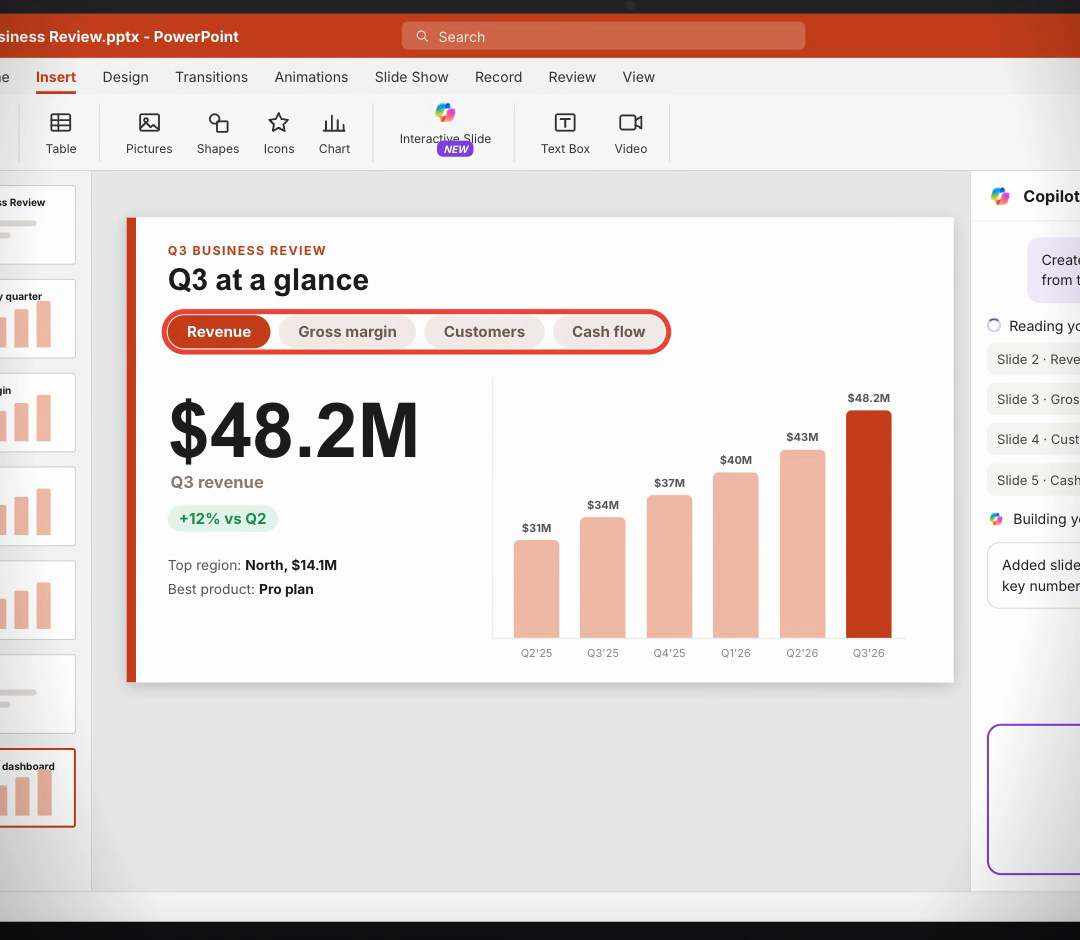
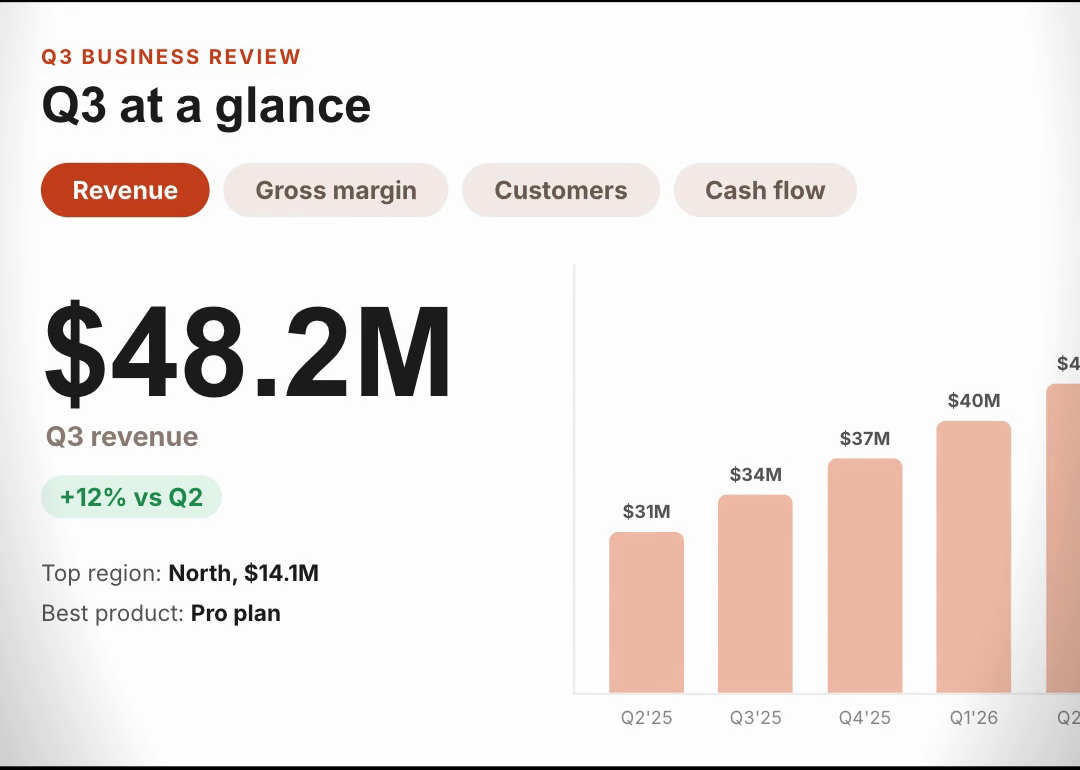
- Dashboard: a tab for each key number, with the chart switching live
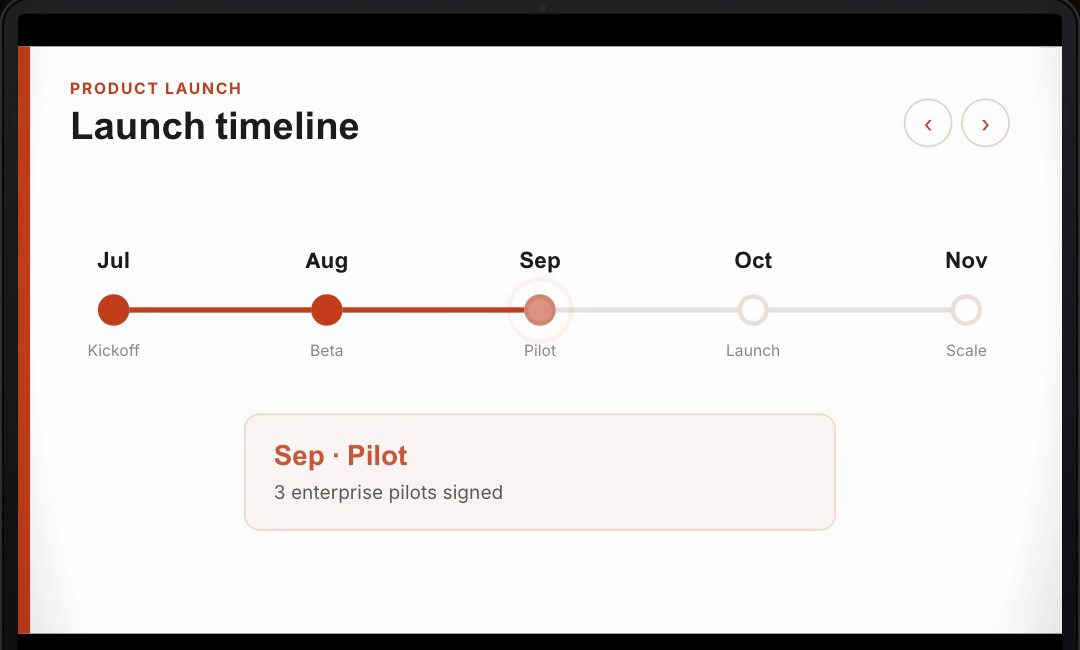
- Timeline: step through dates and milestones one by one
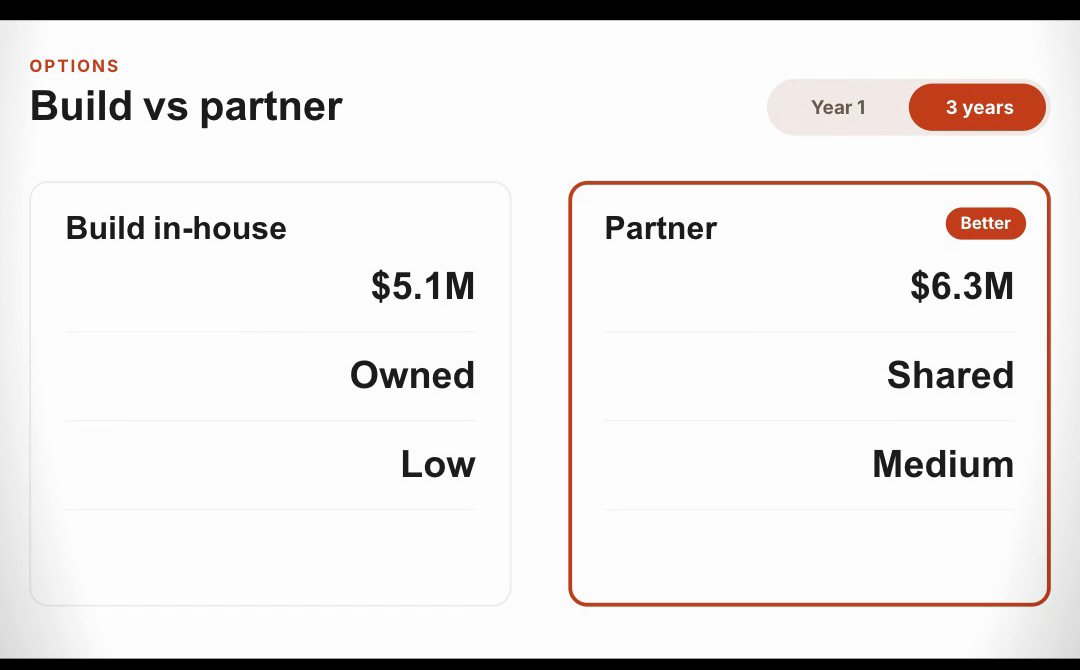
- Comparison: toggle between two options side by side
- Custom: describe the slide you want in your own words
Submit the Prompt
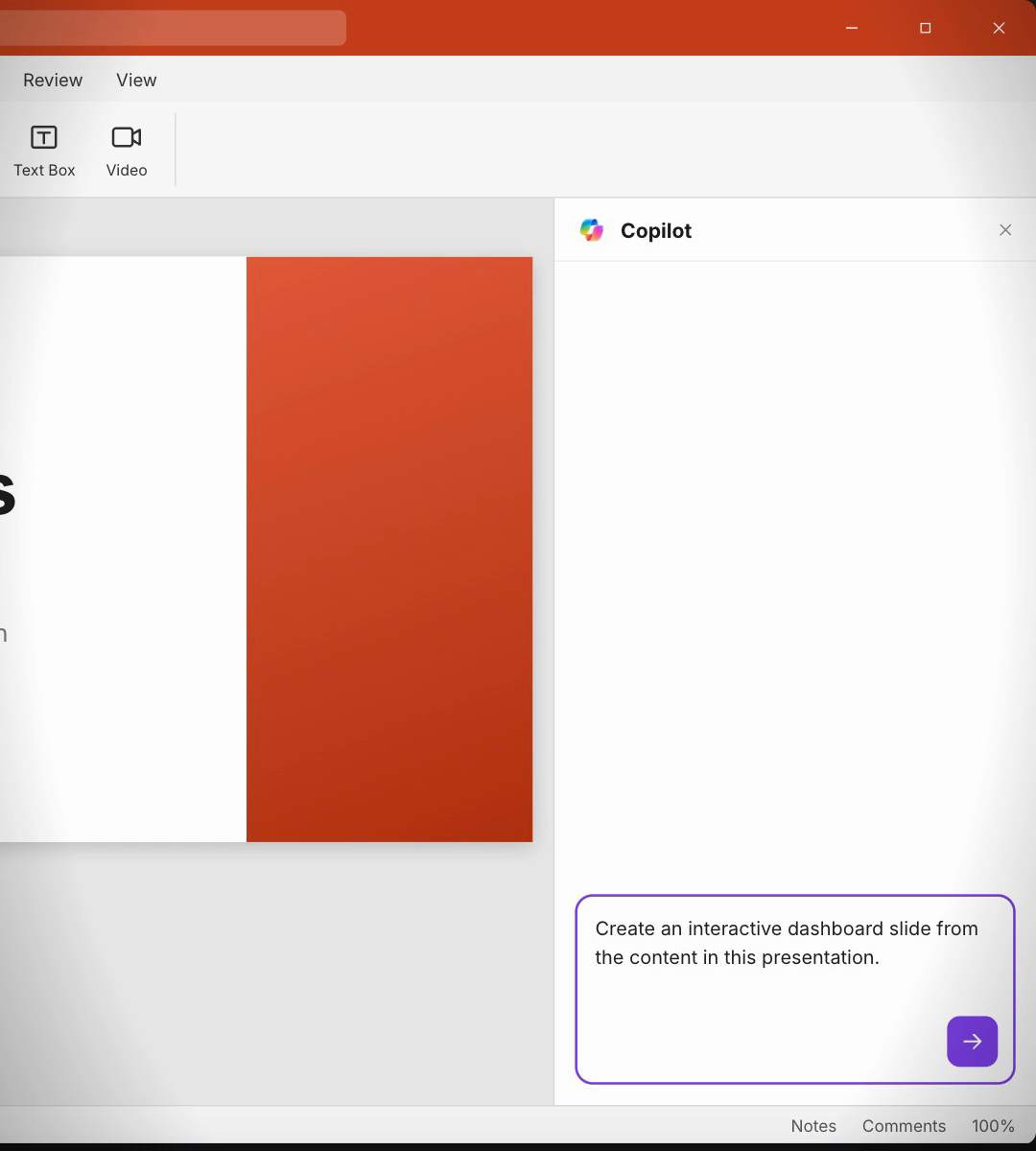
Copilot writes the prompt for you based on the format you picked. Check it, then hit Submit.
Create an interactive dashboard slide from the content in this presentation.
What You Get
A slide built from your own deck that people can actually click through while you present.
Where This Works Best
Quarterly review
One dashboard slide with a tab for revenue, margin, customers and cash flow.
Launch update
A timeline the room can step through instead of a dense roadmap slide.
Build vs buy
A comparison slide you toggle live while people ask questions.
"What about cash flow?"
When someone asks, click the tab. No hunting for the backup slide.
Worth knowing
- Microsoft rolls features out in waves. If you can't see Interactive Slide on the Insert tab yet, your organisation may not have it turned on.
- Copilot builds the slide from what is in your deck. Check every number before you present it.
- The more content your deck has, the better the interactive slide will be.