
Copilot Emails in Your Voice.
Tell Copilot once how you write. Every email it drafts then sounds like you, and you can ask it to find any email and write the reply.
What you need: new Outlook or Outlook on the web, and Microsoft 365 Copilot on your work account.
Open Copilot Settings
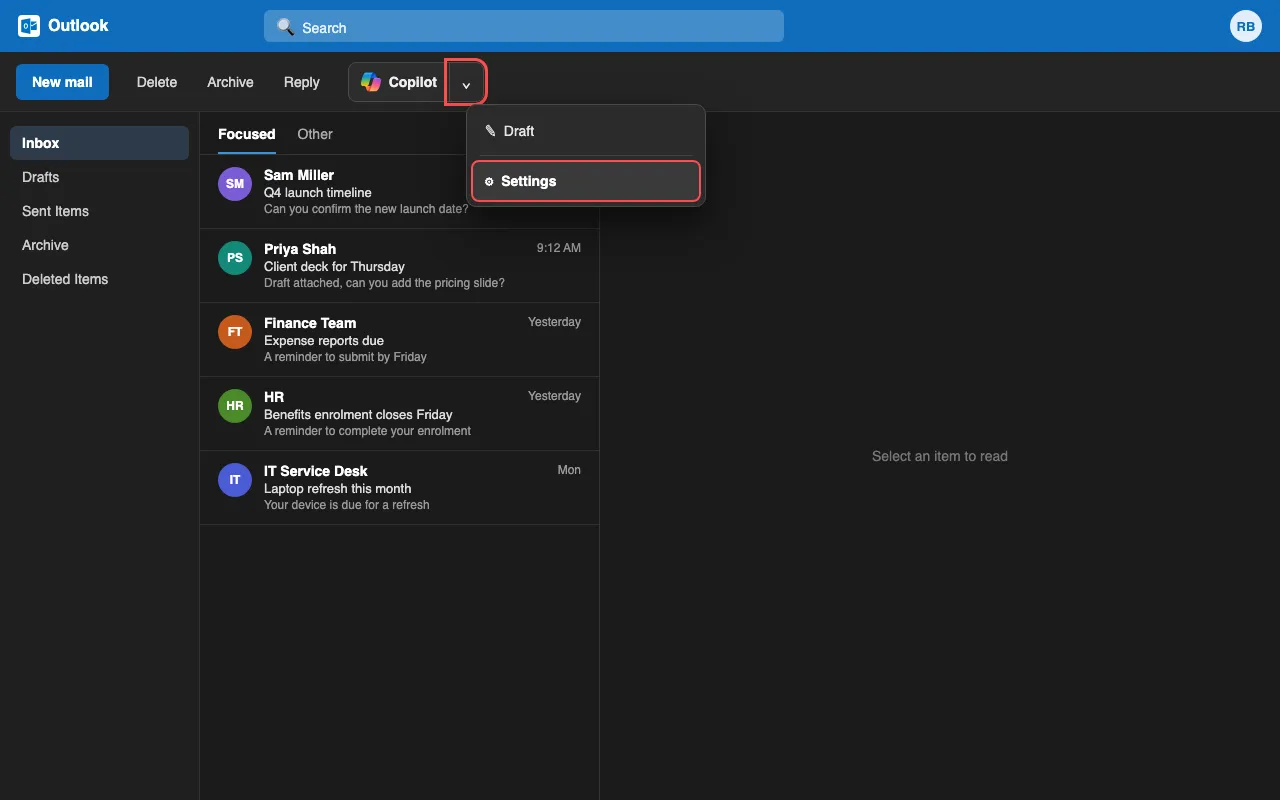
Open Outlook. Click the small arrow next to the Copilot icon and choose Settings.
Turn On Draft Instructions
Select Draft Instructions. Turn on Use custom instructions when drafting email. The toggle turns blue.
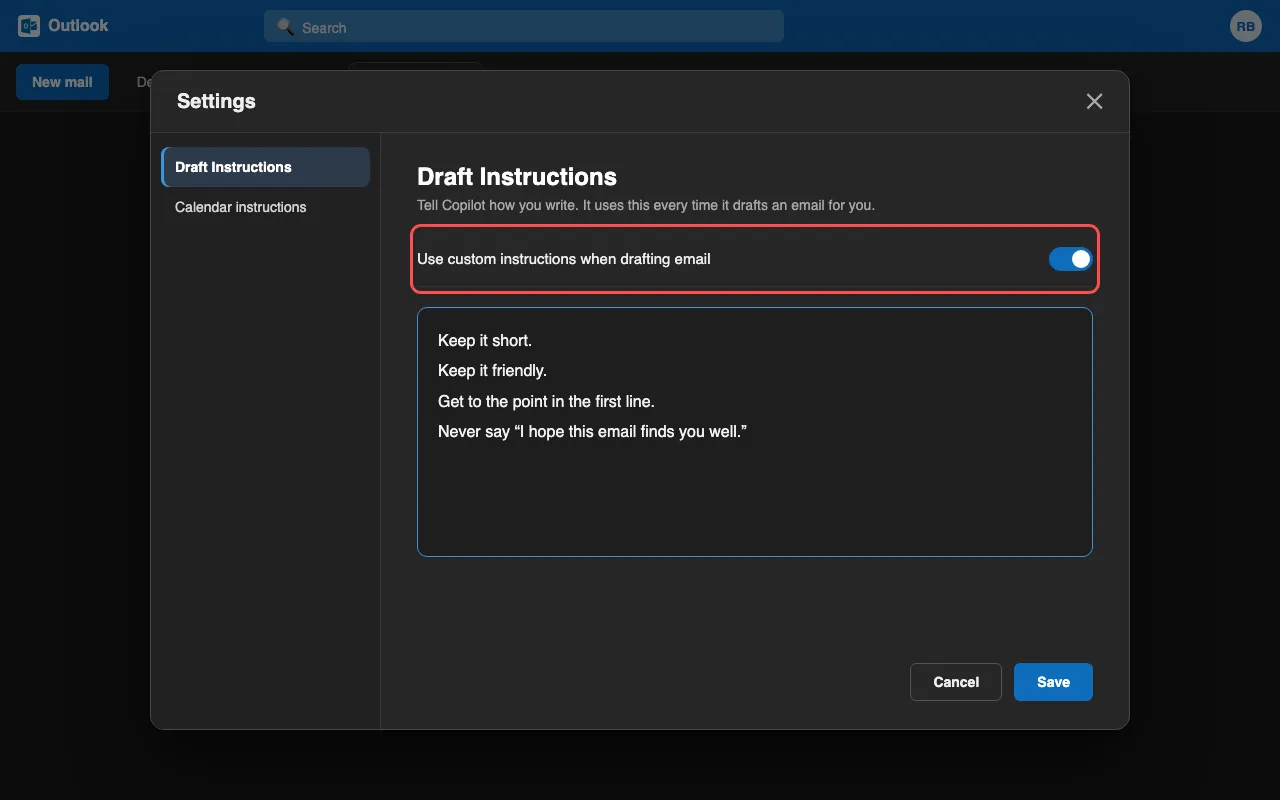
Tell It How You Write
Type how you like your emails in the box. Start with these and change them to match you.
Keep it short.
Keep it friendly.
Get to the point in the first line.
Never say "I hope this email finds you well."
Want a set sign-off? Add a line like "Sign off with Cheers and my first name."
Click Save
Click Save and close the window.
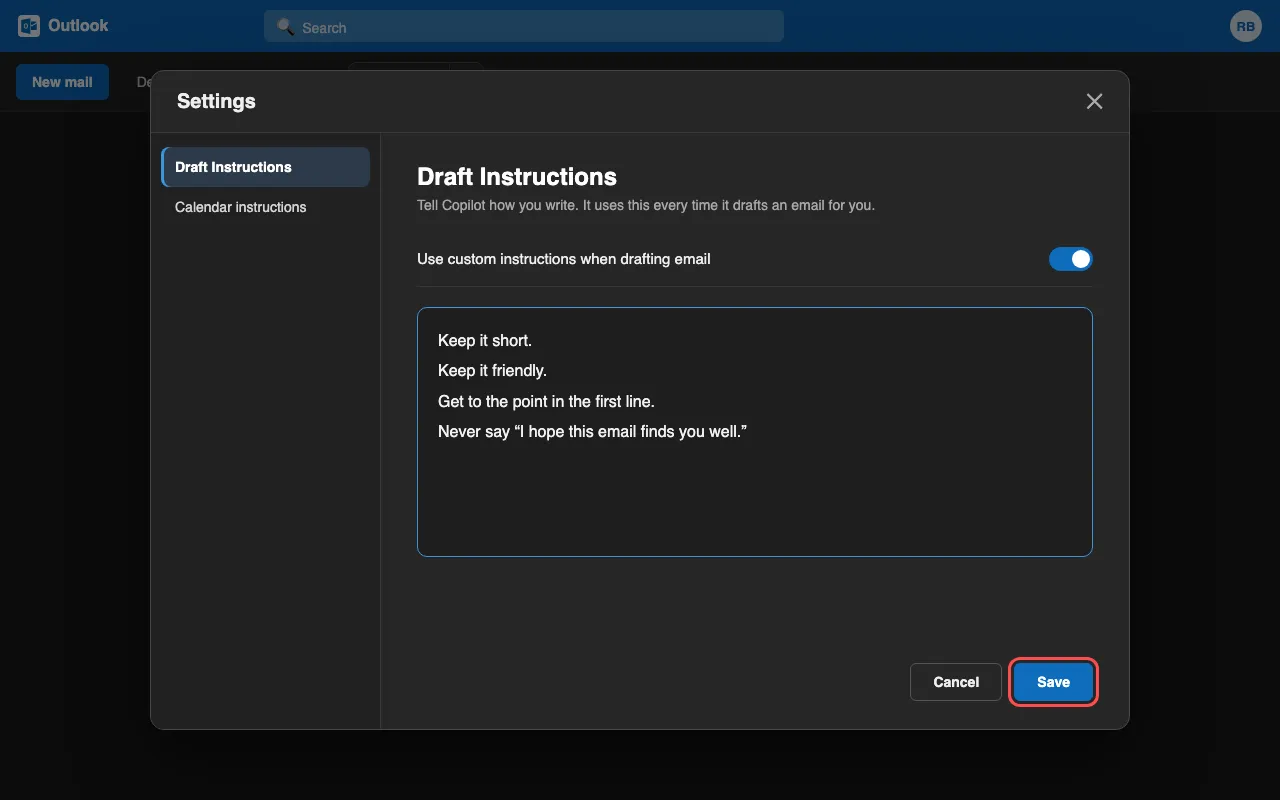
Every email you draft with Copilot in Outlook now follows your tone, length and sign-off. You can come back and change the instructions any time.
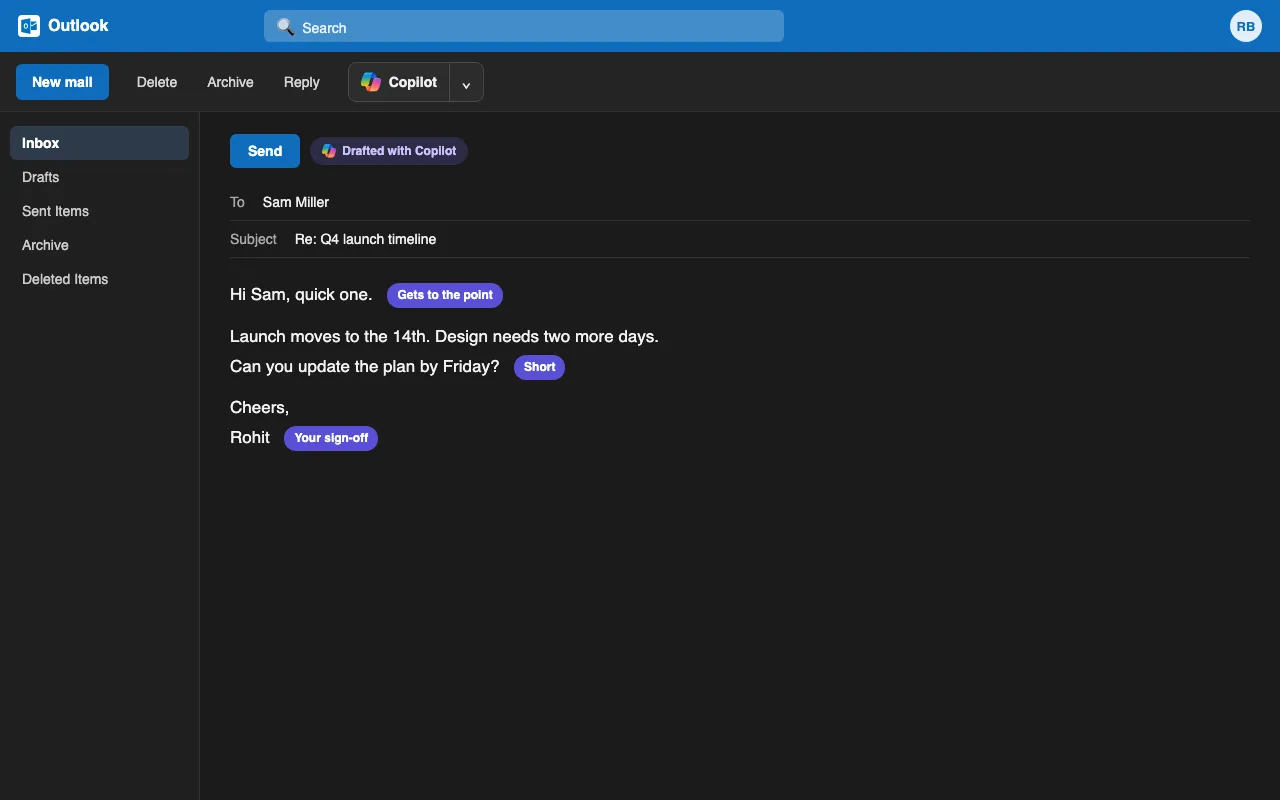
Ask Copilot to Find the Email
Open Microsoft 365 Copilot (the Copilot app, or m365.cloud.microsoft) and type this prompt. Swap Priya for anyone's name.
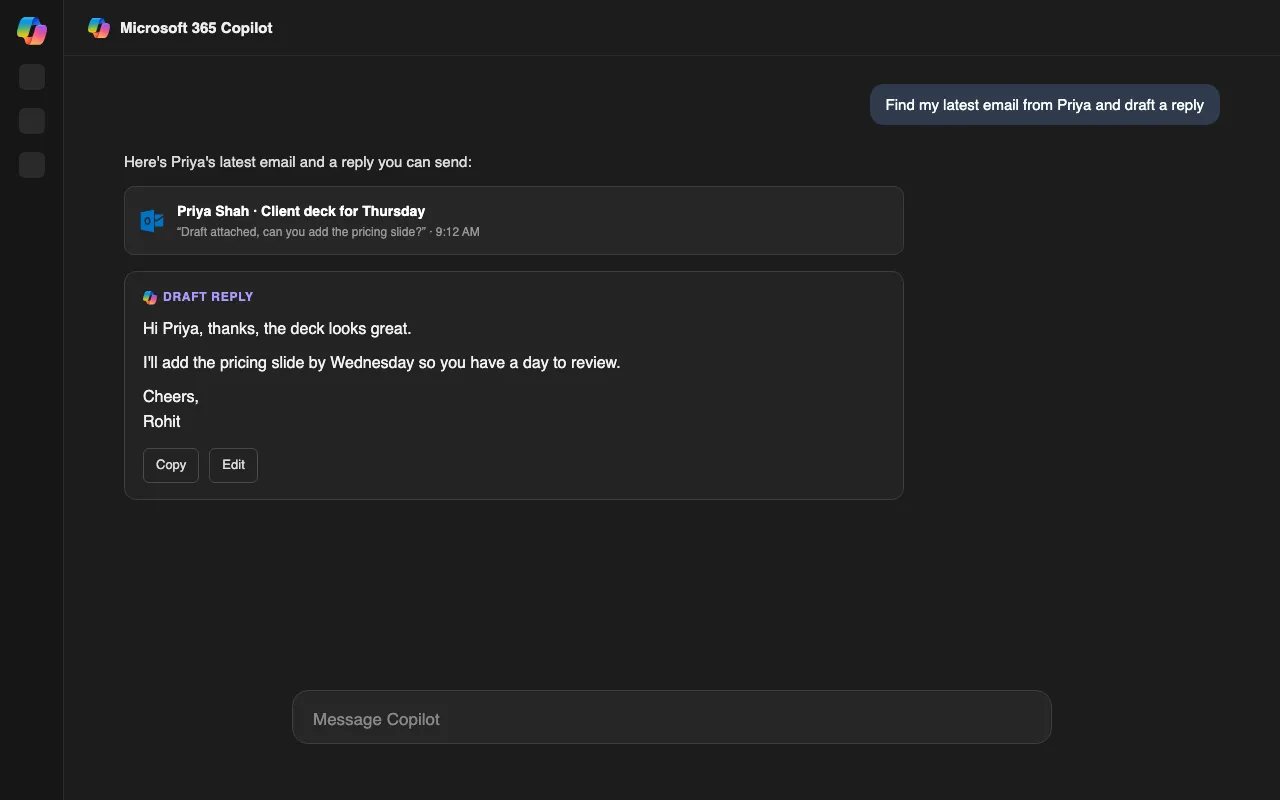
Find my latest email from Priya and draft a reply
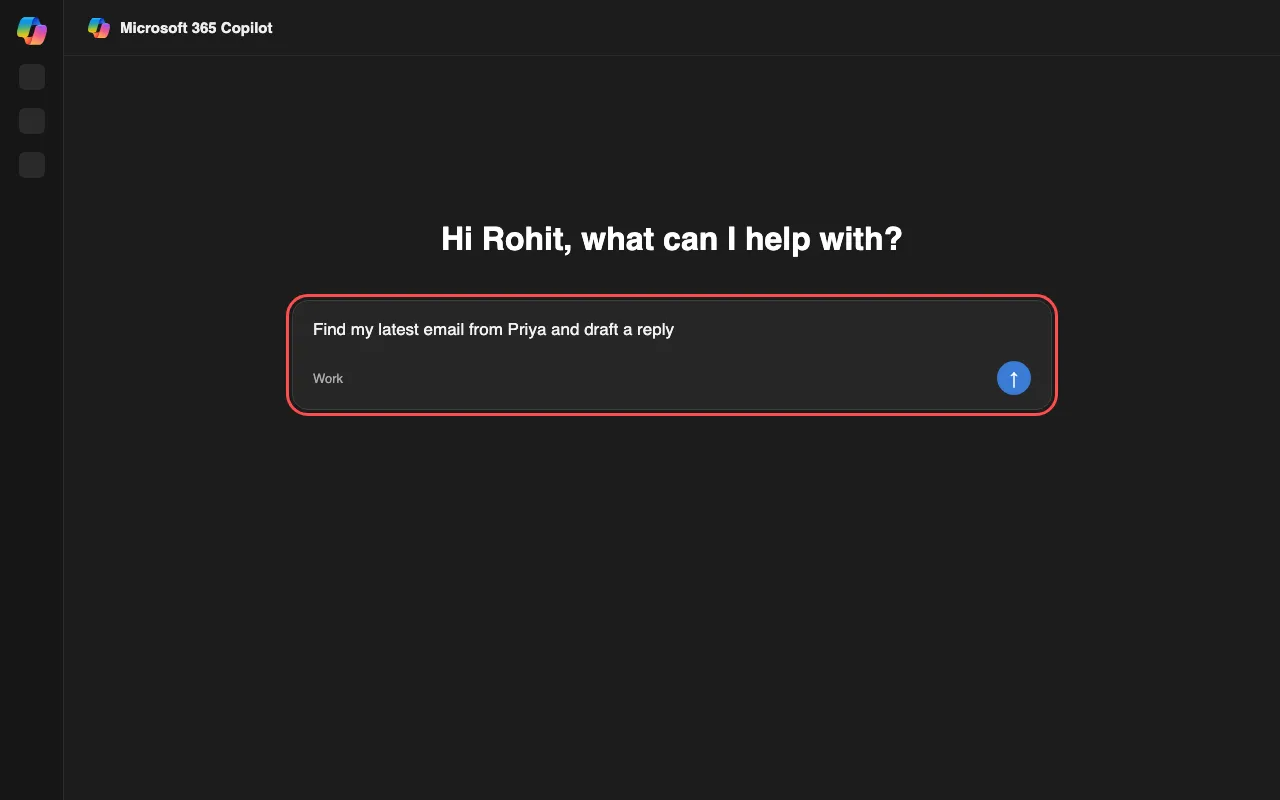
Get the Reply
Copilot finds the email and writes the reply. Read it, copy it into Outlook and send.
Copilot Chat has its own settings, separate from Outlook. To make its replies sound like you too, select ⋯ Settings and more > Chat settings > Personalization. On the Custom instructions tile, select Edit instructions, paste the same lines from step 3 and select Save instructions.
Worth knowing
- If your company already pays for Copilot, you're wasting it without this. Five minutes of setup saves you rewriting every draft.
- Draft Instructions are in new Outlook, Outlook on the web, Outlook for Mac and the Outlook mobile apps. If you don't see Settings in the Copilot menu, your organisation may not have it turned on yet.
- Finding your emails in Copilot Chat needs a Microsoft 365 Copilot licence, because Copilot has to read your mailbox.
- The screens here are simplified, so your Outlook may look a little different. Always read a draft before you send it.