Excel to Dashboard in Copilot
Open Microsoft 365 Copilot
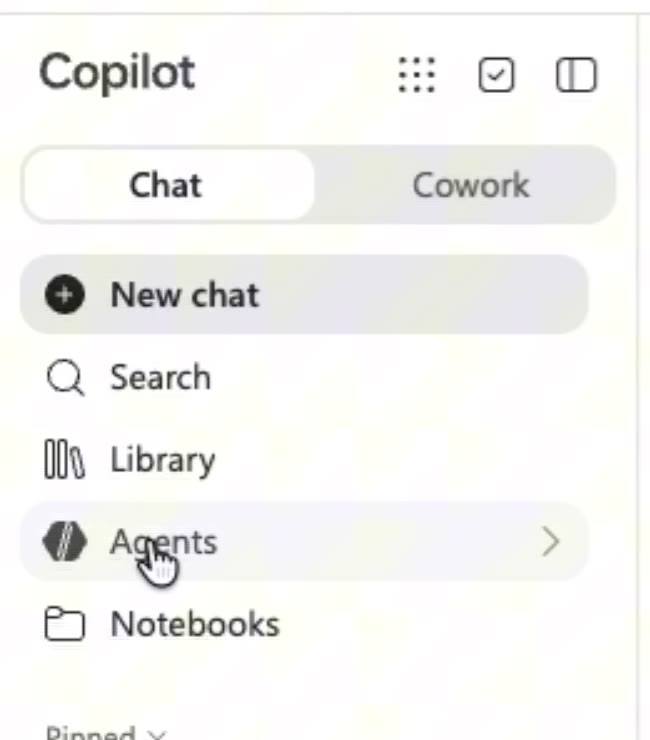
Open Microsoft 365 Copilot and go to Agents.
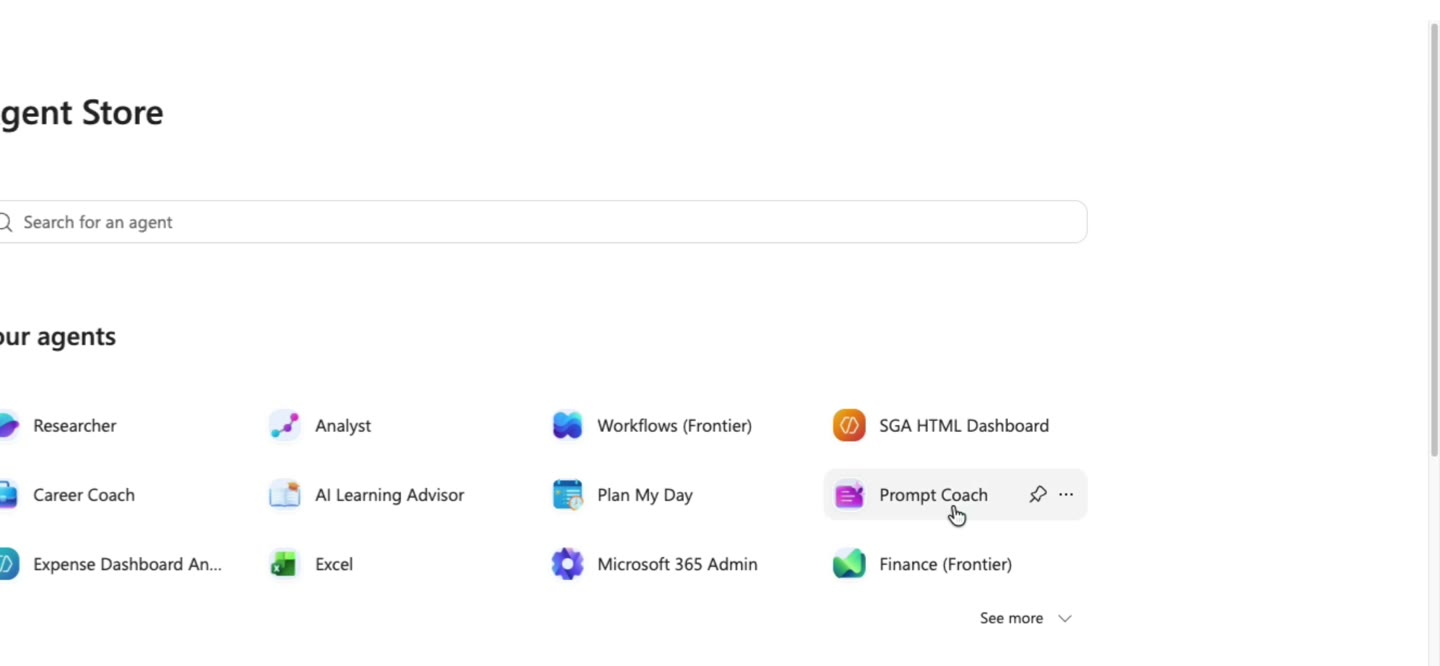
Pick Prompt Coach
Pick Prompt Coach.
Attach your Excel file and paste the prompt
Attach your Excel file, copy the prompt below, paste it and hit send.
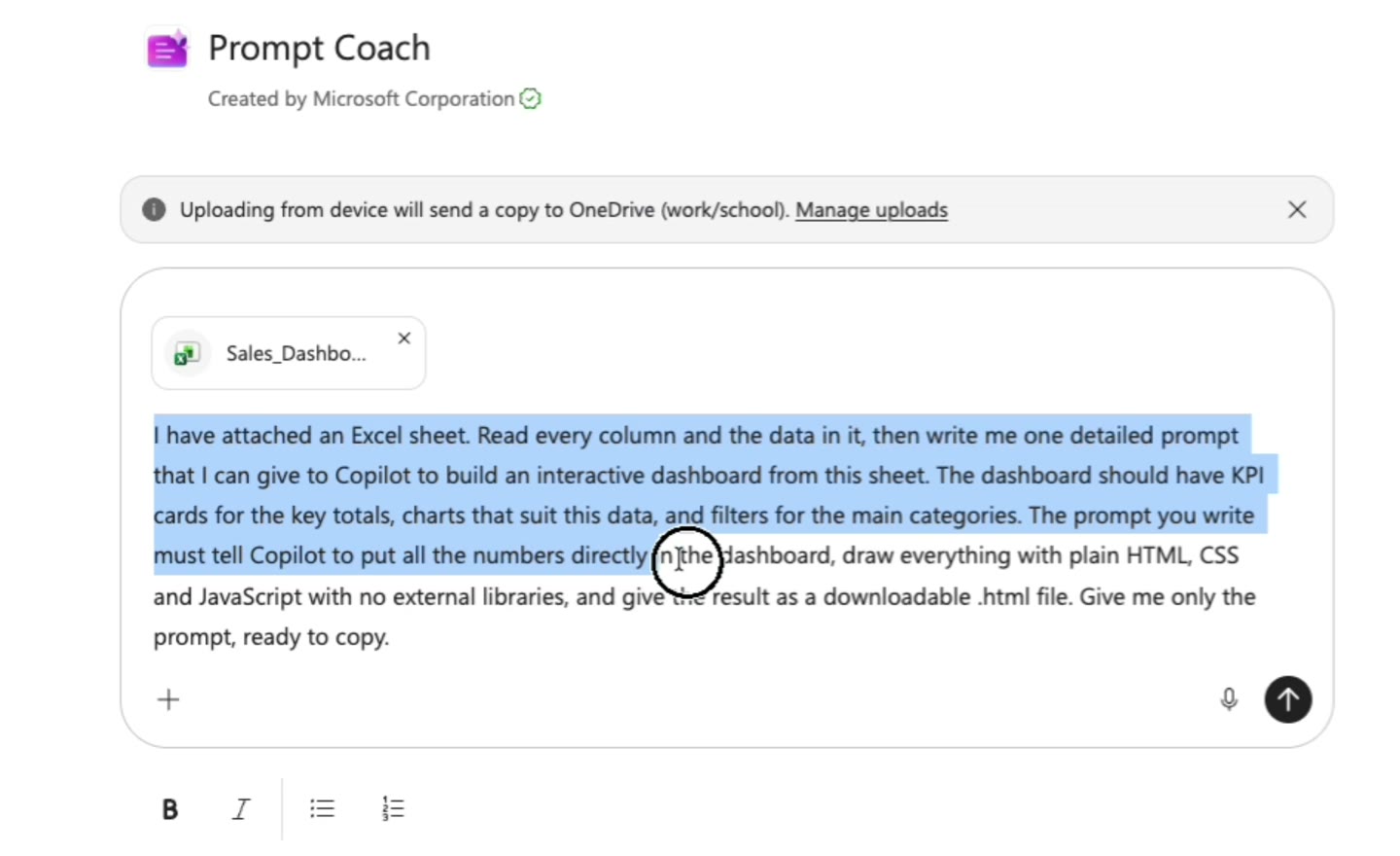
I have attached an Excel sheet. Read every column and the data in it, then write me one detailed prompt that I can give to Copilot to build an interactive dashboard from this sheet. The dashboard should have KPI cards for the key totals, charts that suit this data, and filters for the main categories, styled like a Power BI report page. The prompt you write must tell Copilot to put all the numbers directly in the dashboard, draw everything with plain HTML, CSS and JavaScript with no external libraries, and give the result as a downloadable .html file. Give me only the prompt, ready to copy.
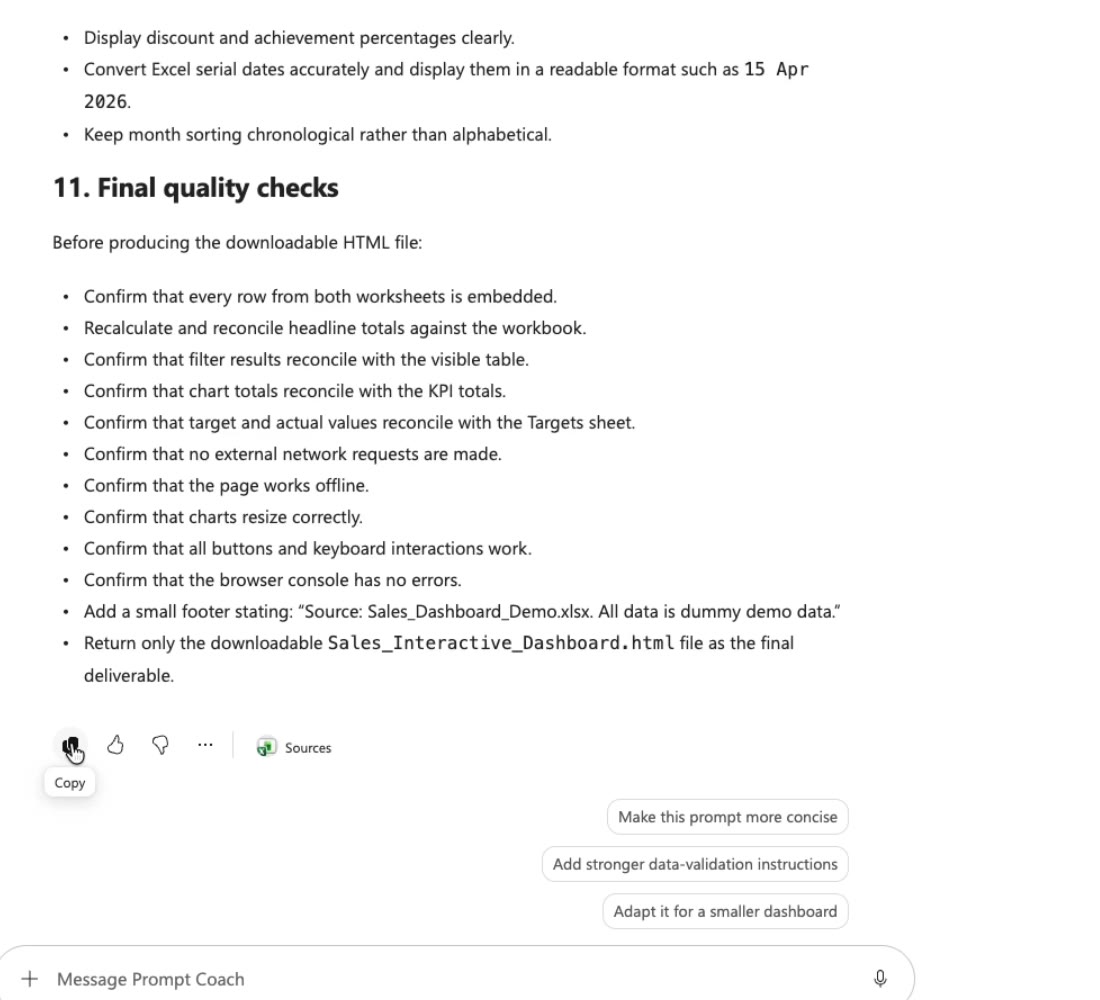
Copy the build prompt
Prompt Coach reads your sheet and writes you a ready prompt. Copy it.
Build the dashboard in Copilot
Go back to regular Copilot, attach the same Excel file, paste the prompt Prompt Coach gave you and hit send.
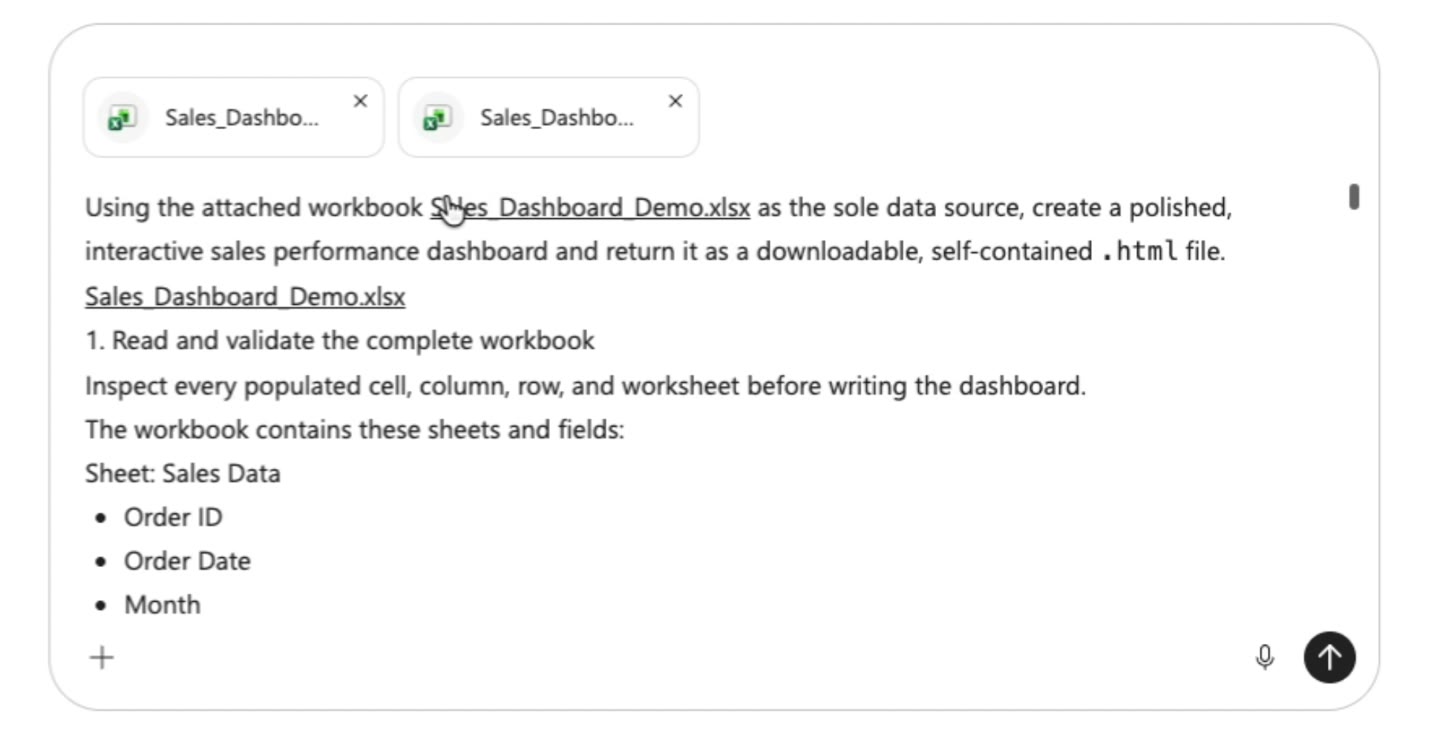
Download your dashboard
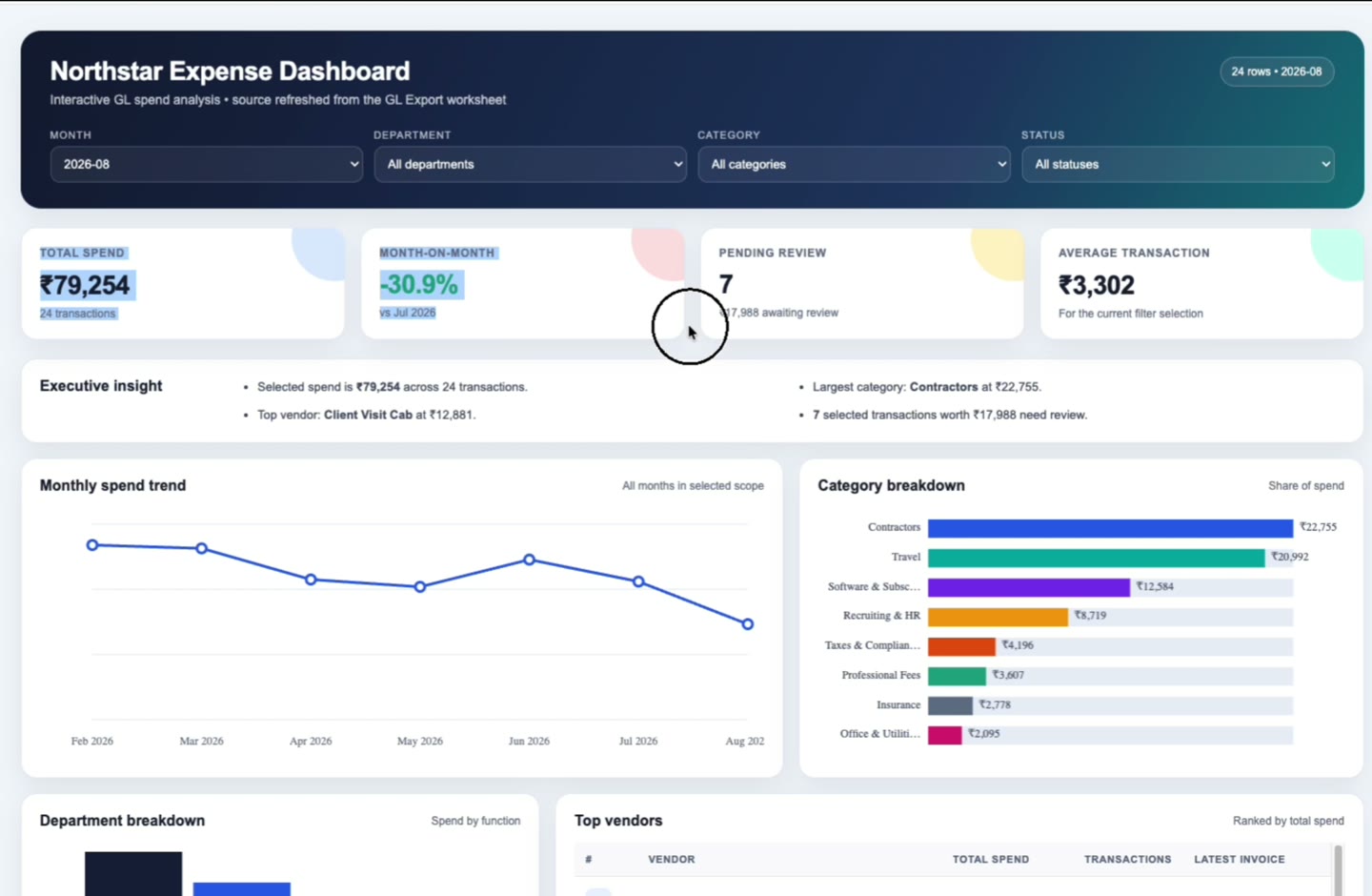
Copilot gives you a downloadable .html file. Download it and open it in any browser.
Fix blank charts
If the charts come out blank, reply with: Rebuild it with plain HTML, CSS and JavaScript, no external libraries.
What You Get
KPI Cards
your key totals at the top, read straight from the sheet
Charts
the right chart for each part of your data
Filters
click to slice by region, category, rep or month
One File
opens in any browser, nothing to install
Easy to Share
send the file in email or your team chat
Prompt Coach
writes the build prompt for you from your own sheet