Run Your Client Business with Claude.
1. How it works
You forward things to one chat. Claude updates one Excel file. A dashboard reads that file. You never open the Excel.
1Inputs
WhatsApp chats, screenshots, photos, notes
2One Claude chat
Claude reads them
3One Excel file
Claude updates the right row
4Live dashboard
Refreshes with one Sync click
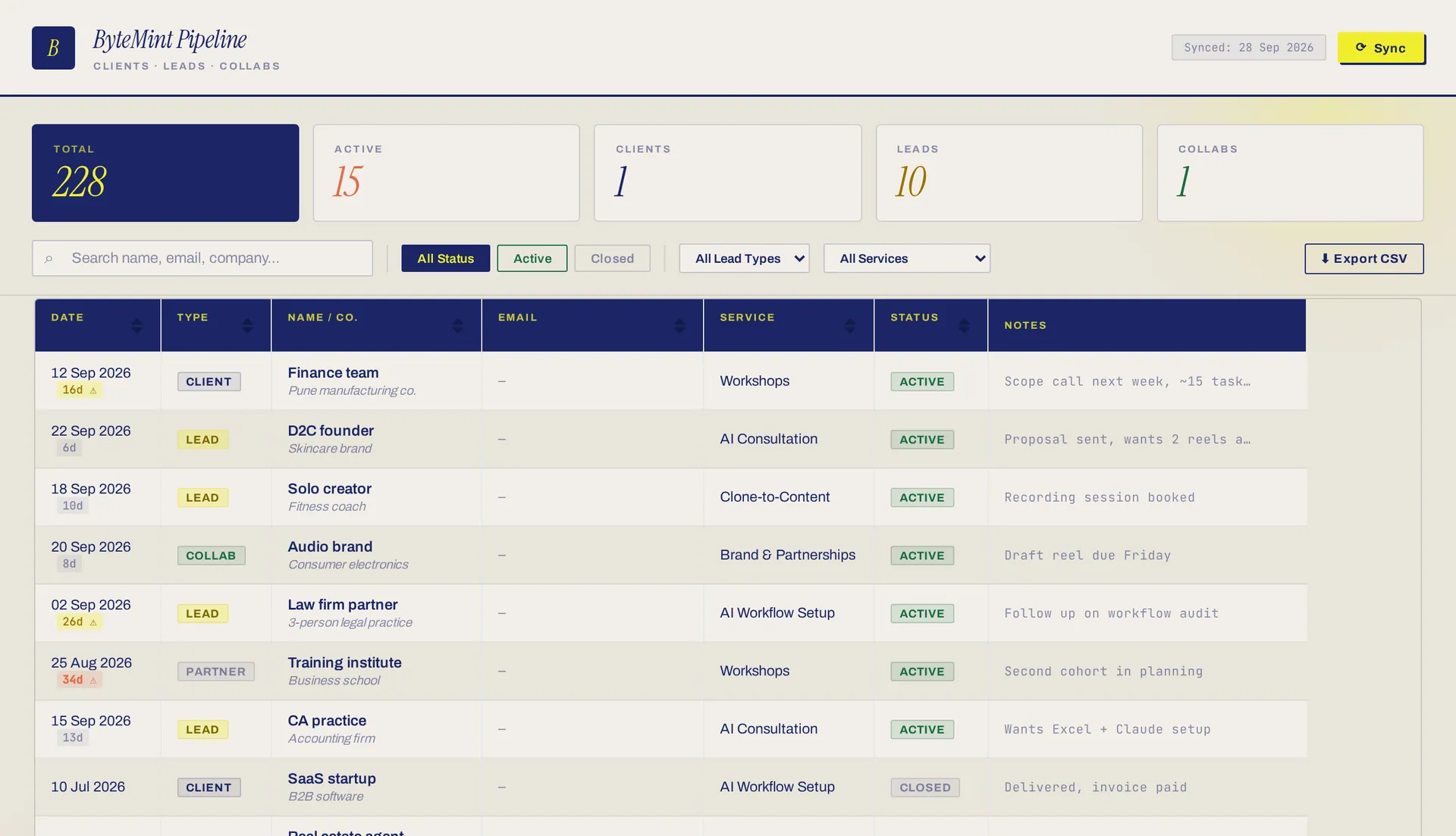
My client pipeline dashboard. Names changed.
2. Set up the client system
Put your lists in one folder
Everything you have, however messy.
- Old client sheets, website signup exports, lead lists
- Invoices or payment records if you have them
- Don't clean anything first. That's Claude's job.
Connect the folder
Open the Claude desktop app and connect that folder.
- Claude can now read and write the files in it
- Nothing outside that folder is touched
Ask Claude to build your master sheet
One prompt turns the mess into one clean file.
- Use the "Build the master sheet" prompt below
- Check the tabs and columns, then ask for changes in plain English
Build the master sheet
Read every file in this folder and build me one client master sheet
in Excel called [Your Business]_Master_List.xlsx.
Tabs:
1. Master List: one row per person. Columns: Category (Lead, Client,
   Collab, Partner), First name, Last name, Email, Brand / Company,
   Service they're interested in, Date, Lead type (Discovery,
   Inbound, Referral, Collab), Requirements, Status (Active or
   Closed), Notes, Phone.
2. Customers: everyone who has paid me. Name, email, products
   bought, number of purchases, total spend, first and last purchase.
3. Invoices: invoice number, date, due date, client, description,
   amount, payment terms, status.
4. Keep in Touch: people to stay in touch with. Name, organisation,
   context, how we met, last contact, next follow-up, open items,
   priority.
5. [Optional fifth tab, e.g. Potential Team]
Rules:
- Merge duplicates. If the same person appears twice, keep one row
  and combine the notes.
- Don't guess missing details. Leave them blank and list them for me
  at the end.
- Freeze the header row on every tab.
When you're done, tell me how many rows went into each tab.
Build the dashboard
Ask Claude for a live dashboard that reads the Excel.
- Use the "Build the pipeline dashboard" prompt below
- It lives in Claude and opens like an app
Build the pipeline dashboard
Build a live dashboard from the Master List tab of
[Your Business]_Master_List.xlsx.
1. Header: my business name, "Clients · Leads · Collabs", the last
   synced date, and a Sync button.
2. Five stat cards: Total, Active, Clients, Leads, Collabs. Clicking
   a card filters the table.
3. A search box, Active / Closed filter, Lead type and Service
   dropdowns, and an Export CSV button.
4. A table: Date, Type, Name and company, Service, Status, Notes.
   Type and Status as small coloured badges.
5. For Active rows, show how many days old they are. Flag them
   amber after 14 days and red after 30.
6. Clicking a row opens the full record with untruncated notes.
Style: [your colours and fonts, or "clean, calm, editorial"].
Use my real data. No placeholder rows.
Add the Sync button
One click re-reads the Excel and refreshes the dashboard.
- Use the "Add a Sync button" prompt below
- It checks the totals match before it publishes, so a broken dashboard never goes live
Add a Sync button
Set up a scheduled task called "[business]-pipeline-sync" that runs
only when I trigger it (no schedule). It should:
1. Read the Master List tab of [Your Business]_Master_List.xlsx.
2. Rebuild the dashboard's data from it.
3. Check the row count and totals match the Excel. If they don't,
   stop and tell me. Don't publish.
4. Check the dashboard actually renders with data. If it would show
   empty or zero, stop and tell me.
5. Only then update the dashboard and set the synced date to today.
Then wire the dashboard's Sync button to run this task.
Make one chat your inbox
Start a Claude chat called "Clients" and paste the instructions prompt below as your first message.
- From now on, forward anything client-related to this chat
- WhatsApp screenshots, business card photos, call notes
- Claude updates the right row and tells you what changed
Instructions for your Clients chat
This chat is my client inbox. Whenever I send you anything here, a
screenshot, a photo, a forwarded message or a note:
1. Work out who it's about. Match them to an existing row in the
   Master List tab of [Your Business]_Master_List.xlsx, or create a
   new row if they're new.
2. Update only what changed: status, service, notes, next step,
   follow-up date. Never delete a row.
3. If you're not sure who it is, or something is ambiguous, ask me
   before writing anything.
4. Reply with a short summary of exactly what you changed, like:
   "Updated [name]. Stage: Lead to Proposal sent. Follow-up Friday."
5. Then run the pipeline sync so the dashboard is current.
3. Same system for your P&L
Same flow. Money in, money out.
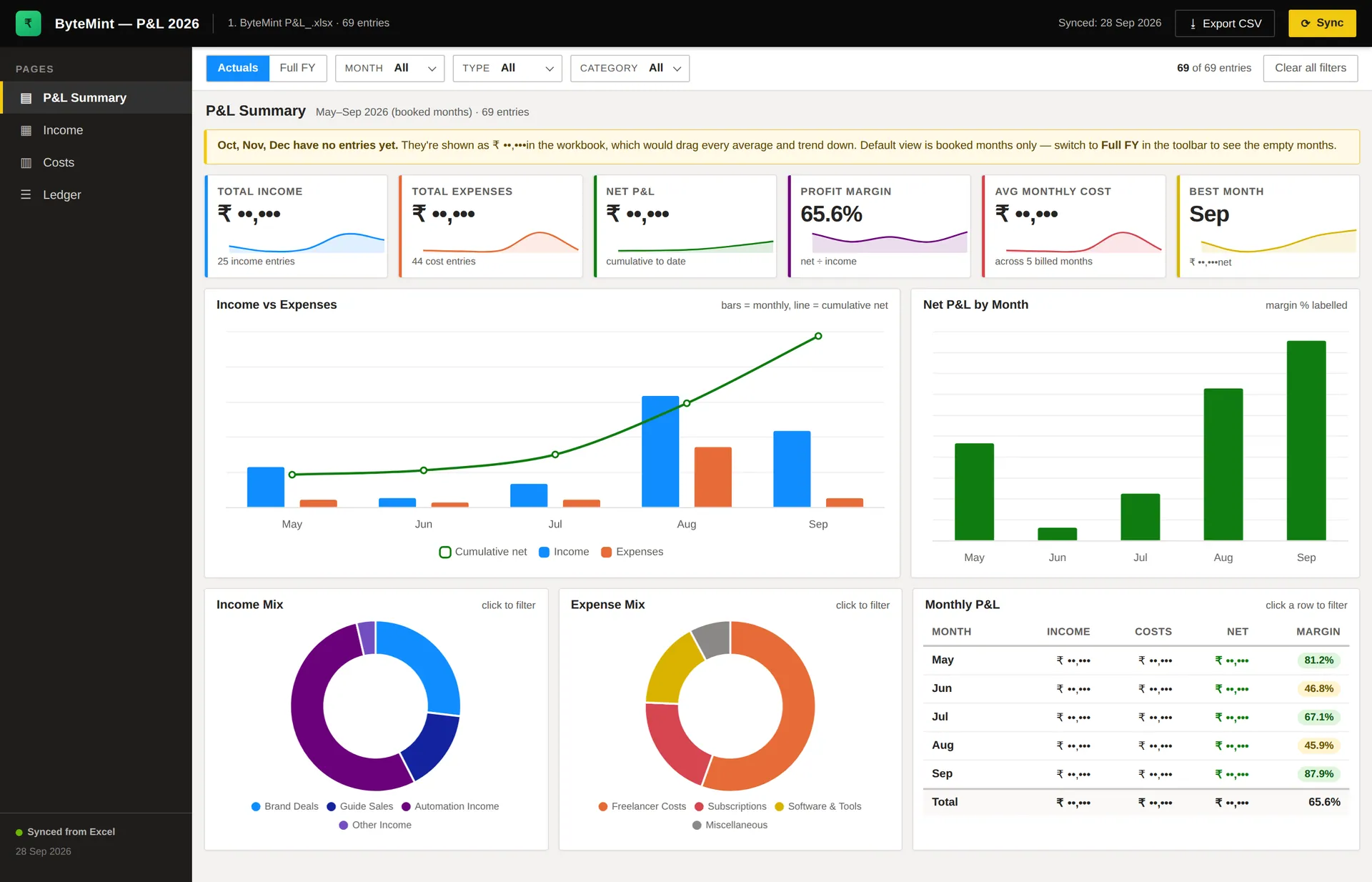
My P&L dashboard. Amounts hidden.
Build the P&L workbook
One sheet per income stream and per cost type.
- Use the "Build the P&L workbook" prompt below
- A summary sheet rolls everything up by month
Build the P&L workbook
Build me a P&L workbook in Excel called [Your Business]_P&L.xlsx.
1. One sheet per income stream: [e.g. Client Projects, Guide Sales,
   Brand Deals, Other Income].
2. One sheet per cost type: [e.g. Freelancers, Subscriptions,
   Software, Miscellaneous].
3. Every sheet has the same columns: Month, Description, Amount.
4. A P&L Tracker sheet: months across, every stream and cost type
   down, then Total Income, Total Expenses, Net P&L and Profit
   Margin %. All formulas, nothing typed in.
5. A Monthly View sheet with income, costs, net and margin per month.
Currency: [₹ / $]. Financial year: [start month].
If I've given you any existing records in this folder, fill them in.
Build the P&L dashboard
Summary, income, costs and a full ledger.
- Use the "Build the P&L dashboard" prompt below
Build the P&L dashboard
Build a live dashboard from [Your Business]_P&L.xlsx.
1. A sidebar with four pages: P&L Summary, Income, Costs, Ledger.
2. A filter bar that never hides: Actuals / Full year toggle, Month,
   Type and Category dropdowns, and Clear all filters.
3. Summary page: six KPI cards with sparklines (Total Income, Total
   Expenses, Net P&L, Profit Margin, Average Monthly Cost, Best
   Month), an Income vs Expenses chart with a cumulative net line,
   Net P&L by month, Income Mix and Expense Mix donuts, and a
   Monthly P&L table.
4. Income page: by stream, monthly stacked, and revenue concentration.
5. Costs page: by category, monthly stacked, spend by vendor, and
   cost as % of income.
6. Ledger page: every entry, searchable.
7. Only count months that have entries, unless I switch to Full year.
Use my real data. Every total must match the P&L Tracker sheet.
Add the same Sync button
- Reuse the "Add a Sync button" prompt, pointing it at the P&L file
Start a "P&L" chat
Paste the P&L chat instructions as the first message.
- Forward payment screenshots, invoices and bills
- Claude logs each one in the right sheet and month
Instructions for your P&L chat
This chat is my money inbox. Whenever I send you a payment
screenshot, invoice, bill or note:
1. Work out if it's income or a cost, which sheet it belongs to,
   the month, a short description and the amount.
2. Add it as a new row in the right sheet of [Your Business]_P&L.xlsx.
   Never overwrite existing entries.
3. If the amount, month or category isn't clear, ask me first.
4. Reply with exactly what you logged, like:
   "Added ₹[amount] to Guide Sales, September."
5. Then run the P&L sync so the dashboard is current.
4. What you get
One master file
Every client, lead, collab, invoice and follow-up.
A chat as your inbox
Forward it. Claude updates the right row.
Live dashboards
Pipeline and P&L, one Sync click away.
Built-in checks
If the numbers don't match, nothing publishes.