AI Add-ins Inside PowerPoint: Claude vs ChatGPT vs Copilot.
 Claude
Open PowerPoint
Works the same whether you're on the desktop app or PowerPoint for web.
Open Add-ins
From the Home tab, click Add-ins, then Get Add-ins.
Find Claude
Search "Claude" in Microsoft AppSource and select the one published by Anthropic.
Add And Sign In
Click Add, then sign in with your Claude account.
Start Using It
The sidebar opens. The free tier works, and it's also available on Pro, Max, Team, and Enterprise.
 ChatGPT
Open PowerPoint
Works the same whether you're on the desktop app or PowerPoint for web.
Open Add-ins
From the Home tab, click Add-ins, then Get Add-ins.
Find ChatGPT
Search "ChatGPT" in Microsoft AppSource and select the one published by OpenAI.
Add And Sign In
Click Add, then sign in with your OpenAI account.
Start Using It
The sidebar opens. The free tier works, and it's also available on Go, Plus, Pro, Business, Enterprise, and Edu.
 Copilot
Not install-and-go like the other two — you need a qualifying license first.
Check Your License
You need either a Microsoft 365 Personal, Family, or Premium subscription (individual route, ~$20/month), or a Microsoft 365 Copilot add-on assigned by your IT admin on top of a Business or Enterprise plan (corporate route).
Open PowerPoint
Sign in with the Microsoft 365 account that holds the license.
Look For The Icon
The Copilot icon appears automatically in the Home ribbon — no separate install.
Missing? Check With IT
If it's not there, the license isn't assigned yet — check with your IT admin.
What We Found
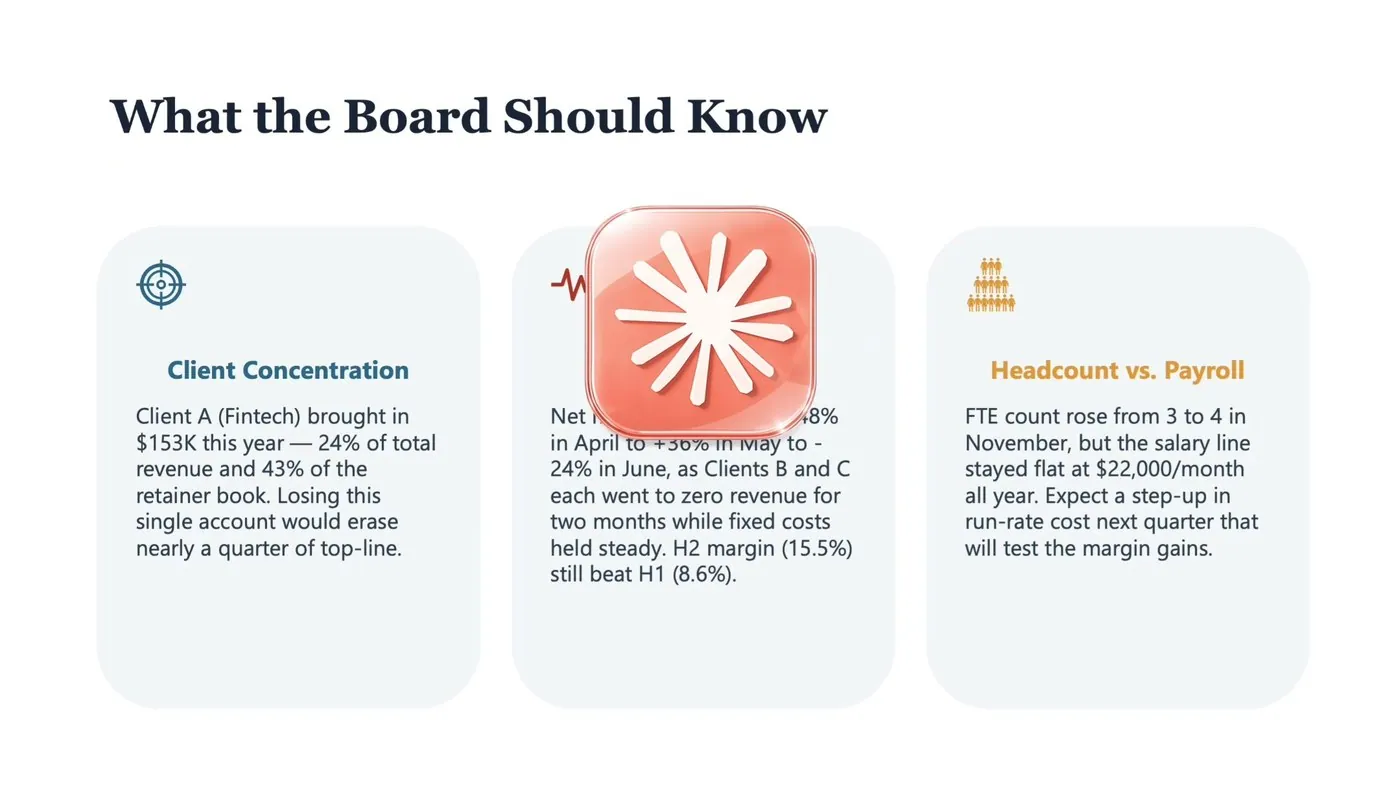
Claude
Numbers matched the source file exactly — and the simplest design of the three.
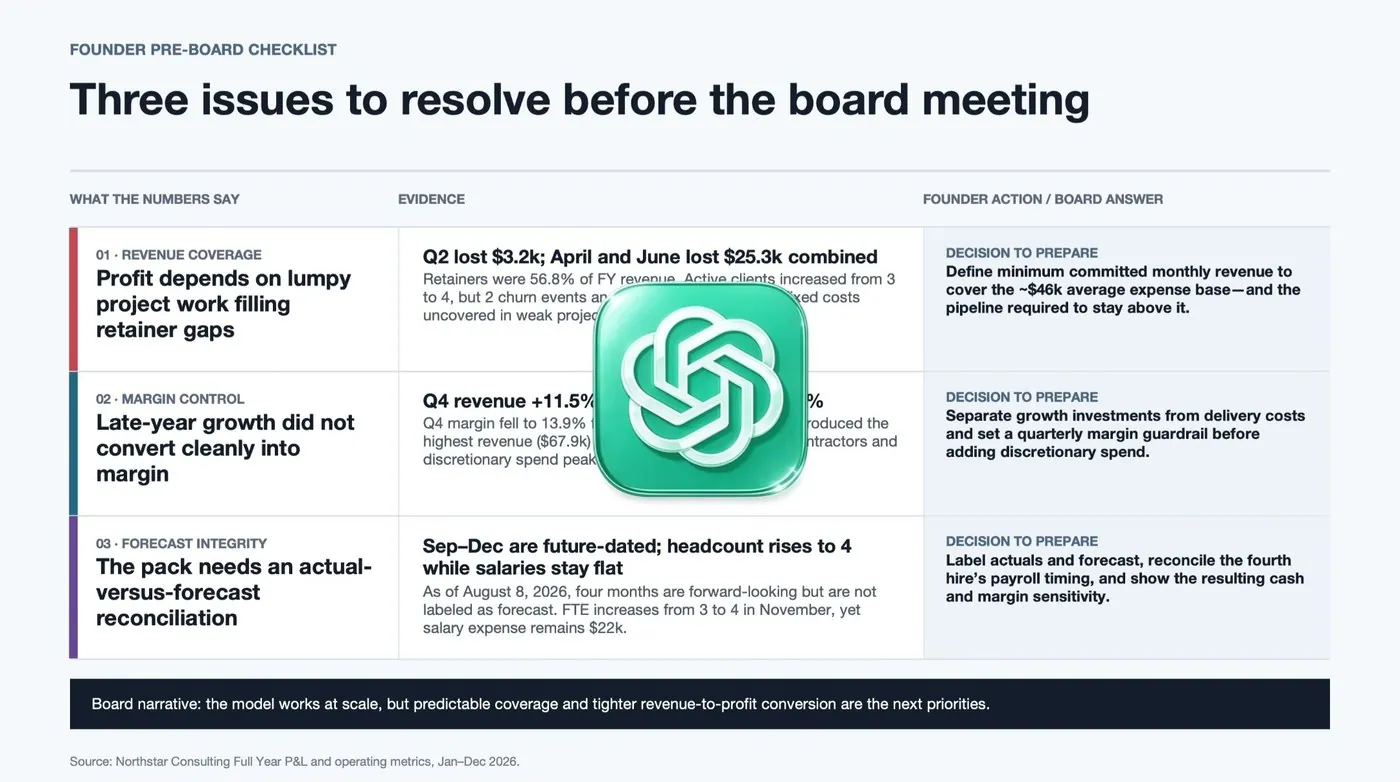
ChatGPT
Accurate numbers, and it caught a forecast-dating issue nobody asked it to check.
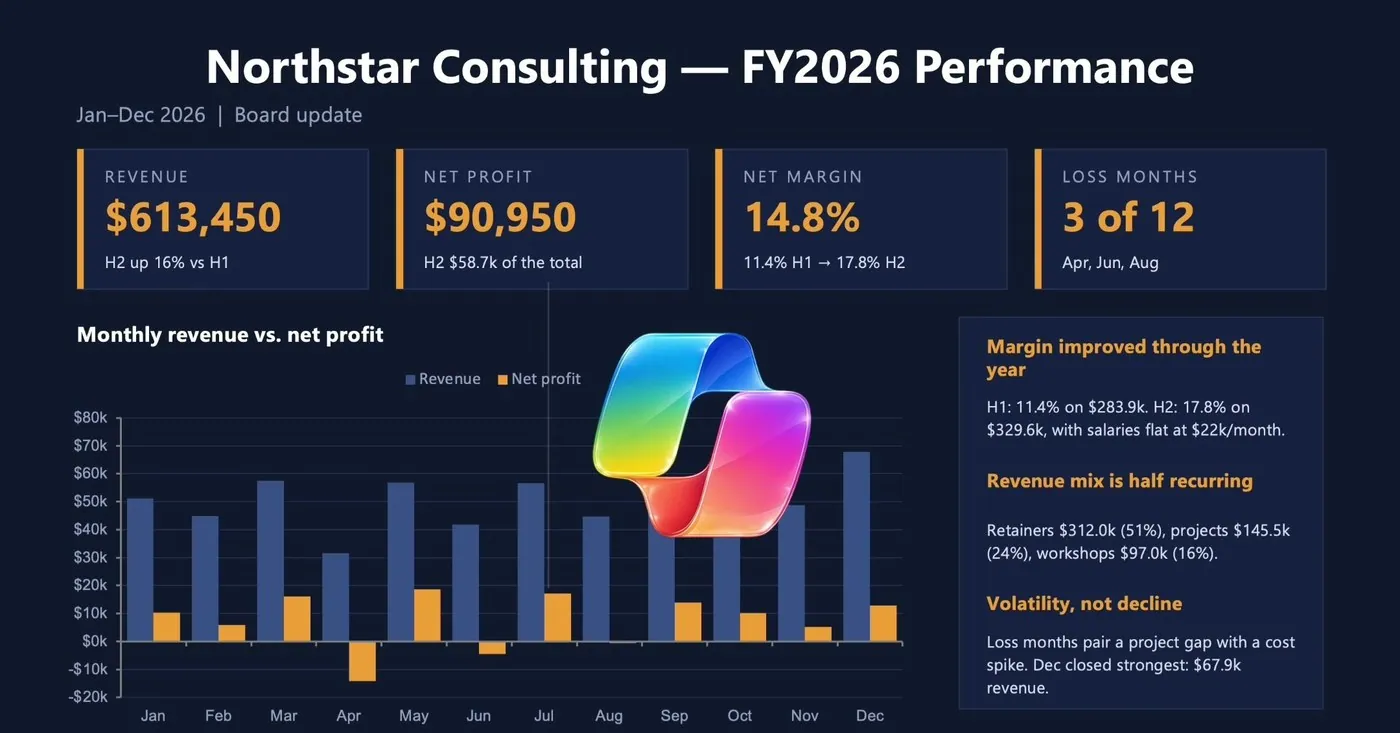
Copilot
Best-looking slide by far — but the numbers were inaccurate in testing.
Prettiest slide: Copilot. Sharpest thinking: ChatGPT. Numbers you can trust without double-checking: Claude. If you're building a board deck with real money behind it, accuracy is the one that matters most.