ByteMint Guide
Connect Apple Notes with Claude.
1
Step
Connect Apple Notes to Claude
Go to Settings, click Connectors, click Add, click Browse Connectors, search for Apple Notes, and add it.
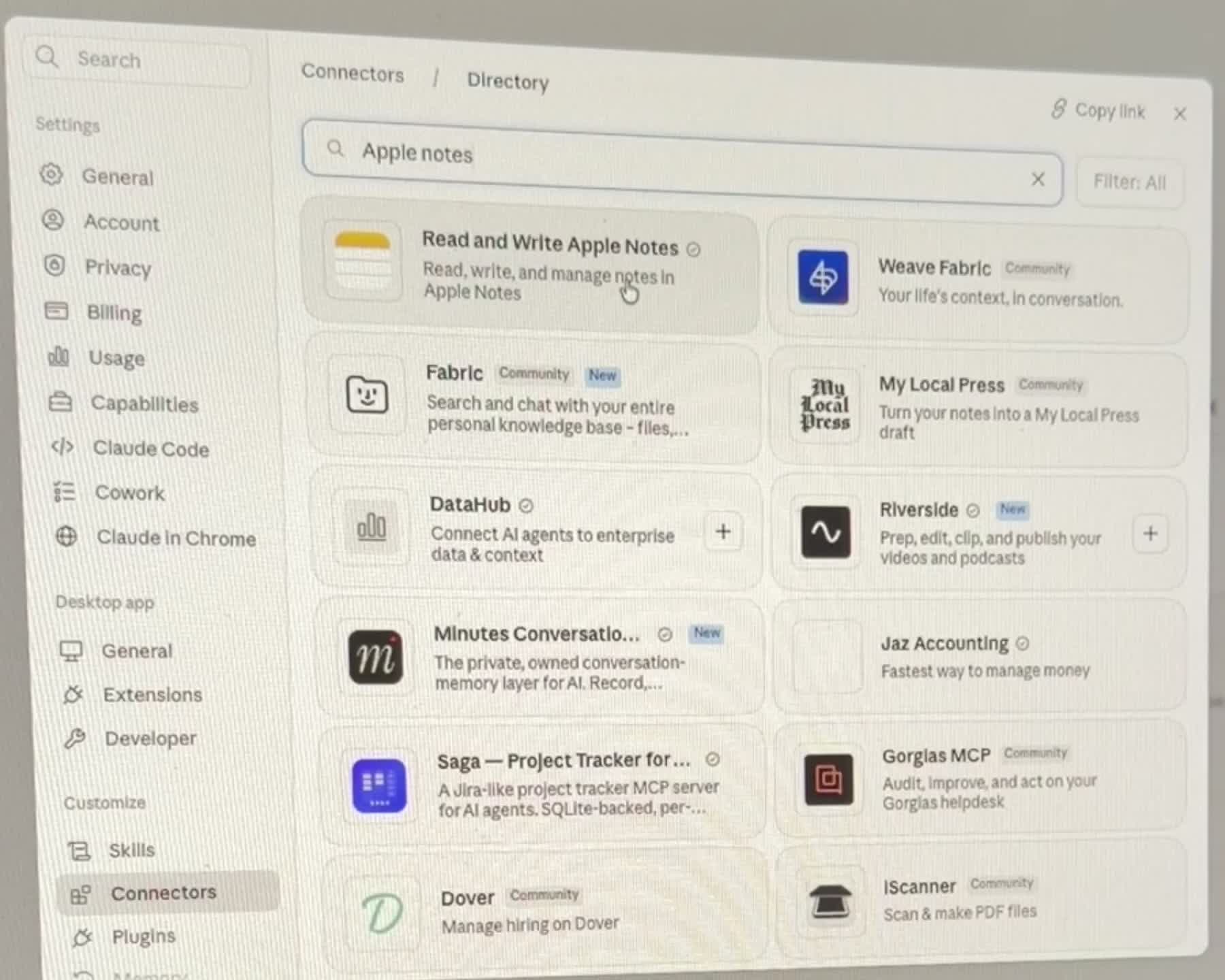
Apple Notes, found in the Connectors directory.
2
Step
Open A New Chat And Paste The Prompt
Open a new chat and paste the prompt below.
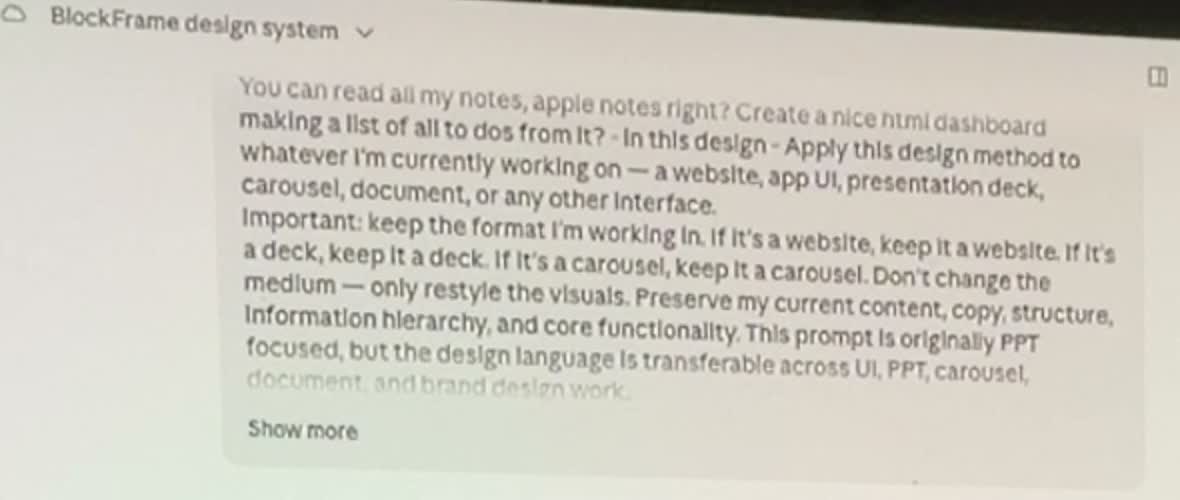
The prompt, pasted into a new chat.
3
Step
Claude Reads Every Note, Even Handwritten Ones
It reads every note, including handwritten lists saved as photos, transcribes them, and flags anything illegible instead of guessing.
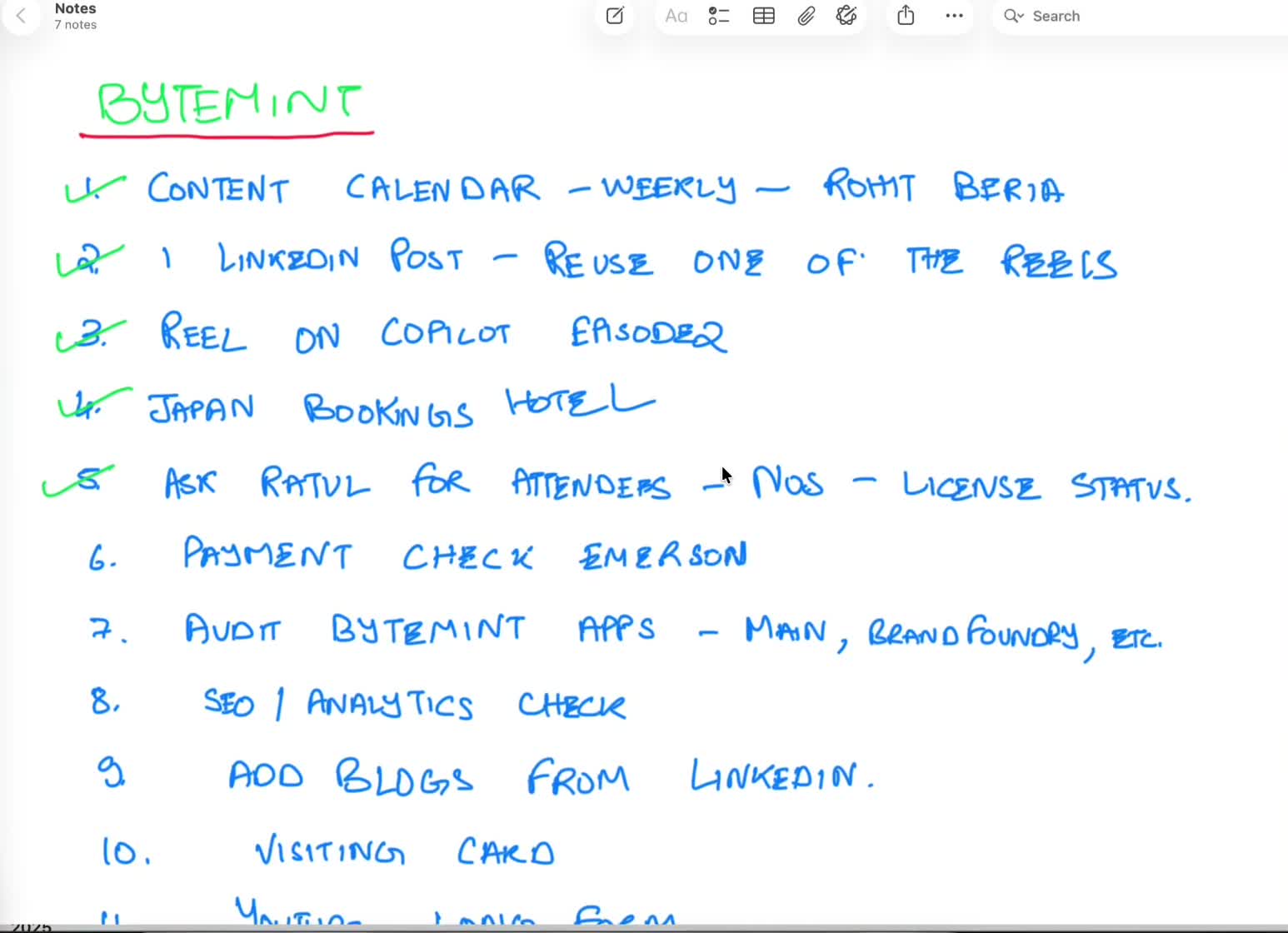
A handwritten note, transcribed straight from the photo.
4
Step
Get Back A Live, Checkable Dashboard
Check items off, filter by All, Open, or Done, and your ticks persist even after you close it.
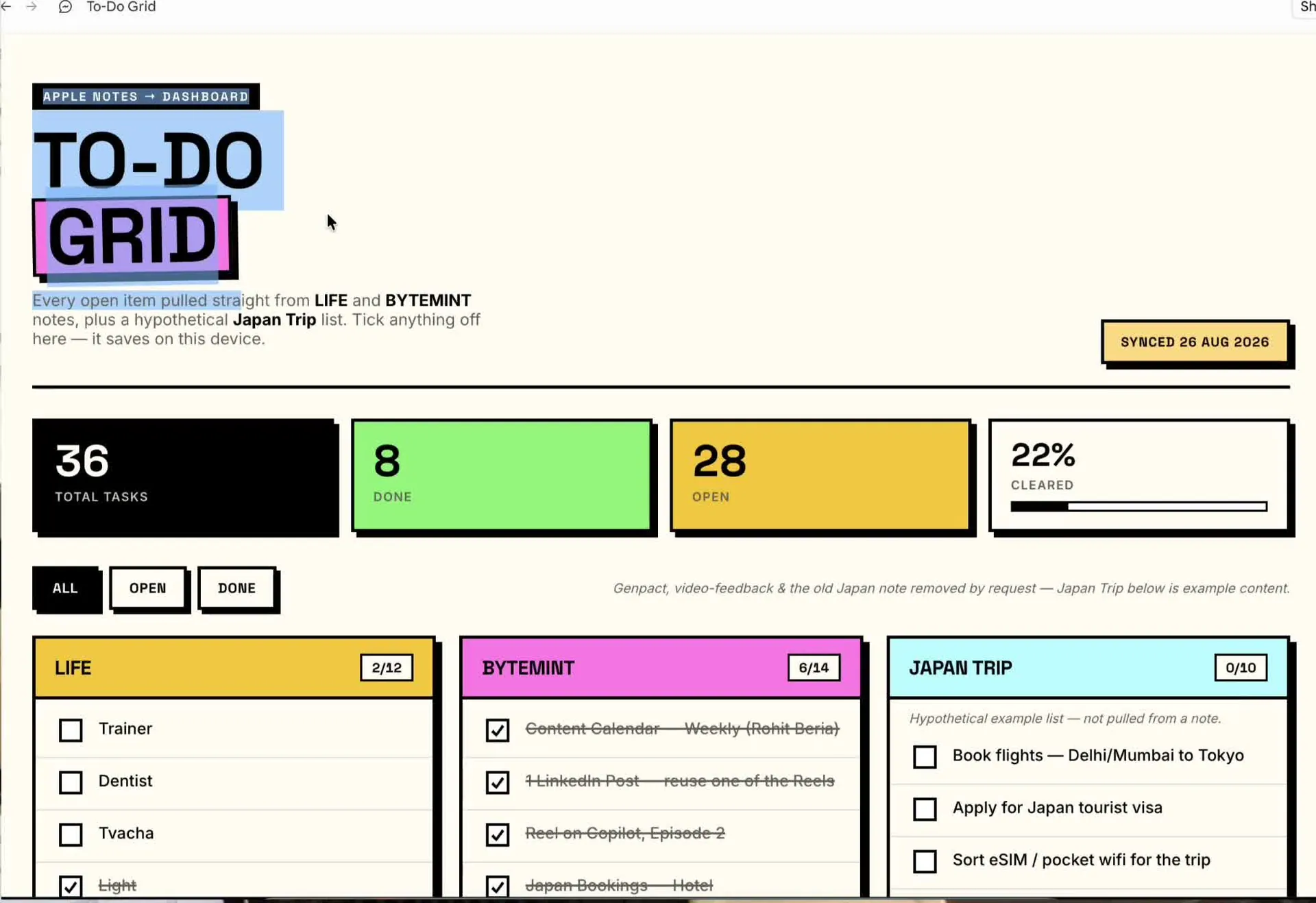
The finished dashboard, grouped by note.
The Prompt
Prompt
Read all my Apple Notes and build me a single-file HTML to-do dashboard from them, styled in the BlockFrame design system below.

1. Pull the to-dos

- List every note, then read each one.
- Some notes will be plain text with numbered or bulleted lists — parse those directly.
- Some notes will be handwritten lists captured as a photo/screenshot embedded in the note (a single large image, little or no text). For those: extract the image data, save it as a file, and read the image directly to transcribe the list — don't skip a note just because it returns almost no text.
- Note which items are already marked done — a checkmark, tick, strikethrough, or checked box next to an item means it's complete. Leave everything else open.
- Transcribe items as written. Don't paraphrase, expand abbreviations, or guess at unclear handwriting — if a line is illegible or ambiguous, include it with a short flag (e.g. "handwriting unclear") rather than inventing what it probably says.
- Group items by their source note (each note = one category/list on the dashboard).
- Skip notes that aren't to-do lists — pure contact lists, reference info, journal entries, etc. — and skip anything named or clearly intended as private/secret (e.g. a note titled "Secret" or "Important - Private"). Don't ask permission to skip these, just leave them out and mention what you excluded.
- If nothing looks like a to-do across the whole account, say so rather than forcing a dashboard out of unrelated notes.

2. Build the dashboard in the BlockFrame design system

Single self-contained HTML file (inline CSS/JS, no external assets except Google Fonts). This is a UI to be scanned and operated, not a document to be read top to bottom — lead with the summary, make state visible at a glance, make interactive elements look interactive.

Palette (off-white ground, neon-pastel blocks, heavy black borders/shadows — light scheme only):
offwhite: #FFFDF5, black: #000000, pink: #FE90E8, blue: #C0F7FE, green: #99E885, yellow: #F7CB46, cream: #FFDC8B

Assign one accent color per category card — cycle through pink / blue / green / yellow / cream in the order the notes appear.

Typography: Space Grotesk (display, 700–800 weight, poster-scale headlines) paired with Inter (body, 400–600). Load both from Google Fonts. Heavy weights throughout — this is a graphic, pop-art tone, not a quiet institutional one.

Grammar to follow:
- Chunky black borders (2.5–3px) on every card, tile and button; offset drop-shadows (hard-edged, not blurred) that shift on hover/press for a tactile, physical feel.
- High density: a stat strip up top (total tasks / done / open / % cleared with a progress bar), then a grid of category cards below.
- Each category card: colored header bar with the list name and a live "x/y done" counter, checklist below with real checkbox elements (custom-styled, not decorative) so it's keyboard- and screen-reader-accessible.
- Checking an item strikes it through and updates the stats and per-card counters live.
- Add All / Open / Done filter buttons in the same chunky-button style.
- Persist checked state in localStorage (wrapped in try/catch) so ticks survive a refresh.
- Keep copy direct and free of filler; state plainly what was excluded and why (e.g. "References note skipped — contact list, not a to-do").

3. Deliver it

This is a dashboard the person will reopen and re-check items on — persist it as an Artifact rather than only dropping it in chat, so it has a durable link. Tell them what notes fed it and what was left out.
What You Get
Reads Handwritten Notes
Transcribes lists saved as photos, not just typed text.
Flags What It Can't Read
Never guesses at illegible handwriting, tells you instead.
Skips Private Notes Automatically
Anything marked secret or private is left out, no need to ask.
Persists Across Sessions
Checked items stay checked, even after closing the dashboard.
Claude Master Guide
The complete ByteMint Claude collection
Buy →

Join ByteMint's Inner Circle
WhatsApp Community
Join →
For teams
AI automation and hands-on workshops for your team.